I'm coming from Publisher. What's different in Korva?
Korva's ribbon uses Publisher's tab names (Home, Insert, Page Design, Mailings, Review, View), and most shortcuts are the same. Publisher's task panes are replaced by one Format pane on the right. Korva opens .pub files but saves its own .kva files (Pro) and exports PDF; it can't save back to .pub. The short in-app tour is under Help, then Coming from Publisher.
- In Publisher
- Microsoft Publisher 2003 to 2021 and Microsoft 365
- In Korva
- Help, then Coming from Publisher
Korva was made for people who used Microsoft Publisher. Your .pub files open with their layout, and the commands are where you’d look for them. A few things work differently.
Take the in-app tour
-
On the start screen, click Coming from Publisher? See how everything maps ›. With a publication open, click the Help tab, then Coming from Publisher.

- 1Coming from Publisher?

- 1Help tab
- 2Coming from Publisher
-
The tour shows four things, one at a time: where Publisher’s thing was, and where it is in Korva. Click Next → to go on, or press the right arrow key.


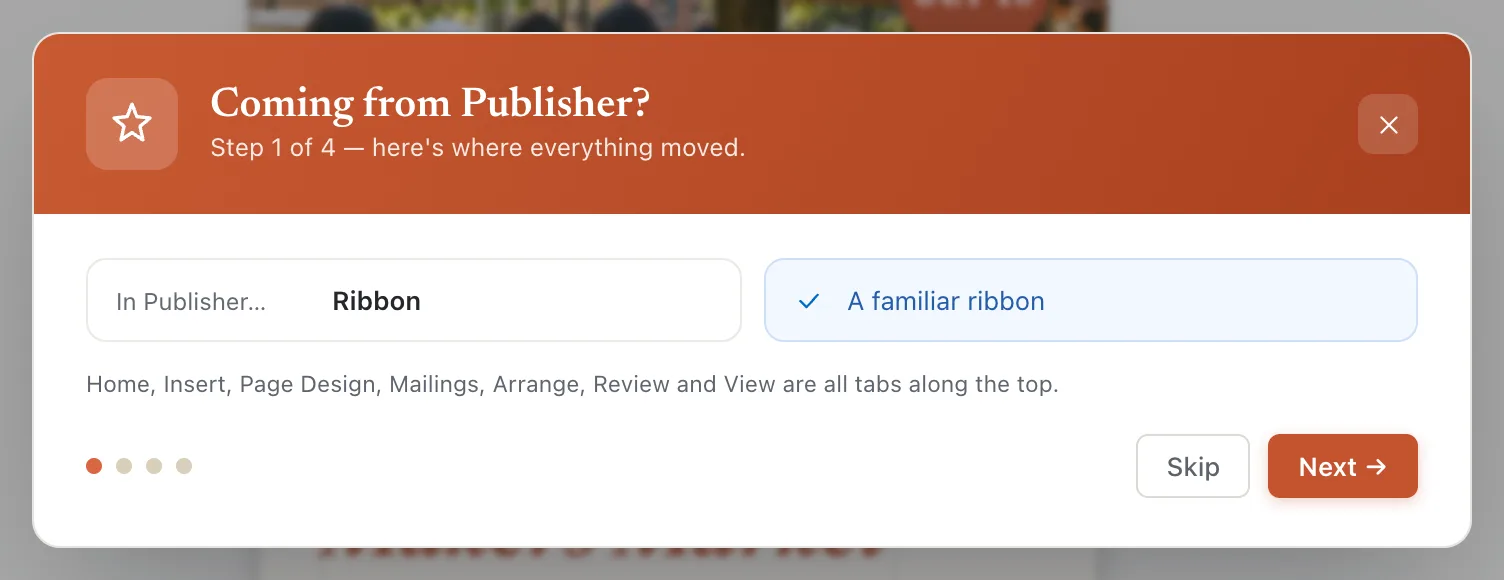
- 1Publisher → Korva
- 2Next
The four steps are:
| In Publisher | In Korva |
|---|---|
| Ribbon | A familiar ribbon: Home, Insert, Page Design, Mailings, Arrange, Review and View |
| Task panes | The Format pane on the right |
| Page navigation | Page thumbnails on the left |
| Building Blocks | Insert, then Building Blocks |
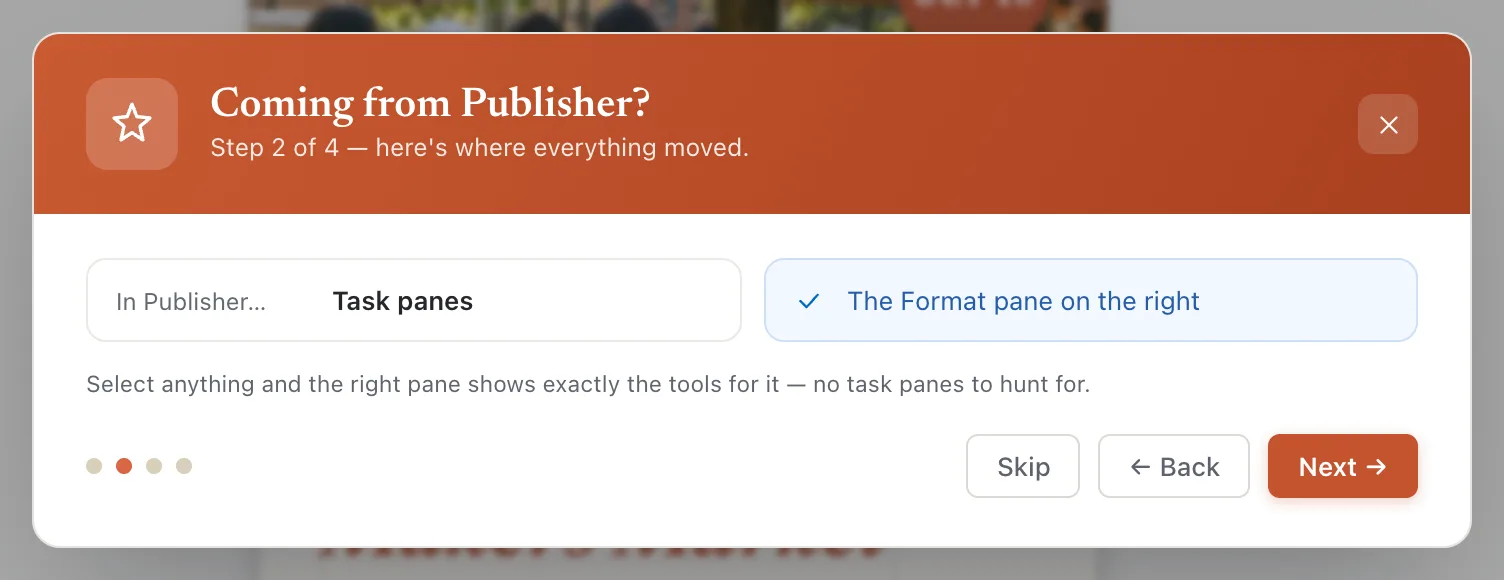
Click Start editing → on the last step, or Skip at any time. You can open the tour again from the Help tab.
What stays the same
- The ribbon tabs. Home, Insert, Page Design, Mailings, Review and View have the same names as in Publisher, and File opens a full-window page with New, Open, Info, Save, Print and Export.
- Keyboard shortcuts. Most of Publisher’s work in Korva: F7 for spelling, F9 for 100%, ⌘⇧NCtrl+Shift+N to insert a page, ⌘⇧CCtrl+Shift+C and ⌘⇧VCtrl+Shift+V to copy and paste formatting. See Keyboard shortcuts.
- Text boxes that flow. Linked text boxes, columns, drop caps, WordArt, master pages, mail merge and Avery labels are all there (master pages, mail merge and Avery labels need Pro). See Linked text boxes.
- Your .pub files. Korva opens files from Publisher 2003 and later with their pages, text boxes and pictures in place. See Open a Publisher file.
What’s different
One Format pane instead of task panes
Publisher spread its settings over task panes, dialog boxes and Format tabs. In Korva, select something and the Format pane on the right shows its settings, with tabs for that kind of object. A picture has Picture, Frame, Arrange and Accessibility.
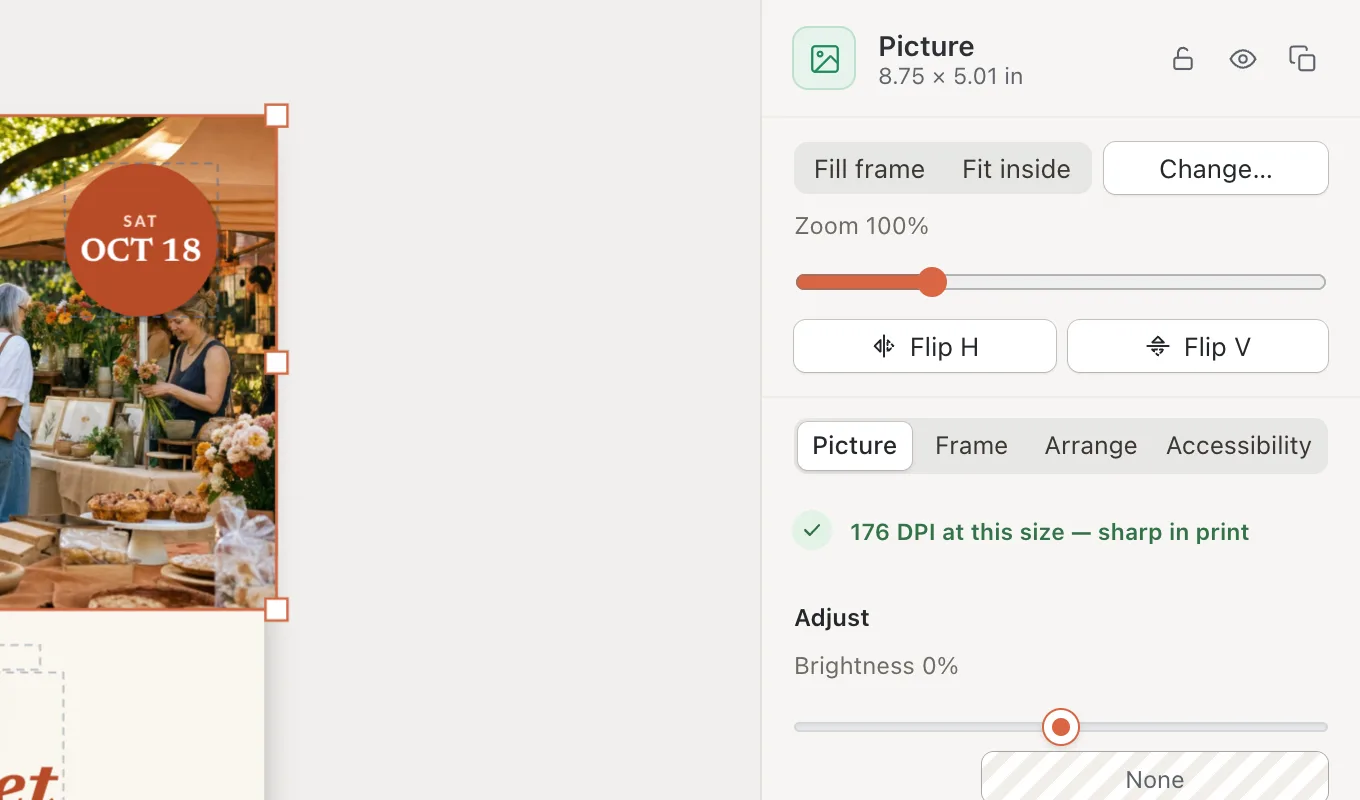
- 1Format pane
Korva saves .kva files, not .pub
Korva can open a .pub file, but it can’t save one. When you’ve finished, you can:
- export a PDF to print or send (free for your first project), or
- save a Korva file (.kva) to keep editing later. Saving needs Korva Pro.
Your original .pub file is never changed. See Save your work.
Opening files
Double-clicking a .pub file doesn’t open Korva. Open Korva first, then use File, then Open or drag the file onto the start screen.
Printing
On a Mac, File, then Print opens the usual macOS print window. On Windows and Linux, Korva makes a PDF and opens it in your PDF viewer, and you print from there. See Print a publication.
What Korva doesn’t have yet
- Saving as .pub, or exporting to Word (.docx).
- Spot colors and color profiles for commercial printing. A press-ready PDF can be CMYK, but pictures stay RGB.
- A bleed setting: with crop marks on, Korva adds a fixed 1/4-inch bleed.
- Layers. The Objects & Layers list at the bottom of the Format pane lets you reorder, hide and lock objects instead.
- Spelling checks in languages other than English and Polish.
If you can’t find a Publisher command, look it up in the Publisher command map.
If it still doesn’t work
The tour doesn’t open
Close any open dialog first, then click Help, then Coming from Publisher again. On the start screen, the link is under the Open a file… button.
A Publisher shortcut does something else in Korva
A few keys differ. For example, in Korva ⌘0Ctrl+0 fits the whole page, as in other Mac apps, and ⌘⇧LCtrl+Shift+L does the same. Open Help, then Help & Shortcuts for the full list, or see Keyboard shortcuts.
My .pub file looks different from Publisher
Usually a font isn’t installed on this computer, so Korva shows a similar one. See Why did Korva replace a font?
Something wrong or missing in this article? Email support or open an issue on GitHub.
