Why did Korva replace a font in my Publisher file?
The font isn't installed on this computer, so Korva shows the closest font it has and keeps the original font name in the document. File, then Info lists each one as Not on this computer — shown as *another font*. Install the missing font (TrueType or OpenType), restart Korva and open the file again, and the real font comes back.
- In Publisher
- File, then Info, then Manage Embedded Fonts
- In Korva
- File, then Info, then Fonts
Publisher files often use fonts that came with Microsoft Office or Windows, such as Edwardian Script ITC or Sylfaen. When a Mac, a Linux computer or a newer Windows PC doesn’t have that font, Korva can’t draw it. It shows a similar font instead, so the text may take up more or less room and lines may break in different places.
Korva doesn’t change your document’s font settings. The text still asks for the original font, so it comes back as soon as the font is installed.
See which fonts were replaced
- Click the File tab.
- Click Info.
- Look at Fonts on the right. Each font used in the file shows one of:
- Installed: the font is on this computer.
- Built in: the font comes with Korva.
- Not on this computer — shown as another font: Korva is showing a stand-in.
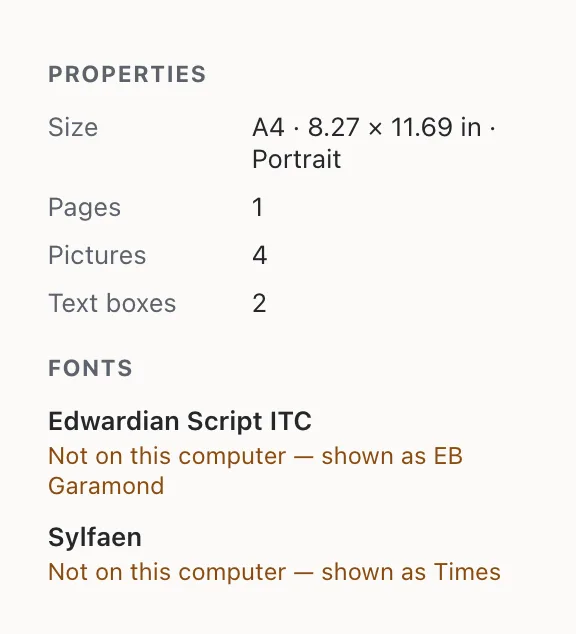
- 1Not on this computer — shown as …
For a file you just opened, the Imported from Publisher card on the same page also has a line like 2 fonts replaced, naming each font and its stand-in.
When you export, the check above the Export PDF button names the font again, so you don’t send a PDF without knowing:
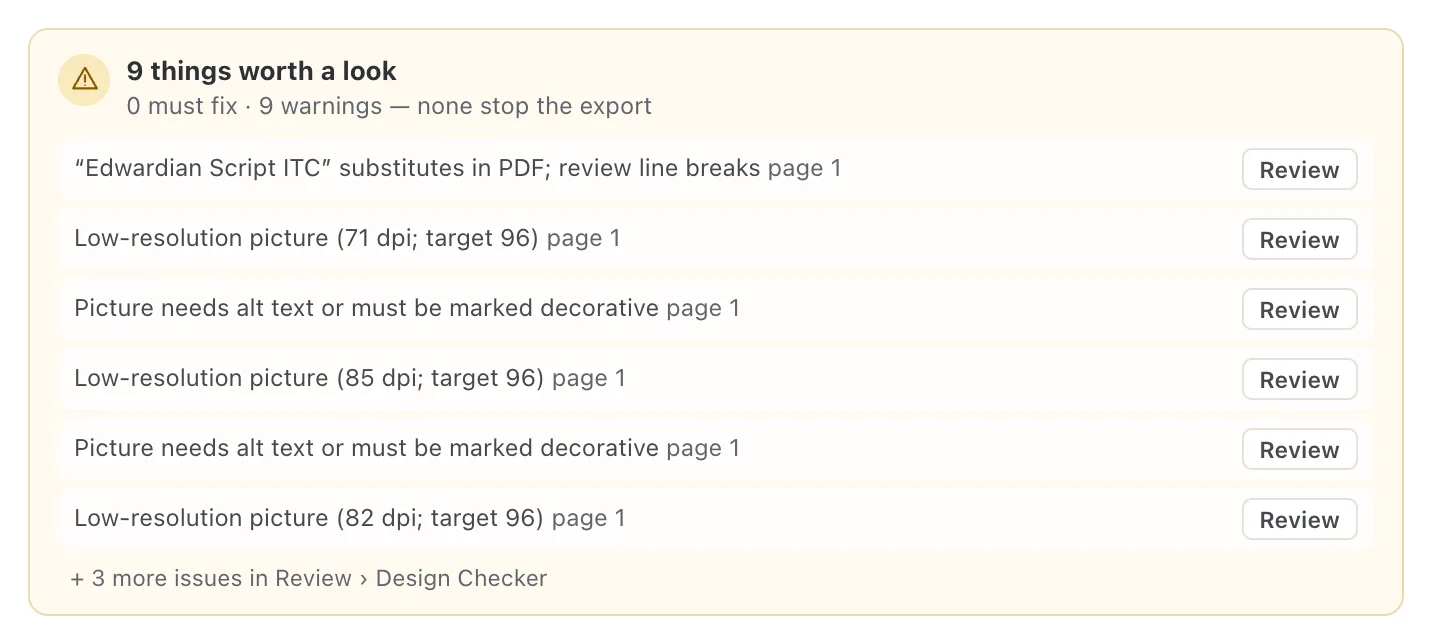
- 1Font substitutes in PDF
Install the missing font
First get the font file (it ends in .ttf, .otf or .ttc). If the file came from someone else, ask them for the font, or download it from the font’s maker. Many Office fonts are only licensed for use with Office, so check before copying one from another computer.
Mac:
- Double-click the font file. Font Book opens.
- Click Install.
Windows:
- Right-click the font file.
- Click Install (or Install for all users).
Linux:
- Double-click the font file and click Install in the font viewer. Or copy the file into the
.local/share/fontsfolder in your home folder. - If you copied it by hand, run
fc-cache -fin a terminal.
Then quit Korva completely, start it again, and open your file. File, then Info should now say Installed next to the font.
Or choose a different font
If you can’t get the original font, pick one you like instead:
- Select the text box, or select the text inside it.
- Choose a font from the font list on the Home tab.
- Check where lines break, then export.
To change a font everywhere at once, see Styles and theme fonts.
If it still doesn’t work
I installed the font but Korva still shows the stand-in
Make sure Korva was fully closed (on a Mac, Korva, then Quit Korva, not just the red button) and started again after you installed the font. Also check the font’s name: Korva looks for the exact family name the file asks for, so a font with a slightly different name won’t match.
Some characters print as “?”
The font Korva is using doesn’t have those characters. The check before export says so: PDF font cannot print … these characters would become “?”. Install the original font or choose a font that has the characters. See Text prints wrong.
The text no longer fits its box
A wider stand-in font can push text past the end of the box. Korva marks the box with Overflow — won’t print. Make the box bigger, make the text a little smaller, or use Text fit on the Format pane. See Make text fit.
Something wrong or missing in this article? Email support or open an issue on GitHub.
