How do I print a booklet or church bulletin?
Open File, then Export, choose Booklet PDF, and click Export booklet (or click Booklet PDF on the Page Design tab). Korva puts two pages on each side of a sheet in folding order. Print the PDF double-sided, flipping on the short edge, then fold the stack in half and staple.
- In Publisher
- File, then Print, then Booklet, side-fold
- In Korva
- File, then Export, then Booklet PDF, or Page Design, then Booklet PDF
Free for your first project. Export it as many times as you like; exporting other projects needs Korva Pro. Free vs Pro
A booklet is a stack of sheets printed on both sides, folded in half and stapled on the fold, like most church bulletins and programs. The pages have to be printed out of order so they read 1, 2, 3… once folded. Korva works that order out for you, as Publisher’s Booklet, side-fold does.
Make the booklet PDF
- Open your publication. Each page in Korva is one page of the finished booklet.
- Click File, then Export and choose Booklet PDF under Special. Or click Booklet PDF on the Page Design tab, which exports straight away.
- If your page count isn’t a multiple of 4, Korva says how many blank pages it adds at the end, for example 2 pages become 4: 2 blank pages are added at the end, as a booklet needs a multiple of 4.
- Click Export booklet, choose where to save, and click Save.
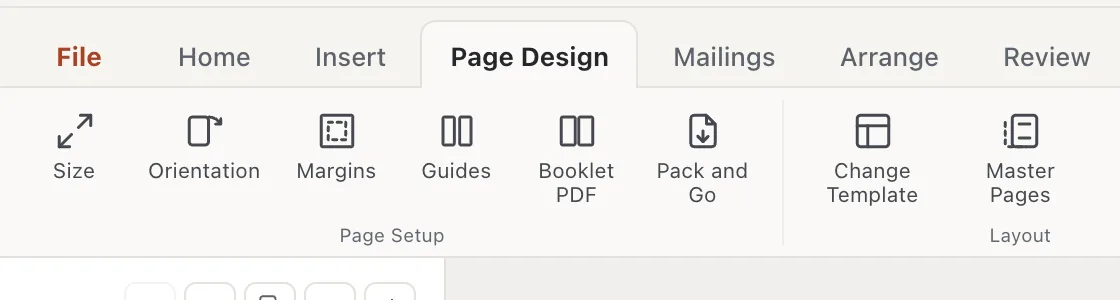
- 1Booklet PDF
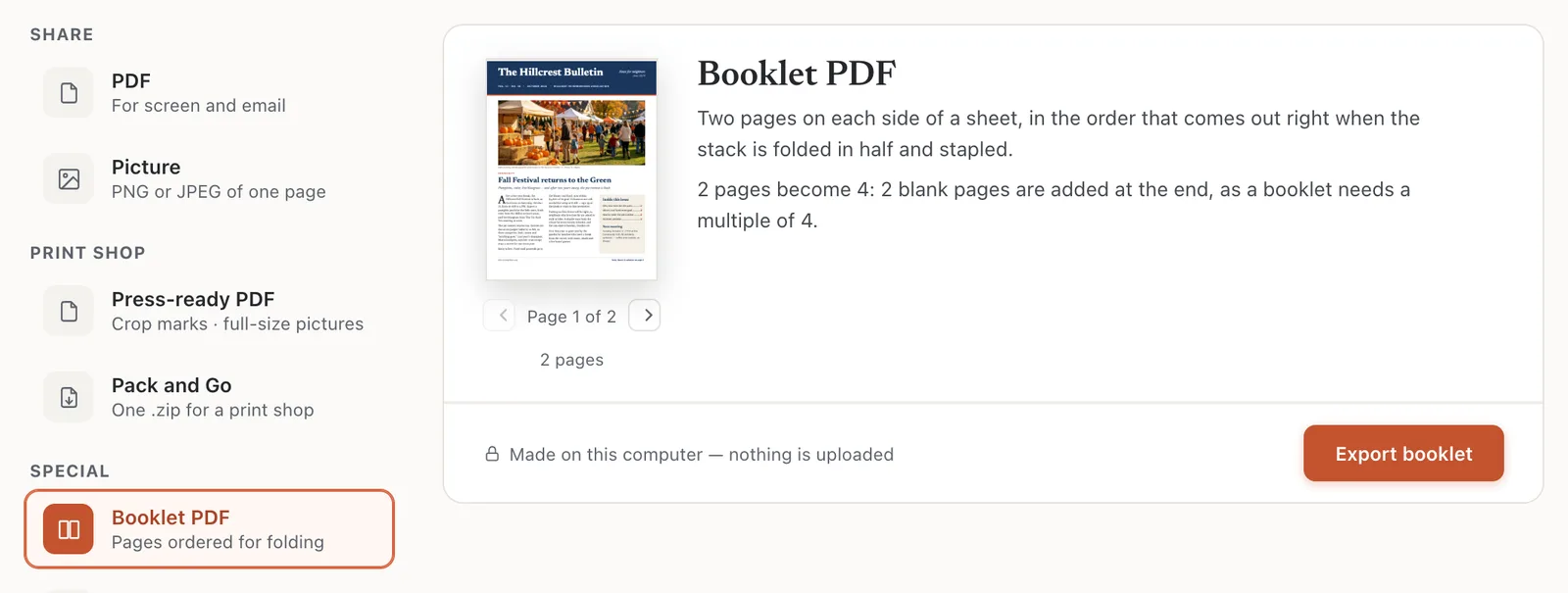
- 1Booklet PDF
- 2Blank pages added
- 3Export booklet
When it’s done, the status bar says Exported booklet PDF (N sheets) — print double-sided, flip on short edge, then fold and staple.
Print and fold it
- Open the booklet PDF and print it double-sided, choosing flip on short edge (on a Mac: Two-Sided with Short-Edge binding).
- Keep the sheets in the order they came out of the printer.
- Fold the whole stack in half, with the first page on the outside.
- Staple along the fold.
How the pages are ordered
Each side of a sheet holds two pages. For an 8-page booklet:
- Sheet 1, front: pages 8 and 1. Back: pages 2 and 7.
- Sheet 2, front: pages 6 and 3. Back: pages 4 and 5.
Blank pages go at the end, so a 6-page bulletin gets a blank page 7 and a blank back cover. To put a blank page somewhere else, add it yourself before exporting. See Add and reorder pages.
Pick the right page size
The booklet sheet is twice as wide as your page, so each page prints at full size:
| Your page size | Booklet sheet |
|---|---|
| 5.5 × 8.5 in (half Letter) | Letter (8.5 × 11 in) |
| A5 | A4 |
| Letter (8.5 × 11 in) | Tabloid (11 × 17 in) |
To print the booklet on ordinary Letter paper, set the page size to 5.5 × 8.5 in with Page Design, then Size, then Custom size before you export. The Sunday bulletin template already uses that size. Objects move with the new size, so check each page afterwards. See Change the page size.
If it still doesn’t work
The pages are in the wrong order after folding
The sheets were printed flipping on the long edge, or the stack got shuffled. Print again with flip on short edge, and keep the sheets in the order they come out.
The pages print too small
Your pages are Letter size, so the booklet sheet is Tabloid, and the printer shrank it to fit Letter paper. Use 5.5 × 8.5 in pages instead (see above), or print on 11 × 17 in paper.
The back cover is blank
Your page count wasn’t a multiple of 4, so blank pages were added at the end. Add or remove pages so the total is 4, 8, 12 and so on, and put the back cover last.
A “Check this PDF before exporting” window appears
Something would spoil the booklet, such as text that doesn’t fit its box. Click Back to document to fix it, or Export anyway. See Fix problems before you print or export.
Something wrong or missing in this article? Email support or open an issue on GitHub.
