How do I install Korva on Windows?
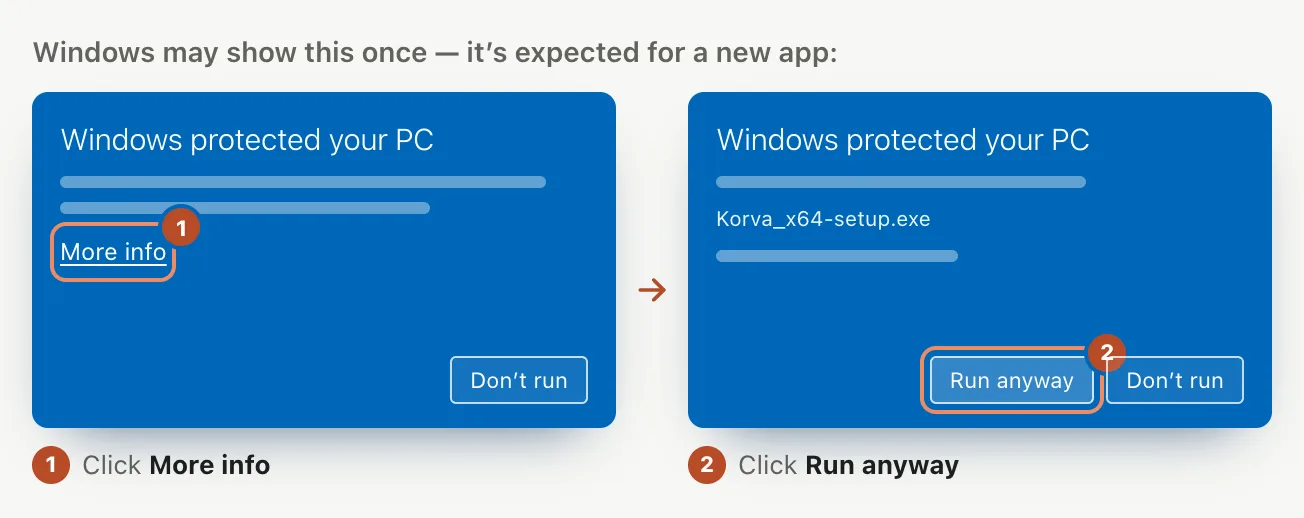
The simplest way is the Microsoft Store. Search for Korva or use the Store badge on korva.korsund.com/download, then click Get or Install. The Store keeps Korva updated and shows no warning screen. You can also download Installer (.exe) from the download page and run it; if Windows says Windows protected your PC, click More info, then Run anyway.
- In Korva
- Microsoft Store, or korva.korsund.com/download, then Windows, then Installer (.exe)
Korva runs on 64-bit Windows 10 and Windows 11. There are two ways to install it. Both give you the same app, and you don’t need an account.
Install from the Microsoft Store (recommended)
- Go to the download page and click the Microsoft Store badge, or open the Microsoft Store app and search for Korva.
- Click Get (or Install).
- When it’s done, open Korva from the Start menu.
The Store installs new versions of Korva for you, and Windows doesn’t show a SmartScreen warning for Store apps.
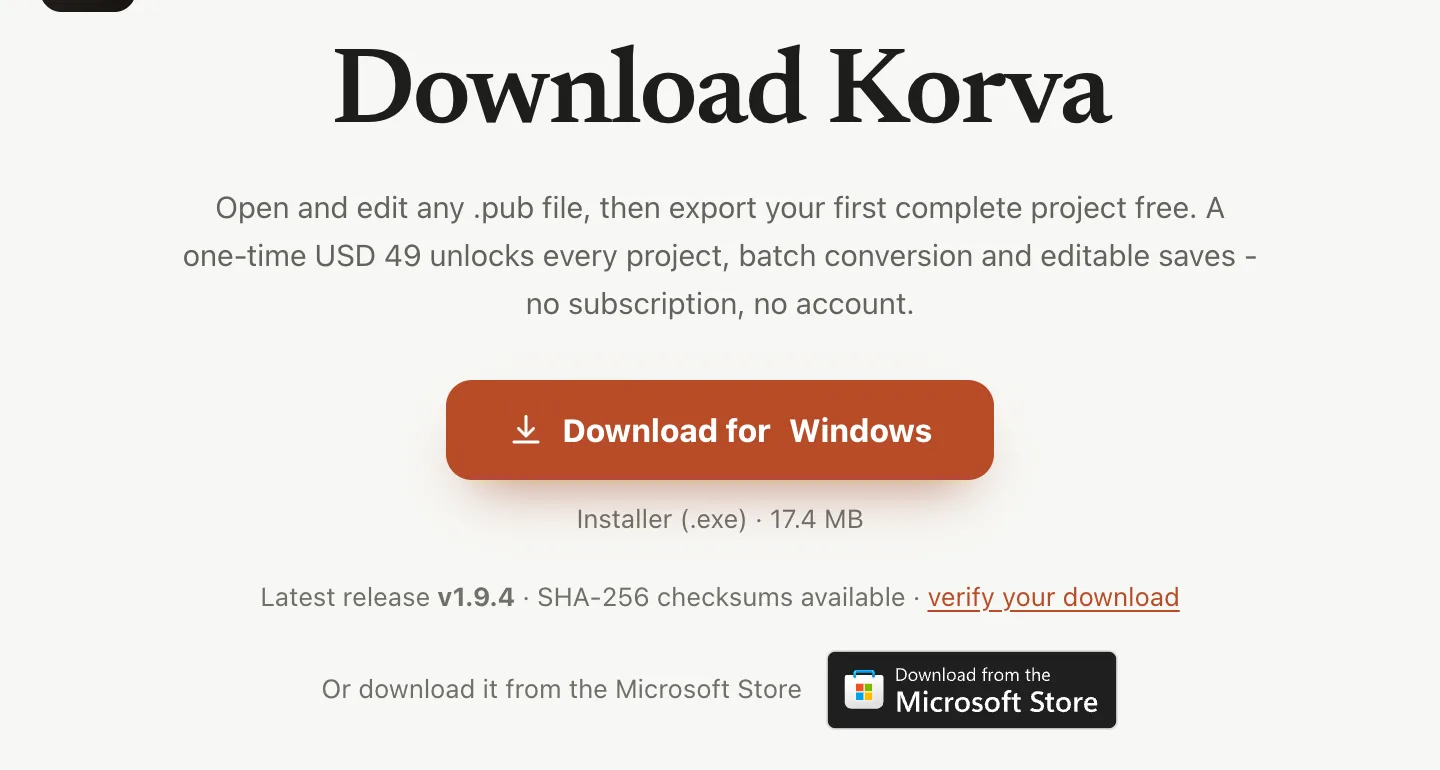
- 1Microsoft Store
- 2Download for Windows
Install with the installer from the Korva site
- On the download page, under Windows, click Download on the Installer (.exe) card.
- Open the downloaded file from your Downloads folder.
- If a blue Windows protected your PC screen appears, click More info, then Run anyway. This appears because the installer isn’t code-signed yet. See Windows protected your PC.
- Follow the installer’s steps.
- Open Korva from the Start menu or the desktop shortcut.
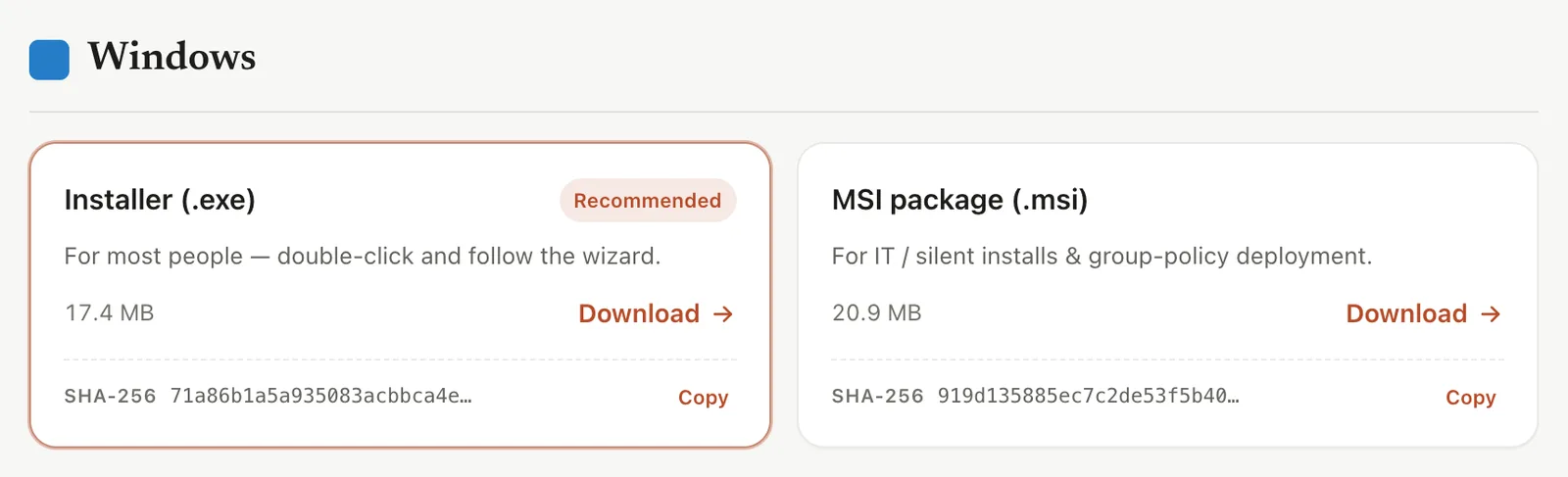
- 1Installer (.exe)
Open Korva the first time
The start screen appears. From here you can open a .pub file, start a blank page or pick a template.
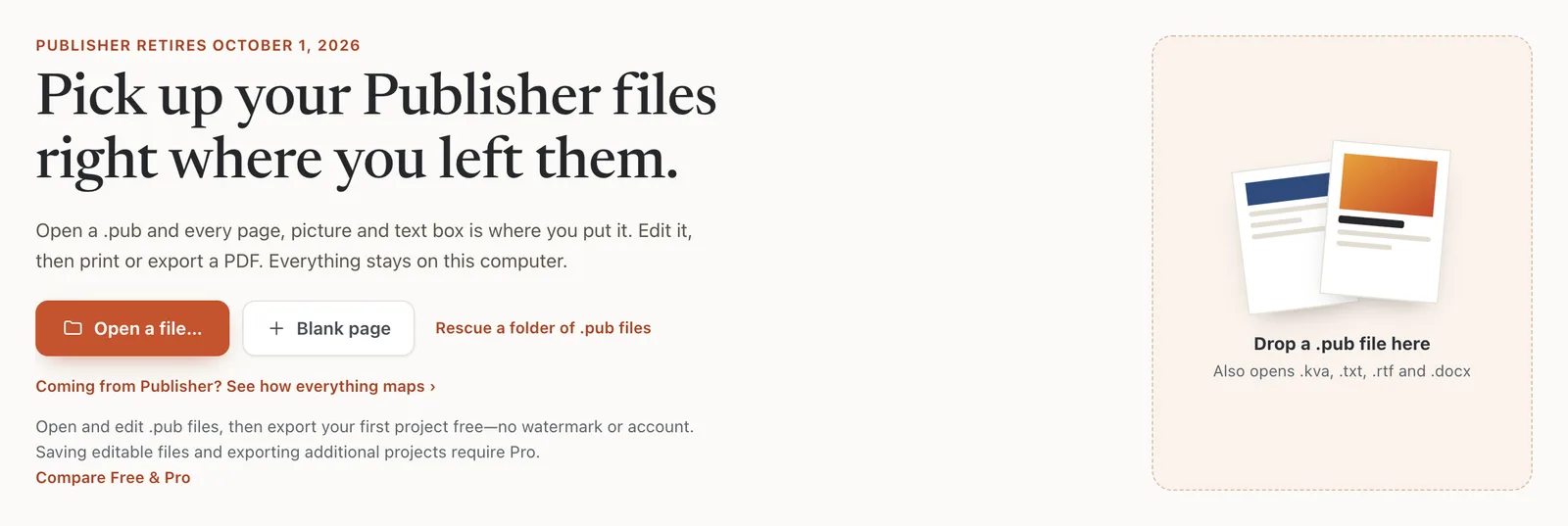
- 1Open a file…
- 2What Free includes
Next: open your first .pub file or take the tour of the Korva window.
Update or remove Korva
- Store installs are updated by the Store. If you used the .exe, Korva checks for new versions when it starts and asks before it installs anything. See How do I update Korva?
- To remove Korva, open Settings, then Apps, then Installed apps, find Korva, and choose Uninstall. Your .kva files, PDFs and .pub files are not touched.
If it still doesn’t work
Windows protected your PC, and there’s no Run anyway button
Click More info first; Run anyway appears after that. If your PC is managed by work or school, your IT team may block apps from outside the Store. Install from the Microsoft Store instead. See Windows protected your PC.
My antivirus stopped the installer
Check that the file came from korva.korsund.com/download or the Microsoft Store. Compare its SHA-256 checksum with the one on the download page (open PowerShell and run certutil -hashfile followed by the file name and SHA256). If they match, the file is the one we published. Or install from the Microsoft Store.
I double-click a .pub file and Korva doesn’t open
Korva doesn’t open .pub files by double-click yet. Open Korva first, then use File, then Open. See Open a Publisher file.
Something wrong or missing in this article? Email support or open an issue on GitHub.
