How do I start a publication from a template?
On the start screen, click Browse all templates (or choose File, then New), pick a category or search, and click a template. It opens as a new, unsaved publication with sample text in square brackets for you to replace. To give an existing publication another template's look, use Page Design, then Change Template.
- In Publisher
- File, then New, then Built-in templates
- In Korva
- File, then New, or Browse all templates on the start screen
Korva comes with 21 templates, and all of them are free to use. They are built in, so they work without an internet connection.
| Category | Templates |
|---|---|
| Newsletters | Community newsletter |
| Church & club | Sunday bulletin, Order of service, Sign-up sheet, Event tickets |
| Flyers & posters | Event flyer, Flyer with tear-off tabs, Poster (11 × 17 in), Menu, Tri-fold brochure |
| Cards & invitations | Business cards, Invitation postcard, Greeting card, Invitation (5 × 7 in) |
| Labels | Address labels (Avery 5160) |
| Certificates | Certificate of appreciation, Gift voucher |
| Business | Resume / CV, Letterhead |
| Blank | Blank — A4, Blank — Letter |
Pick a template
-
On the start screen, click Browse all 21 templates. If a publication is already open, click File, then New.

- 1Browse all templates
- 2A category
-
Click a category to narrow the list, or type in Search templates (for example bulletin or label).
-
Click a template. Each card shows its page size under the name.

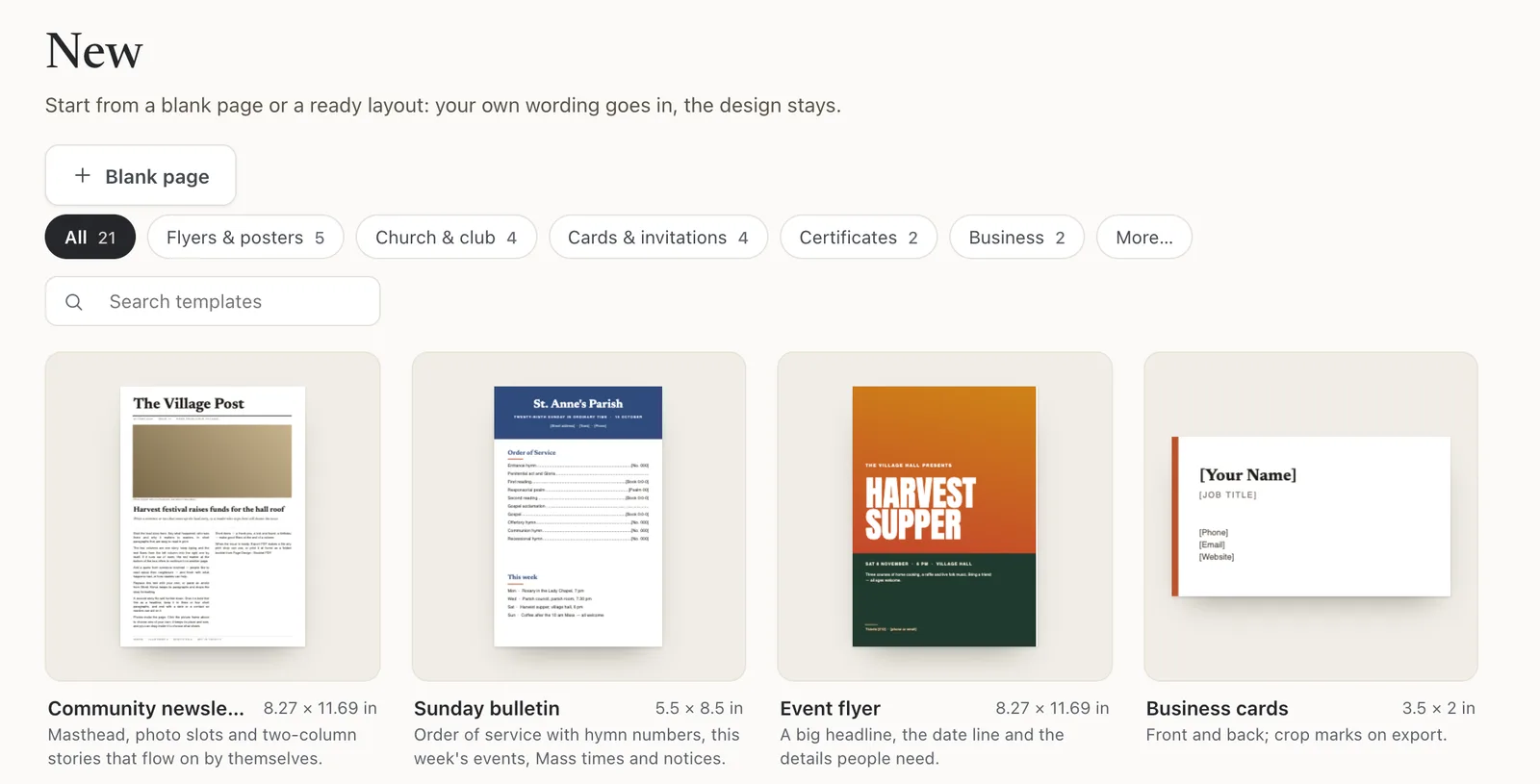
- 1Categories
- 2Search templates
- 3Click a template
The template opens as a new publication. The title bar says Not saved yet.
Put in your own content
Text in square brackets, such as [Street address] or [Your Name], is a placeholder. Replace it with your own:
- Double-click a text box to start typing in it, and type over the sample text.
- To swap a picture, select it and click Change… in the Format pane.
- Press escEsc when you’ve finished typing in a box.
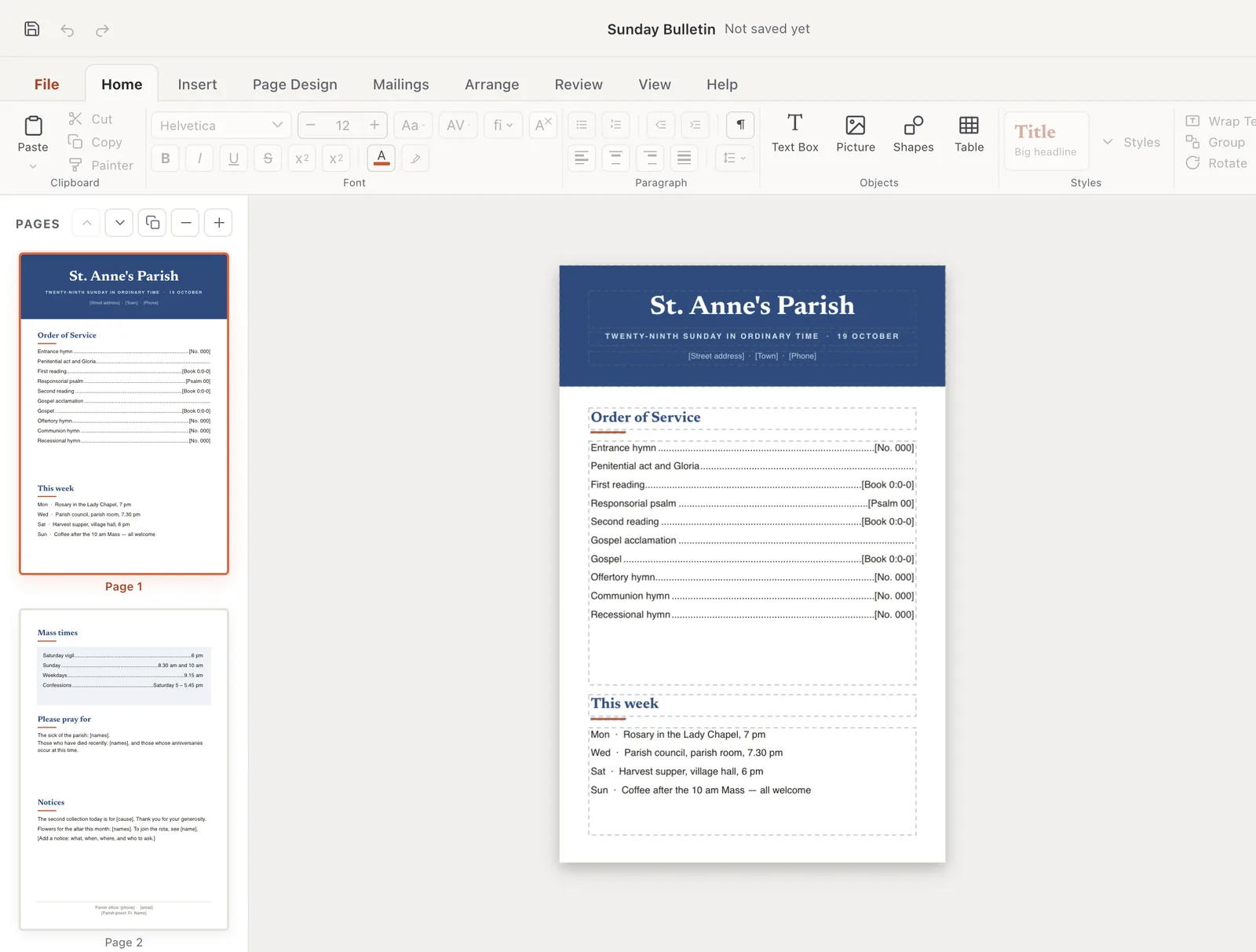
- 1Not saved yet
- 2Replace the sample text
When you’re done, export a PDF with Export PDF, or save it as an editable Korva file (Pro). See Save your work.
Give your publication another template’s look
Change Template restyles the publication you have open. It takes the colors, fonts and page background from the template you pick. Your pages, text and pictures stay as they are.
-
Click the Page Design tab, then Change Template.

- 1Change Template
-
Click the template whose look you want.

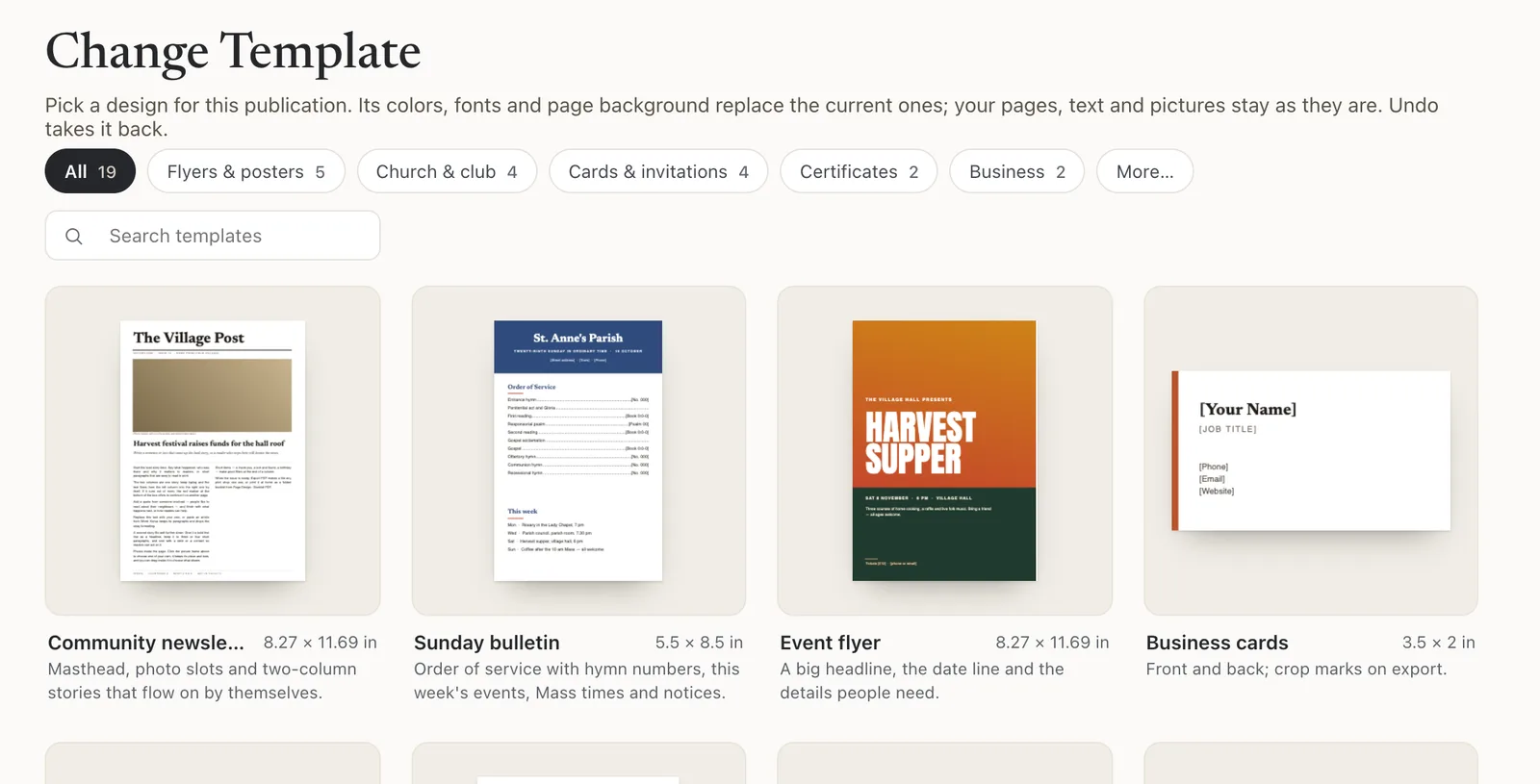
- 1Change Template
The status bar says which parts were applied. If you don’t like the result, press ⌘ZCtrl+Z to undo it.
If it still doesn’t work
The template is A4 but I print on US Letter (or the other way round)
Change the page size under Page Design, then Size, then check that nothing hangs off the edge. Also see Change the page size.
Korva asks whether to save changes when I pick a template
You have another publication open with unsaved changes. Choose Save… or Export PDF to keep them, Don’t save to throw them away, or Cancel to go back.
Change Template changed fonts I wanted to keep
Change Template gives every text box the template’s heading and body fonts, including text you formatted yourself. Press ⌘ZCtrl+Z straight away to undo the whole change. To change only the colors, use the color schemes on the Page Design tab instead. See Color schemes and backgrounds.
Something wrong or missing in this article? Email support or open an issue on GitHub.
