How do I add shapes and effects?
Click Insert, then Shapes and pick a shape. It appears on the page selected. Drag its handles to size it, then use the Format pane on the right to change its Fill and Outline, and the Effects tab for a shadow, glow, reflection, bevel or soft edge.
- In Publisher
- Insert, then Shapes, then Shape Format
- In Korva
- Insert, then Shapes, then the Format pane
Shapes are useful for colored bands, badges, arrows and dividing lines. A shape takes the colors of the publication’s color scheme when you add it, so it matches the rest of the page.
Add a shape
- On the Insert tab, click one of the four quick shapes (Rectangle, Rounded rectangle, Oval, Line), or click Shapes under them to see them all.
- Pick a shape. It appears on the page, selected.
- Drag it into place and drag a handle to resize it. Hold ⇧Shift while dragging a corner to keep its proportions, for example to keep a circle round.
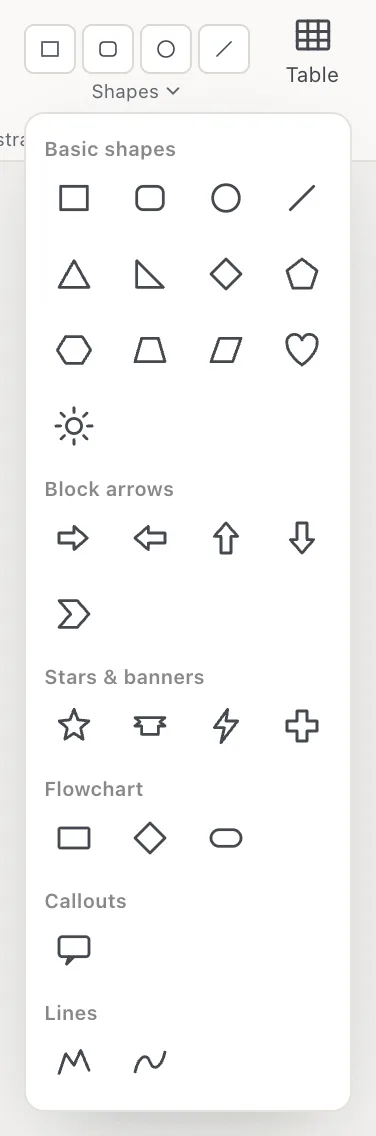
- 1Shapes
- 2Basic shapes
- 3Freeform and Curve
The gallery has basic shapes (triangle, diamond, pentagon, hexagon, heart, sun and more), block arrows and a chevron, stars and banners, flowchart shapes, a speech callout and two drawing tools. Shapes is also on the Home tab.
Draw your own shape
Under Lines, choose Freeform for straight edges or Curve for smooth ones. Click on the page to place each point, then double-click or press ↩Enter to finish. To change it later, right-click it and choose Edit Points.
Type in a shape
Double-click a shape to type in it, or right-click it and choose Add Text.
Change the fill and outline
Select the shape. The top of the Format pane has:
- Fill: click the color well to choose a color, or No fill for a see-through shape.
- Outline: the outline color, or No outline. Weight sets its thickness in points and Dashes makes it Dashed or Dotted.
- For a line, ◄ Start and End ► add arrowheads.
- For a rounded rectangle, Corner sets how round the corners are.
On the Shape tab, Fill effect switches between Solid and Gradient. A gradient blends two colors (From and To) in the Direction you choose.
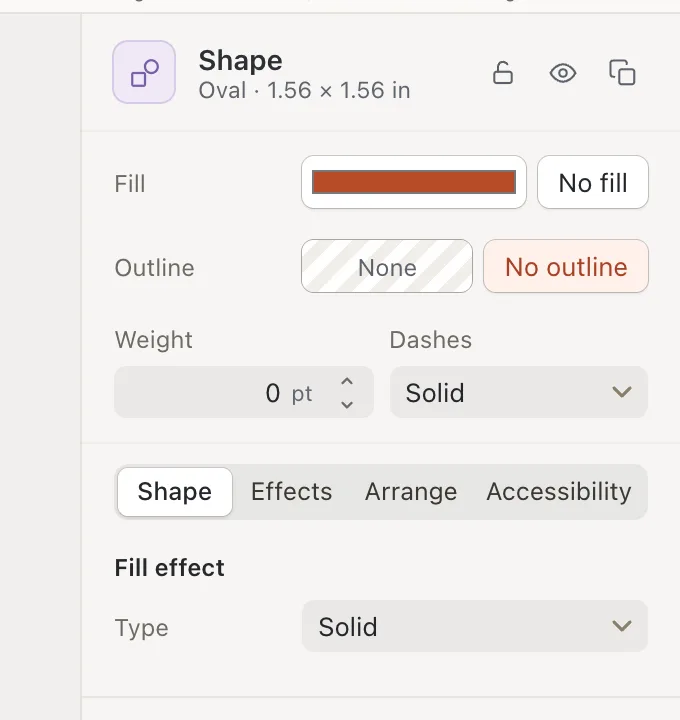
- 1Fill
- 2Outline
- 3Fill effect
Add effects
- Select the shape and open the Effects tab in the Format pane.
- Click Shadow, Glow or Reflect to turn that effect on. Click again to turn it off.
- Set Bevel for a raised edge, or Soft edge to fade the edges. Both are measured in points; 0 means off.
- Under Border art, choose a Motif (dots, squares, diamonds, hearts, stars, zigzag, scallop and others) to draw a decorative border around the shape.
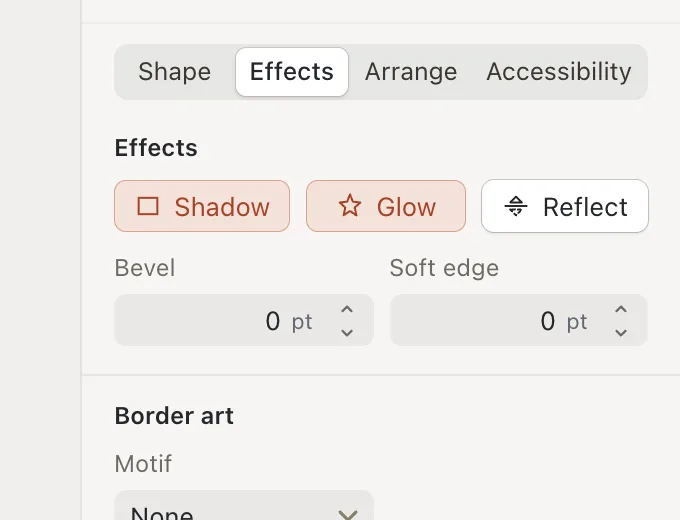
- 1Effects
- 2Shadow
- 3Glow
If it still doesn’t work
My new shape is a different color than I expected
New shapes take the publication’s color scheme. Change the color with Fill, or pick another scheme on the Page Design tab. See Color schemes and backgrounds.
The shape covers my text
Send it behind with Arrange, then Send to Back, or make the text flow around it with Wrap Text. See Wrap text around a picture.
I can’t move or change the shape
It is probably locked. Right-click it and choose Unlock.
Something wrong or missing in this article? Email support or open an issue on GitHub.
