How do I check or convert a whole folder of .pub files?
On the start screen, click Rescue a folder of .pub files, then Scan a folder. Korva checks every .pub file in the folder and its subfolders and marks each one Ready, Review, Needs fix or Couldn’t open. Scanning is free; making PDFs of the selected files with Create N PDFs needs Korva Pro.
- In Korva
- Start screen, then Rescue a folder of .pub files, or File, then Rescue .pub archive
If you have years of newsletters, bulletins or flyers in Publisher format, the Rescue Center tells you which files open cleanly before you spend time on them. It runs on your computer, uploads nothing, and never changes or moves your original files.
Scan a folder
-
On Korva’s start screen, click Rescue a folder of .pub files. If a document is open, use File, then Rescue .pub archive instead.

- 1Rescue a folder of .pub files
-
Click Scan a folder.
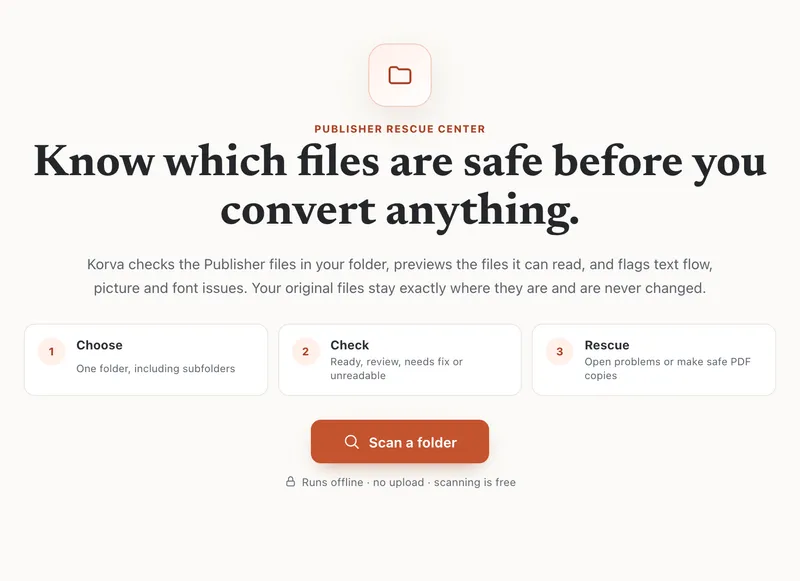
Scanning is free and works offline. - 1Scan a folder
-
Choose the folder that holds your .pub files. Korva includes every subfolder.

Korva opens each file the same way it would if you opened it yourself, and runs the same checks as the Design Checker. A progress bar shows the file it is on. Click Stop to end the scan early; the files already checked stay in the list.
Read the results
Each file gets a status:
- Ready: no problems found. Safe to turn into a PDF.
- Review: opens fine, with warnings worth a look, such as a replaced font or a low-resolution picture.
- Needs fix: something must be fixed first. Files whose layout couldn’t be read (Layout reflowed) are always here, because a PDF of them wouldn’t look like the original.
- Couldn’t open: Korva couldn’t read the file at all.
The Recovered column shows how many pages, text boxes and pictures Korva found. Click the boxes at the top (Checked, Ready, Review, Needs fix, Couldn’t open) to show only those files, or type in Search file names.
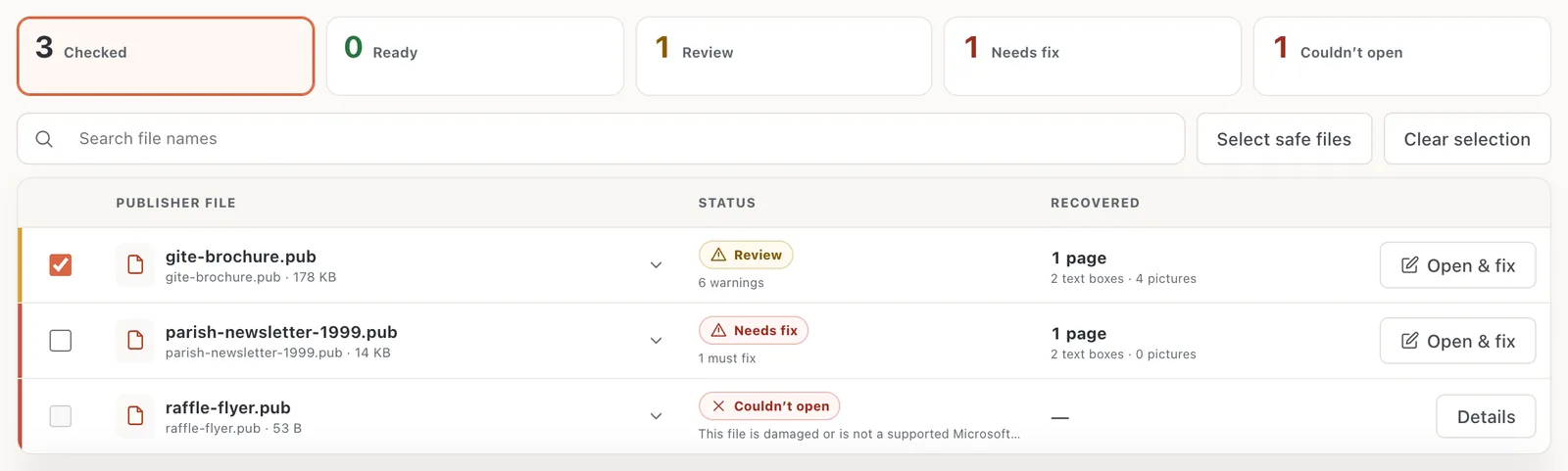
- 1Ready · Review · Needs fix · Couldn’t open
- 2Click a file for details
- 3Open & fix
Click a file name to see What Korva found:

- 1Why it needs a look
To fix a file, click Open or Open & fix. It opens in Korva like any .pub file. When you’re done, go back with File, then Rescue .pub archive; your scan results are still there until you quit Korva.
Make PDFs of the safe files
-
Files marked Ready and Review are ticked for you. Tick or untick files as you like, or use Select safe files and Clear selection.
-
Click Create N PDFs (N is the number of ticked files).

- 1Create N PDFs (Pro)

Korva saves each PDF next to its original, named file name-korva.pdf (or -korva-2.pdf if that name is taken). Nothing is overwritten.
If it still doesn’t work
No files were found
The message No .pub files were found in that folder or its subfolders means none of the files end in .pub. Check that you chose the right folder. Files inside a .zip must be unzipped first.
A file says Couldn’t open
Click Details to see why. See A .pub file won’t open.
Some subfolders were skipped
Korva says when it couldn’t read a subfolder, usually because of permissions. Copy the files to a folder you own, such as one in Documents, and scan that.
I selected a Needs fix file
Korva still makes its PDF, but warns that the selected files have must-fix problems. Open them first with Open & fix if the PDF needs to look right.
Something wrong or missing in this article? Email support or open an issue on GitHub.
