How do I add alt text to a picture?
Select the picture, open the Accessibility tab in the Format pane and type a short description under Alternative text. For a picture that is only decoration, tick Decorative — skip for screen readers instead. Korva puts both into the PDF you export.
- In Publisher
- Right-click, then Edit Alt Text
- In Korva
- Format pane, then Accessibility, then Alternative text
Alt text is a short description that screen readers read aloud in place of a picture. It matters most when you send a newsletter or bulletin as a PDF by email or put it on a website. Korva’s PDFs are tagged, so a screen reader finds the text, the descriptions and the reading order.
Describe a picture
- Click the picture to select it.
- In the Format pane on the right, click the Accessibility tab.
- Under Alternative text, type what the picture shows and why it’s there, for example White wooden church with a bell tower, among trees in summer sunshine.
- Click anywhere else to save it, or press ⌘↩Ctrl+Enter.
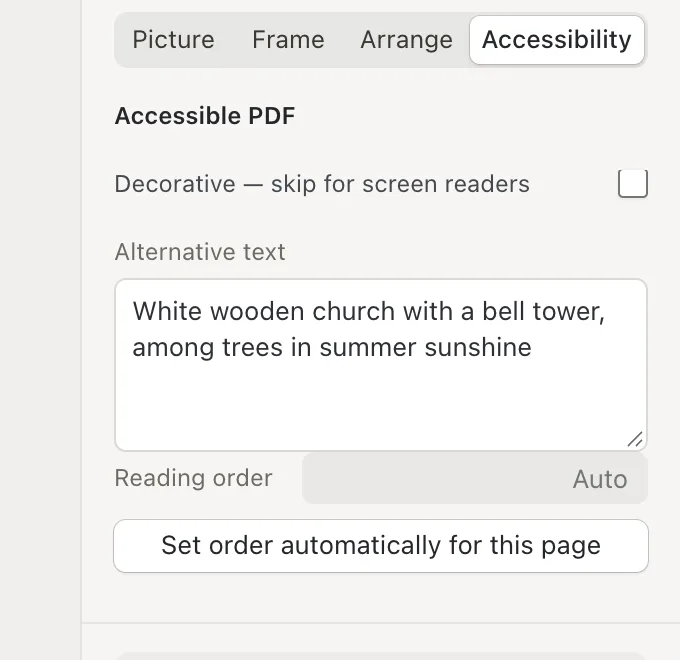
- 1Accessibility
- 2Alternative text
- 3Decorative
- 4Reading order
Shapes have the same box. Describe what a shape means rather than how it looks, for example Arrow pointing to the sign-up desk.
Mark a decorative picture
Borders, background patterns and ornaments don’t need a description. Tick Decorative — skip for screen readers and screen readers will skip it. The Alternative text box disappears, because it isn’t needed.
Set the reading order
A screen reader reads the objects on a page one after another. Unless you set an order, they are read in the order they sit on the page, from the back object to the front one, which may not match how the page looks. To fix it:
- Click Set order automatically for this page to number every object on the page top to bottom, then left to right.
- Or select an object and type a number in Reading order: 1 is read first. Objects with a number are read before those left on Auto.
Find pictures you missed
- On the Review tab, click Design Checker.
- Under Ready to print · Design Checker, look for Picture needs alt text or must be marked decorative.
- Click Go to next to it. Korva closes the checker and selects that picture, so you can describe it.
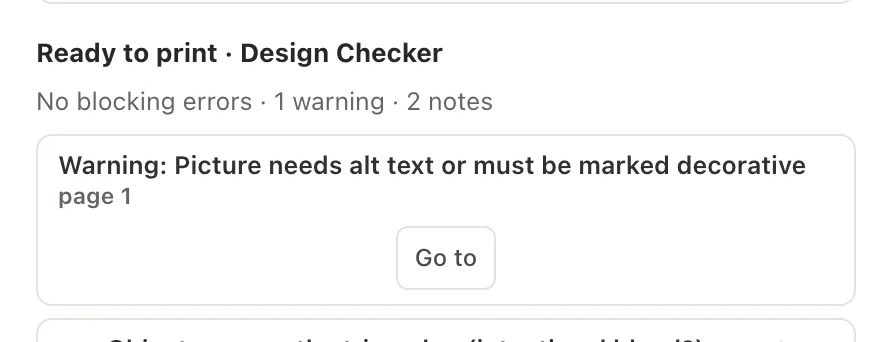
- 1Picture needs alt text
- 2Go to
If it still doesn’t work
There’s no Alternative text box
The object is marked decorative. Untick Decorative — skip for screen readers and the box comes back. Text boxes and tables don’t have the box either: their words are read out as they are.
I can’t type in the Accessibility tab
The object is locked. The tab says Unlock this object to edit its accessibility details. Right-click the object and choose Unlock.
My alt text isn’t in the PDF
Alt text goes into PDFs made with Export. A poster split across several sheets (tiled output) is exported without tags, so screen readers can’t use its descriptions.
Something wrong or missing in this article? Email support or open an issue on GitHub.
