How do I install Korva on a Mac?
Download the Disk image (.dmg) from korva.korsund.com/download, open it, and drag Korva into Applications. Open Korva from Applications or Launchpad. The first time, macOS asks whether you want to open an app downloaded from the Internet; click Open.
- In Korva
- korva.korsund.com/download, then macOS, then Disk image (.dmg)
Korva runs on macOS 12 (Monterey) or later. There is one download for every Mac: it works on both Intel and Apple silicon (M1 and later). You don’t need an account to install or use it.
Download and install
- Go to the download page.
- Under macOS, click Download on the Disk image (.dmg) card.
- Open the downloaded file (it’s in your Downloads folder). A window opens with the Korva icon and your Applications folder.
- Drag Korva onto Applications.
- Close the window. In Finder’s sidebar, click the eject button next to Korva to put the disk image away. You can then delete the .dmg file.
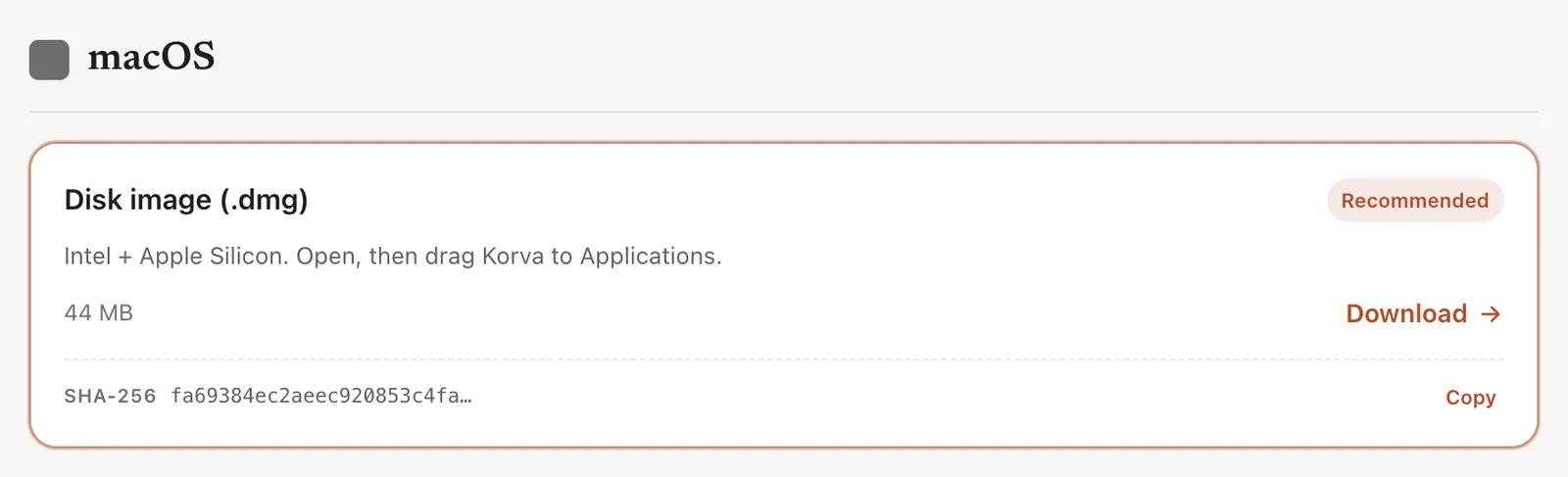
- 1Download
Open Korva the first time
- Open Applications in Finder and double-click Korva. You can also find it in Launchpad or with Spotlight (⌘SpaceCtrl+Space, then type Korva).
- macOS asks: “Korva” is an app downloaded from the Internet. Are you sure you want to open it? Click Open.
macOS asks this only once. Korva is signed and notarized by Apple, so there is nothing to change in System Settings.
The start screen appears. From here you can open a .pub file, start a blank page or pick a template.
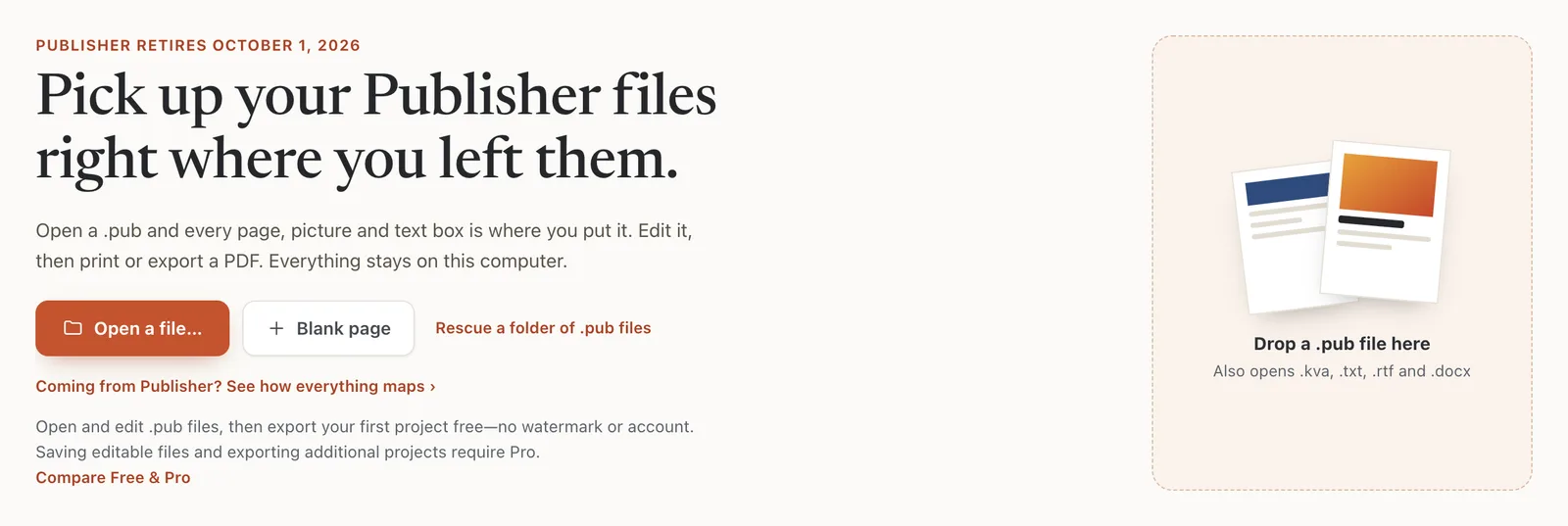
- 1Open a file…
- 2What Free includes
Next: open your first .pub file or take the tour of the Korva window.
Update or remove Korva
- Korva checks for new versions when it starts and asks before it downloads anything. See How do I update Korva?
- To remove it, quit Korva and drag it from Applications to the Trash. Your .kva files, PDFs and .pub files are not touched.
If it still doesn’t work
macOS says Korva can’t be opened or is damaged
The download may have stopped part way. Delete the .dmg and Korva from Applications, download again, and compare the file’s checksum with the one on the download page. See Korva won’t install or open on Mac or Linux.
Korva opens from the disk image but disappears later
You opened it straight from the disk image instead of dragging it to Applications first. Drag Korva into Applications and open it from there.
My Mac is older than macOS 12
Korva needs macOS 12 or later. Check your version under Apple menu › About This Mac.
Something wrong or missing in this article? Email support or open an issue on GitHub.
