How do I print a poster or banner on several sheets?
Make the page its real size (for example 11 × 17 in or Banner). In File, then Print or File, then Export, then PDF, tick Tile across sheets, choose Letter or A4, set the Overlap, and print. Korva splits the page across as many sheets as it needs.
- In Publisher
- File, then Print, then Tiled
- In Korva
- File, then Print or File, then Export, then PDF, then Tile across sheets
Free for your first project. Export it as many times as you like; exporting other projects needs Korva Pro. Free vs Pro
A home printer only takes Letter or A4 paper. To make a bigger poster or banner, Korva can cut the page into sheet-sized pieces that you print, trim and tape together, like Publisher’s tiled printing.
Set up the large page
Tiling is offered only when a page is bigger than the paper. Make your page its finished size first:
- Start from the Poster (11 × 17 in) template, or
- Choose Page Design, then Size and pick Tabloid, A3, Banner (22 × 8.5 in) or Custom size. See Change the page size.
Print it across sheets
- Press ⌘PCtrl+P or click File, then Print. (To make a PDF instead, use File, then Export, then PDF.)
- Under Large page, tick Tile across sheets.
- Choose the paper: Letter (8.5 × 11 in) or A4.
- Set Overlap: how much each sheet repeats from its neighbour, so you have room to glue or tape. The default is 0.5 in.
- Check the preview. Red dashed lines show where each sheet falls, and the caption says how many sheets it takes.
- Click Print N sheets… (or Export PDF · N sheets).
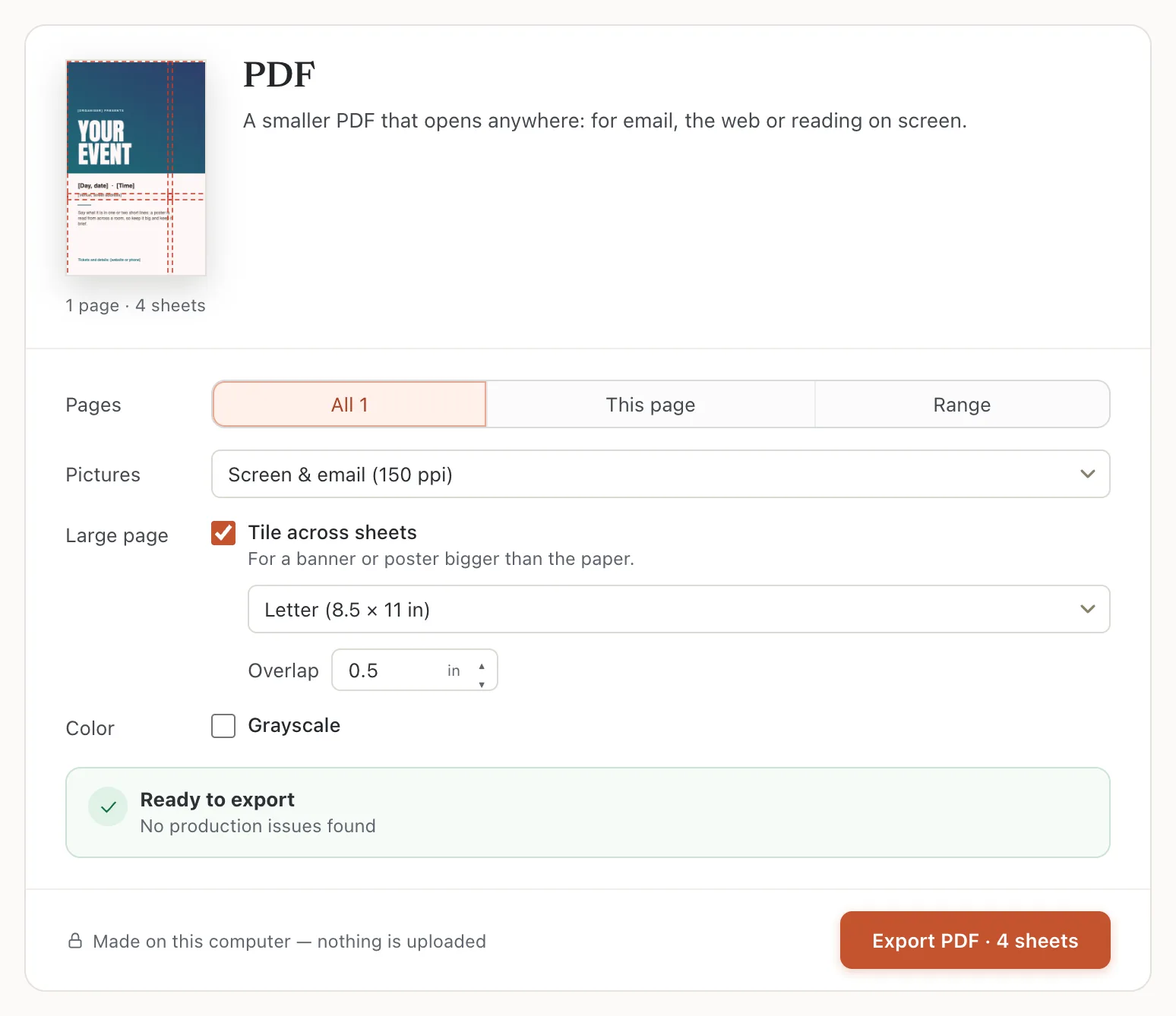
- 1Tile across sheets
- 2Paper
- 3Overlap
- 4Where the sheets fall
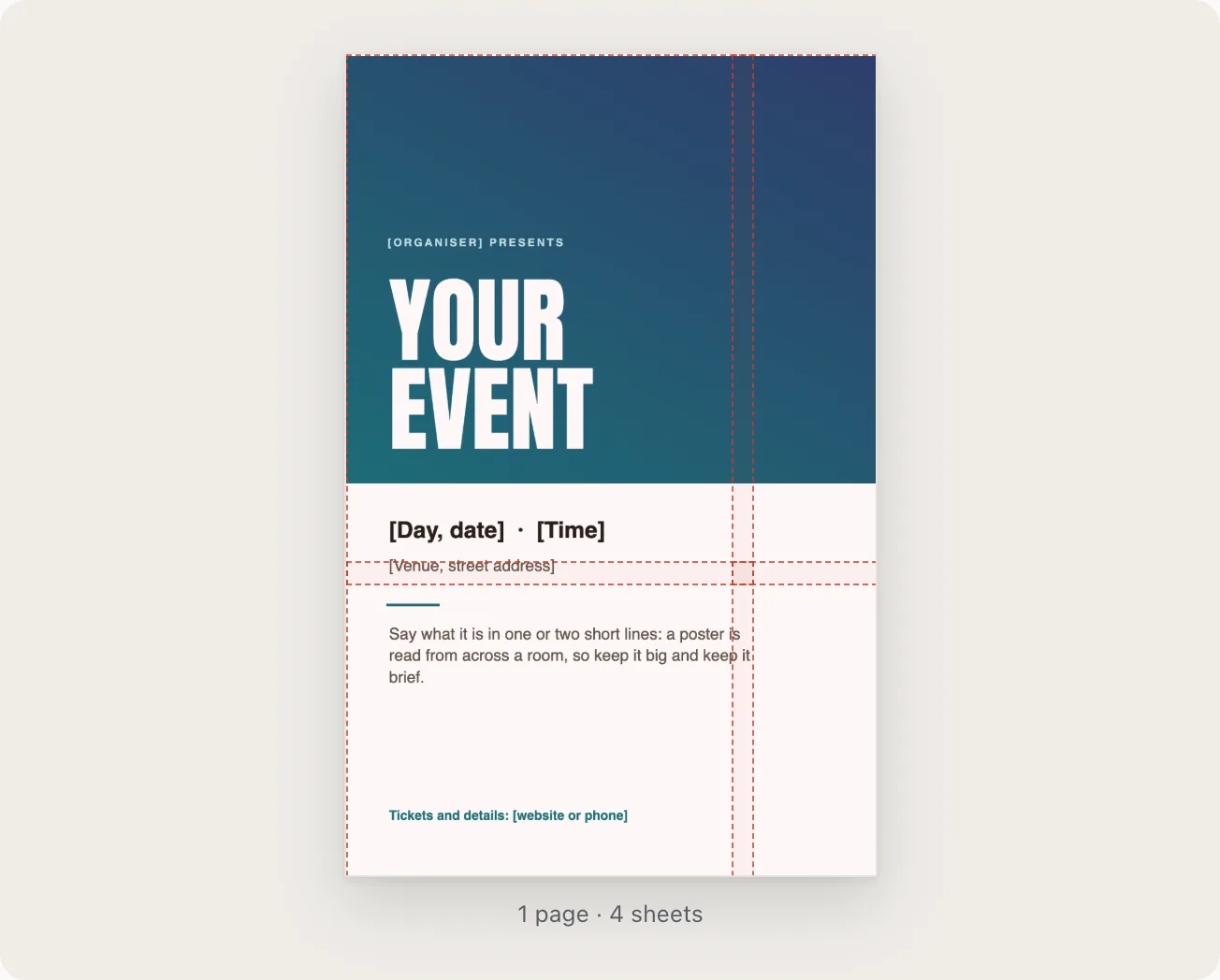
- 14 Letter sheets
Put the poster together
- Lay the sheets out in order: they print left to right, then top to bottom.
- Trim the overlap off one edge of each joining pair, line up the artwork and tape the back.
If it still doesn’t work
I don’t see Tile across sheets
The page fits on the paper, so there’s nothing to tile. A Letter page turned sideways also fits a Letter sheet. Make the page bigger than the paper first.
The pieces don’t line up
Your printer can’t print to the very edge, so a strip at each edge is lost. Increase Overlap to 0.5 in or more, and print at 100% scale (not “Fit to page”) in the print window.
It takes more sheets than I expected
A bigger overlap means more sheets. Lower the Overlap, or try the other paper size: one may divide your page more evenly.
Something wrong or missing in this article? Email support or open an issue on GitHub.
