How do I use Pack and Go to send files to a print shop?
Open File, then Export, choose Pack and Go, and click Save .zip…. The .zip holds the editable Korva file, a press-ready PDF with crop marks, every picture at full resolution and a README listing the fonts. Pack and Go needs Korva Pro.
- In Publisher
- File, then Export, then Save for a Commercial Printer
- In Korva
- File, then Export, then Pack and Go, or Page Design, then Pack and Go
Korva Pro feature. Korva Pro is $49 once. The free version shows you this feature and asks for Pro when you use it. Free vs Pro
Some print shops want more than a PDF: the original file, the pictures, and to know which fonts you used. Pack and Go gathers all of it into one .zip you can email or put on a USB stick.
Pack the files
- Click File, then Export and choose Pack and Go under Print shop. You can also click Pack and Go on the Page Design tab.
- Click Save .zip…, choose where to save, and click Save.
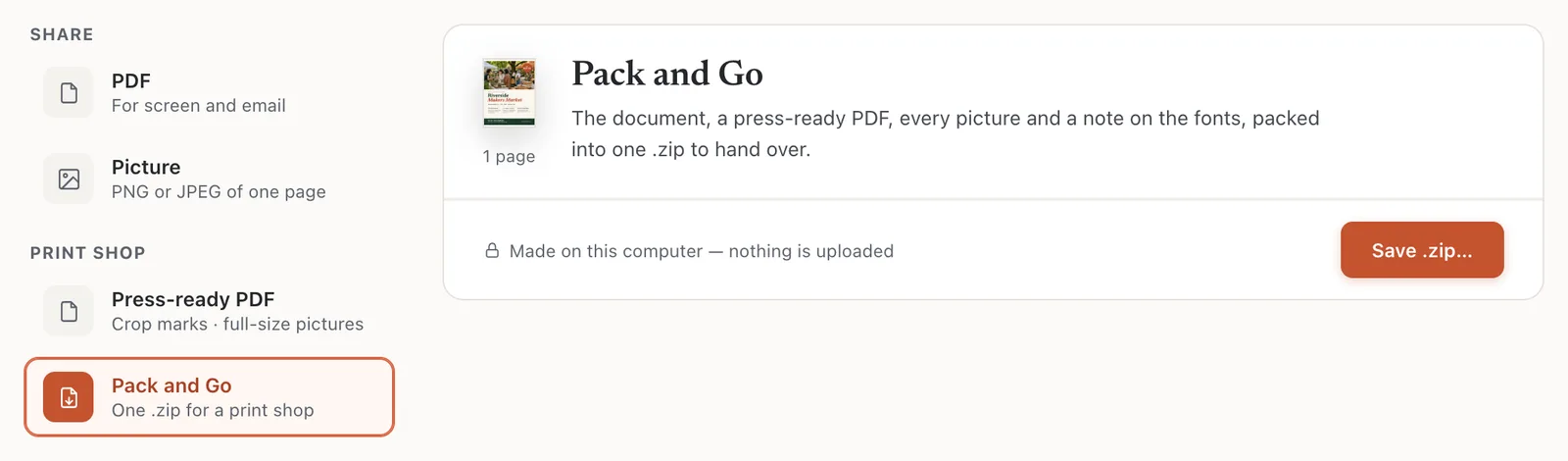
- 1Pack and Go
- 2Save .zip…
When it’s done, Korva lists what went in:
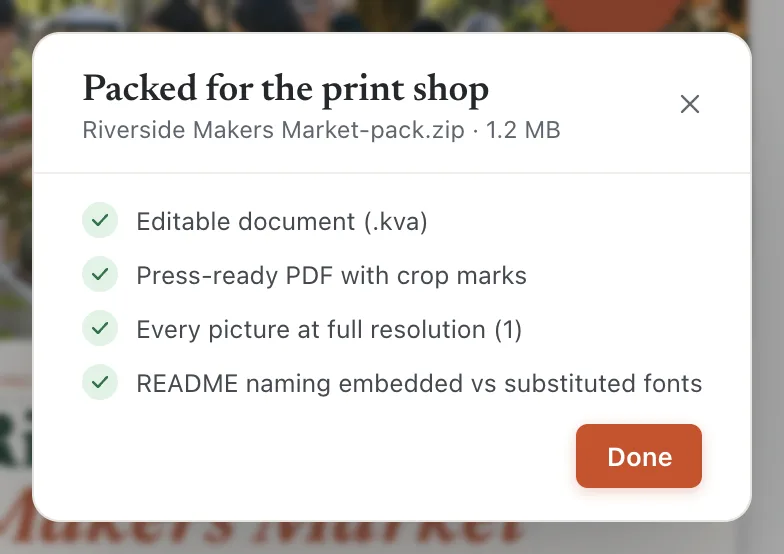
What’s in the .zip
The .zip is named after your publication, for example Riverside Makers Market-pack.zip. Inside:
- name.kva: the editable publication. The shop needs Korva to open it.
- name-print.pdf: a press-ready PDF with crop marks and a 1/4-inch bleed margin, in RGB colour. See Make a press-ready PDF.
- images/: every picture used in the publication, at its original resolution.
- README.txt: the page size, number of pages, and which fonts are embedded in the PDF and which will be replaced.
If it still doesn’t work
The shop needs a CMYK PDF
The PDF in the .zip is RGB. Export a separate Press-ready PDF with Color set to CMYK composite (print shop) and send it with the .zip.
The shop can’t open the .kva file
The .kva file only opens in Korva. Ask the shop to use the PDF, which is what they print from.
The README says a font will be substituted
That font isn’t on your computer, so Korva used a similar one in the PDF. Check where lines break before you send it. See Why did Korva replace a font?
Something wrong or missing in this article? Email support or open an issue on GitHub.
