How do I check spelling and use AutoCorrect?
Click Review, then Spelling or press F7. Korva lists the words it doesn't know with a suggestion; click Change or Ignore. Spelling dictionaries exist for English and Polish only; Thai and other languages aren't spell-checked. AutoCorrect settings are on the Review tab.
- In Publisher
- Review, then Spelling; File, then Options, then Proofing
- In Korva
- Review, then Spelling (F7); Review, then AutoCorrect
Korva checks spelling on your computer; nothing is sent anywhere. The check uses the publication language, which you set once for the whole publication.
Check the spelling
- Click Review, then Spelling, or press F7. The Spelling & Proofing window opens.
- Under Spelling, each unknown word is shown with a suggestion, such as “freinds” → friends.
- For each one:
- Change replaces the word with the suggestion everywhere it appears in the publication.
- Ignore hides it from the list while the window is open.
- When the list says No spelling errors found., click Done.
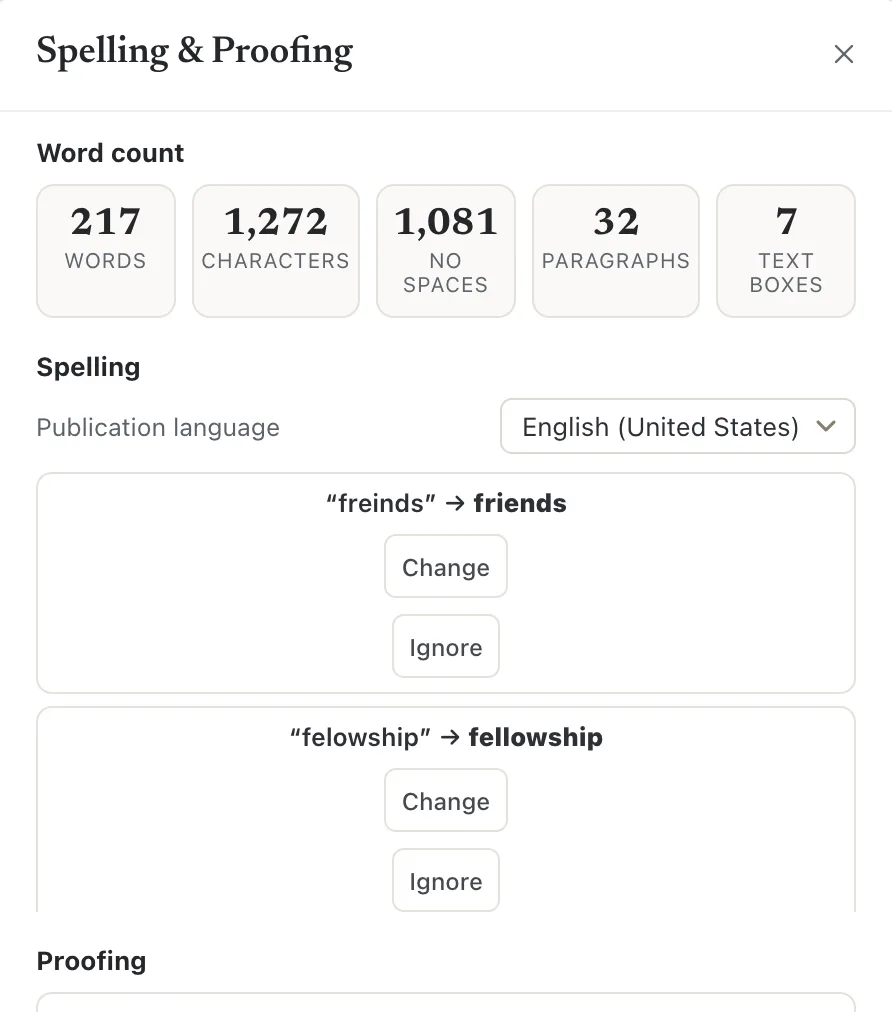
- 1Publication language
- 2Change
- 3Ignore
A word Korva doesn’t know but has no suggestion for is shown as — not in dictionary, with only Ignore. Fix it in the text yourself.
Korva doesn’t flag every unknown word:
- A word with a capital letter in the middle of a sentence is treated as a name (a person, place or brand) and skipped. So are words in ALL CAPITALS and words with digits.
- There’s no personal dictionary to add words to yet. Use Ignore.
While you type in a text box, your computer’s own spell checker underlines unknown words in the publication language.
The same window also shows a Word count (words, characters, paragraphs and text boxes), Proofing notes such as double spaces, and the Design Checker. Review, then Word Count and Review, then Design Checker open it at those parts.
Set the publication language
Choose the language on the Review tab under Language, then Publication, or in the Spelling & Proofing window under Publication language. The choices are English (US), Polski (PL) and ไทย (TH). A .pub file in another language keeps its own language in the list.
The publication language also controls hyphenation, the date formats in Insert, then Date & Time, and the language recorded in exported PDFs.

- 1Spelling
- 2AutoCorrect
- 3Publication language
Turn AutoCorrect options on or off
AutoCorrect fixes things as you type, when you finish a word. On the Review tab:
- AutoCorrect turns all of it on or off.
- Smart quotes turns straight quotes ( “ ’ ) into curly ones ( “ ” ‘ ’ ).
- Capitalize first letter capitalizes the first word of a sentence.
- Replace text as you type fixes common English typos (teh → the, recieve → receive) and replaces (c) with ©, (r) with ®, (tm) with ™, – with –, and 1/2, 1/4, 3/4 with ½, ¼, ¾.
Two more are in the AutoCorrect section at the bottom of the Spelling & Proofing window: Correct TWo INitial CApitals, and Keep one-letter words with the next word (Polish, Czech, Slovak), which stops words such as “w” or “i” from ending a line.
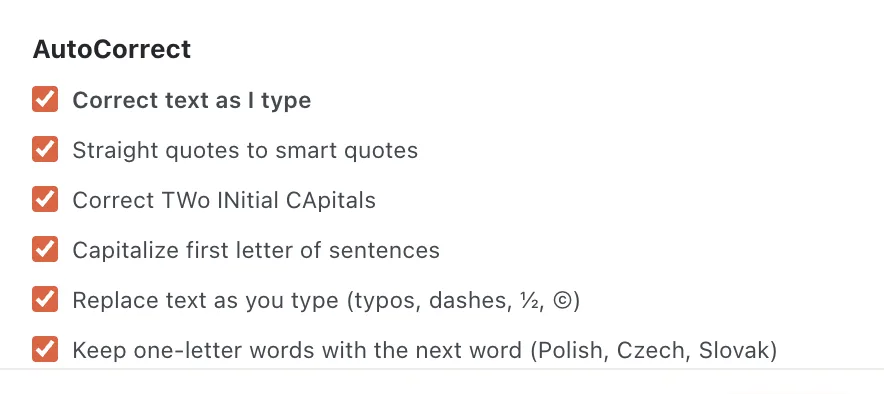
- 1Correct text as I type
These settings belong to Korva on this computer, not to the publication.
Look up a word
Review, then Thesaurus (⇧F7Shift+F7) suggests other words for the selected word and can Replace it. Review, then Research looks up any word you type. Both use a small built-in English word list and work offline.
If it still doesn’t work
My Thai text isn’t checked
That’s expected: Korva has no Thai spelling dictionary, and the window says so. Proofread Thai text yourself, or copy it into a tool that checks Thai.
Correct words are flagged as mistakes
Check the publication language. Polish text checked against English (or the other way round) flags almost every word. When the text clearly doesn’t match the dictionary, Korva pauses the warnings and says so.
AutoCorrect changed my capital letters or quotes
Turn off Capitalize first letter or Smart quotes on the Review tab. Undo the change you didn’t want with ⌘ZCtrl+Z.
Something wrong or missing in this article? Email support or open an issue on GitHub.
