How do I use text styles and theme fonts?
Click in a paragraph and choose a style from Home, then Styles (or click Title). To change every paragraph that uses a style, open Styles, then Manage styles…, edit the style and click Save and update all. To change the fonts of the whole publication, click Page Design, then Fonts and pick a pair.
- In Publisher
- Home, then Styles; Page Design, then Fonts
- In Korva
- Home, then Styles; Page Design, then Fonts
A style is a saved set of paragraph formatting: font, size, bold or italic, alignment and spacing. Using styles keeps every headline in a newsletter looking the same, and lets you restyle them all in one step. Theme fonts go one step further and swap the fonts across the whole publication.
Apply a style
- Double-click a text box and click in the paragraph you want to style. To style several paragraphs, select them. To style a whole box, click it once without opening it.
- On the Home tab, in the Styles group, click Title, or click Styles and choose one: Normal, Title, Heading 1, Heading 2, Heading 3, Subtitle, Quote or Caption.
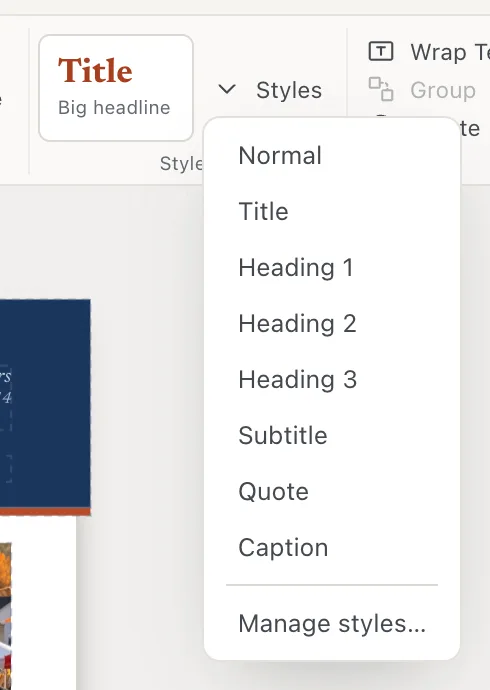
- 1Title
- 2Styles
- 3Manage styles…
The same list is in the Format pane’s Text tab under Fancy, then Style.
When you press ↩Enter at the end of a styled paragraph, the new paragraph gets that style’s Next style. After a Title you type in Subtitle, and after a heading you type in Normal.
Change a style everywhere
- Click Home, then Styles, then Manage styles…. The Paragraph Styles window opens.
- Click the style on the left.
- Change its Font, Size, Bold, Italic, Alignment, Space after, Line spacing, Outline level or Next style. The Preview shows the result.
- Click Save and update all. Every paragraph in that style changes.
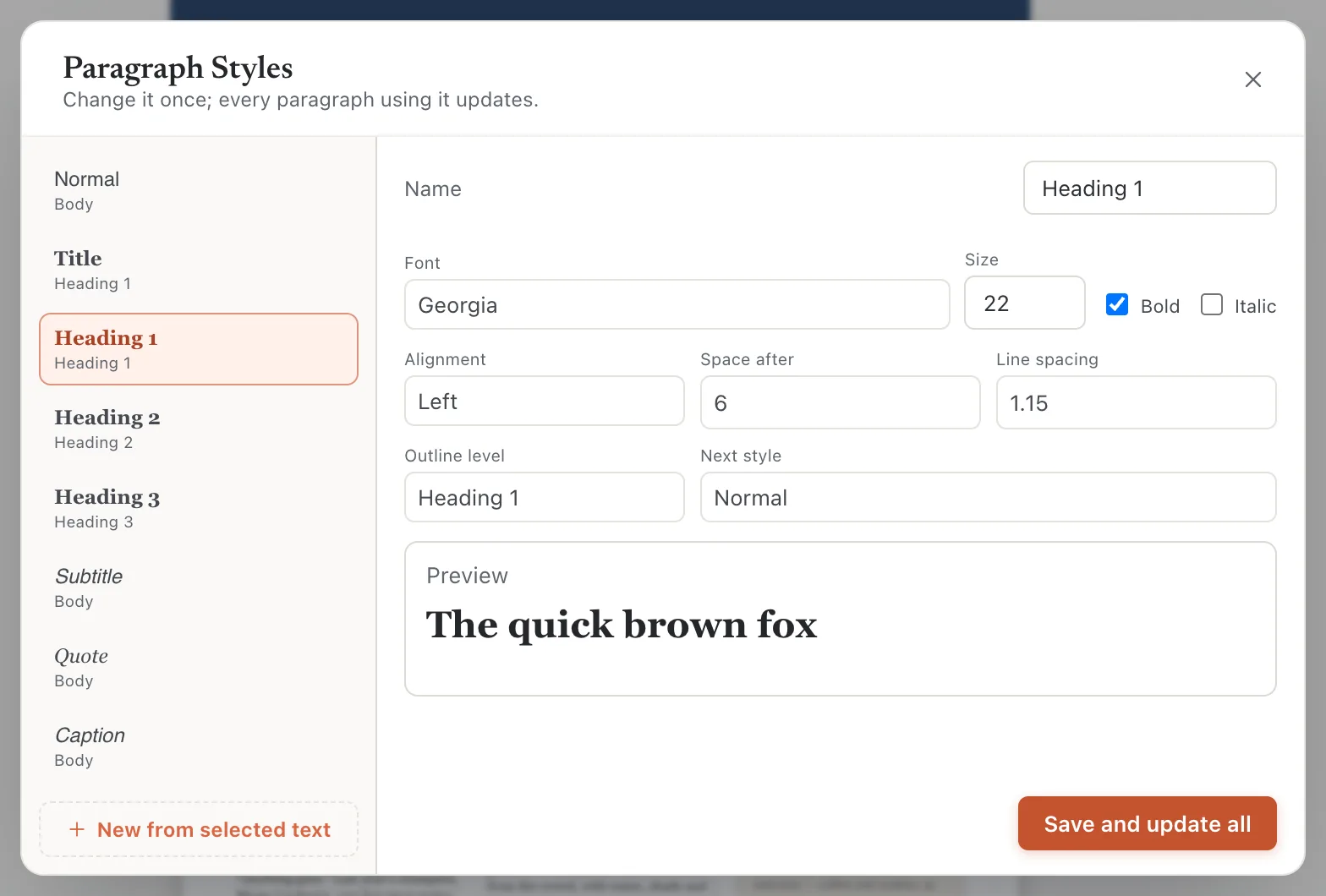
- 1Pick a style
- 2Change its look
- 3Save and update all
To make your own style, format a paragraph the way you like, click in it, open Manage styles… and click New from selected text. Give it a Name and click Save and update all. Your own styles are saved in the publication. Delete style removes one of your own styles, and Reset built-in puts a changed built-in style back.
Change the fonts of the whole publication
- Click Page Design, then Fonts. The Theme Fonts window opens.
- Click a pair. Each pair names a heading font and a body font: Classic, Modern, Editorial, Clean, Typewriter or Elegant.
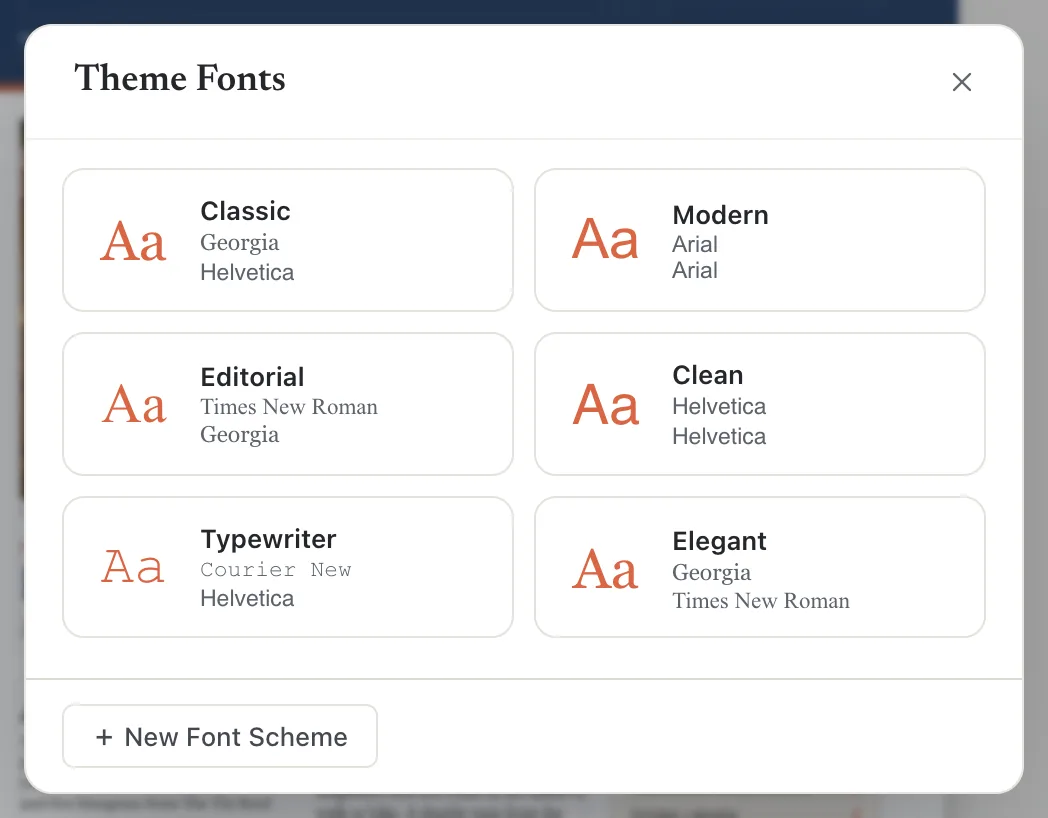
- 1A font pair
- 2+ New Font Scheme
Korva changes the font of every text box on every page, master pages included. Headings get the heading font: large text (18 pt and up), Title and Heading paragraphs, and paragraphs that are bold all the way through. Everything else gets the body font. Sizes, colors and bold or italic stay as they are.
To use fonts of your own choice, click + New Font Scheme, pick a Heading font and a Body font, name it and click Save and apply. Saved schemes appear under Saved font schemes and stay available on this computer.
If it still doesn’t work
Choosing a style changed the whole box
The box was selected but not open for typing, so the style went to all of its paragraphs. Double-click the box and click in one paragraph first.
Some headings didn’t get the heading font
Theme Fonts decides what is a heading by size and style. Small headings in a regular weight count as body text. Apply the Heading 1 style to them, or set their font by hand.
A font in the list isn’t on another computer
Fonts come from the computer you’re using. If you open the file on a computer without that font, Korva shows a similar one. Export a PDF to keep the exact look. See Why did Korva replace a font?
Something wrong or missing in this article? Email support or open an issue on GitHub.
