How do I link text boxes so a story flows from one to the next?
Select the box whose text doesn't fit, click the link button beside it, then click an empty text box (on any page) or drag on empty page space to draw one. The text that didn't fit flows into it. The Format pane's Text flow section shows the chain and has Break link after this box.
- In Publisher
- Text Box Tools, then Format, then Create Link
- In Korva
- Link button beside the selected box, or Format pane, then Text, then Text flow
Newsletters and bulletins often start an article on one page and finish it on another. In Korva, as in Publisher, the boxes of one article are linked into a single story. When you edit or resize any of them, the text moves along the chain by itself.
Linked stories in an imported .pub file stay linked.
See when text doesn’t fit
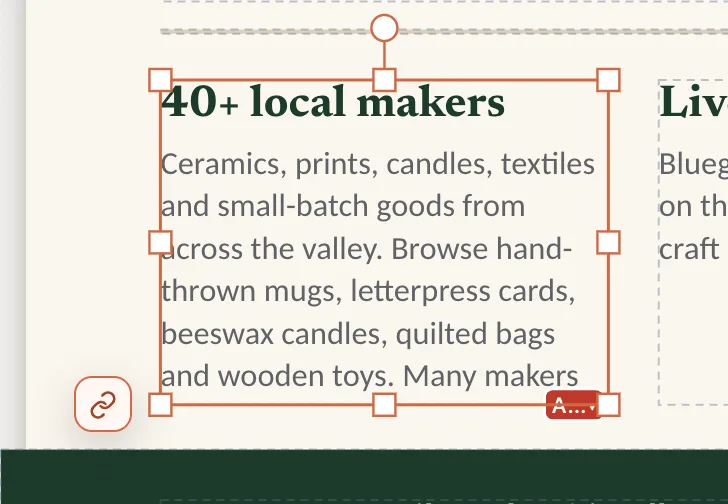
When a box has more text than it can show, a small red A… marker appears at its bottom-right corner. While you type in that box, a red Overflow — won’t print label marks the text that is cut off. The Format pane says Text doesn’t fit in this box.
- 1Link to the next box
Link to the next box
- Click the box whose text doesn’t fit.
- Click the round link button beside the box. You can also click the red A… marker, or click Choose or draw next box… in the Format pane under Text flow.
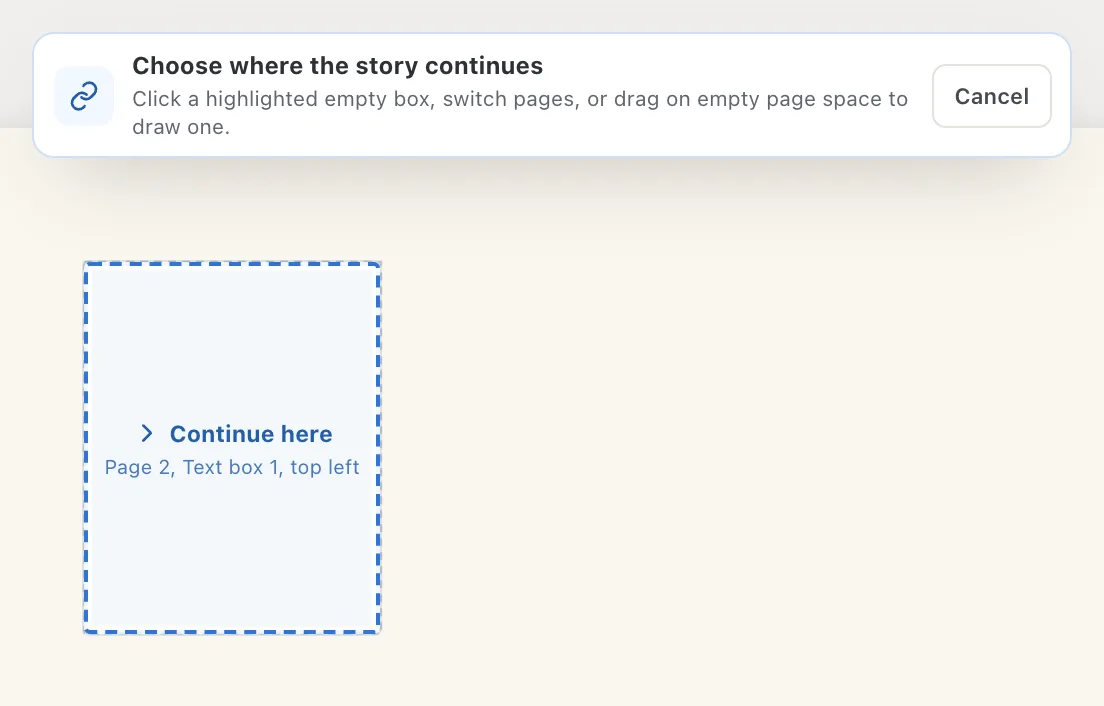
- A bar at the top says Choose where the story continues. Empty text boxes are highlighted with Continue here.
- Do one of these:
- Click a highlighted empty box. To use a box on another page, click that page in the Pages list first.
- Drag on empty page space to draw a new box there.
- The rest of the story flows into the new box. The status bar says Text now flows into and names the box.
- 1Choose where the story continues
- 2An empty box: click it
To stop without linking, click Cancel in the bar, press escEsc, or right-click the page.
When the story jumps to another page, Korva adds small (Continued on page N) and (Continued from page N) notes for the reader. They update if you move pages around.
Follow or change the chain
Select any box in the story and look at Text flow in the Format pane’s Text tab:
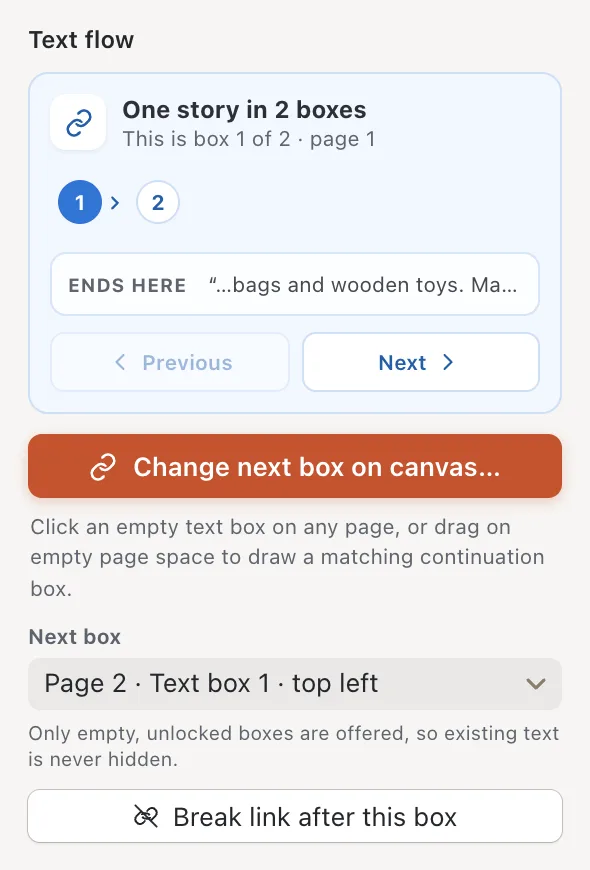
- One story in N boxes and the numbered steps show where you are. Click a number, Previous or Next to jump to that box, even on another page.
- Next box lets you pick a different empty box to continue in.
- Break link after this box ends the story at this box. No text is deleted: whatever no longer fits stays hidden in this box until you link again or make room.
- 1One story in 2 boxes
- 2Next box
- 3Break link after this box
For a list of every story in the publication, click View, then Stories. It shows whether each story fits, with Go to, Edit and, for one that overflows, Autoflow.
If it still doesn’t work
The box I want isn’t highlighted
Only empty, unlocked text boxes can continue a story. Delete the text in the box (or unlock it), or drag on empty page space to draw a new box instead.
Text still doesn’t fit after linking
The new box is full too. Link it on to another box, make the boxes bigger, or use Autoflow…. You can also shrink the text; see Fit text in a box.
The Design Checker says linked boxes form a cycle
A box links back to an earlier box in the same story. Select the last box in the chain and click Break link after this box, then link it to a new empty box.
Something wrong or missing in this article? Email support or open an issue on GitHub.
