How do I export a PDF?
Click Export PDF at the top right of the window for a quick PDF of every page. For more choices, open File, then Export, pick PDF, set Pages and Pictures, and click Export PDF. The PDF is made on your computer and nothing is uploaded.
- In Publisher
- File, then Export, then Create PDF/XPS Document
- In Korva
- File, then Export, then PDF, or the Export PDF button in the title bar
Free for your first project. Export it as many times as you like; exporting other projects needs Korva Pro. Free vs Pro
A PDF looks the same on every computer and phone, so it’s the safest way to send a newsletter, flyer or bulletin to someone who doesn’t have Korva or Publisher.
Export a quick PDF
- Open your publication.
- Click Export PDF at the top right of the window. On a Mac you can also choose File, then Export PDF… in the menu bar, or press ⌘ECtrl+E.
- Choose where to save the file and click Save.
The quick export includes every page, with pictures at Screen & email (150 ppi), which keeps the file small enough to email.

- 1Export PDF
- 2Print and export options
Choose the pages and picture quality
- Click File, then Export, or click the arrow next to Export PDF.
- Under Share, click PDF.
- Next to Pages, choose All, This page (the page in the small preview), or Range and type pages such as 1-3, 5.
- Next to Pictures, choose a quality:
- Smallest file (96 ppi) for email attachments with a size limit.
- Screen & email (150 ppi) for reading on screen. This is the default.
- High-quality print (300 ppi) if you’ll print the PDF yourself.
- Original pictures (largest) to keep every picture exactly as it was placed.
- Tick Grayscale if you want a black-and-white PDF.
- Look at the check box under the options. Ready to export means nothing needs fixing. See Fix problems before you print or export.
- Click Export PDF, choose where to save, and click Save.
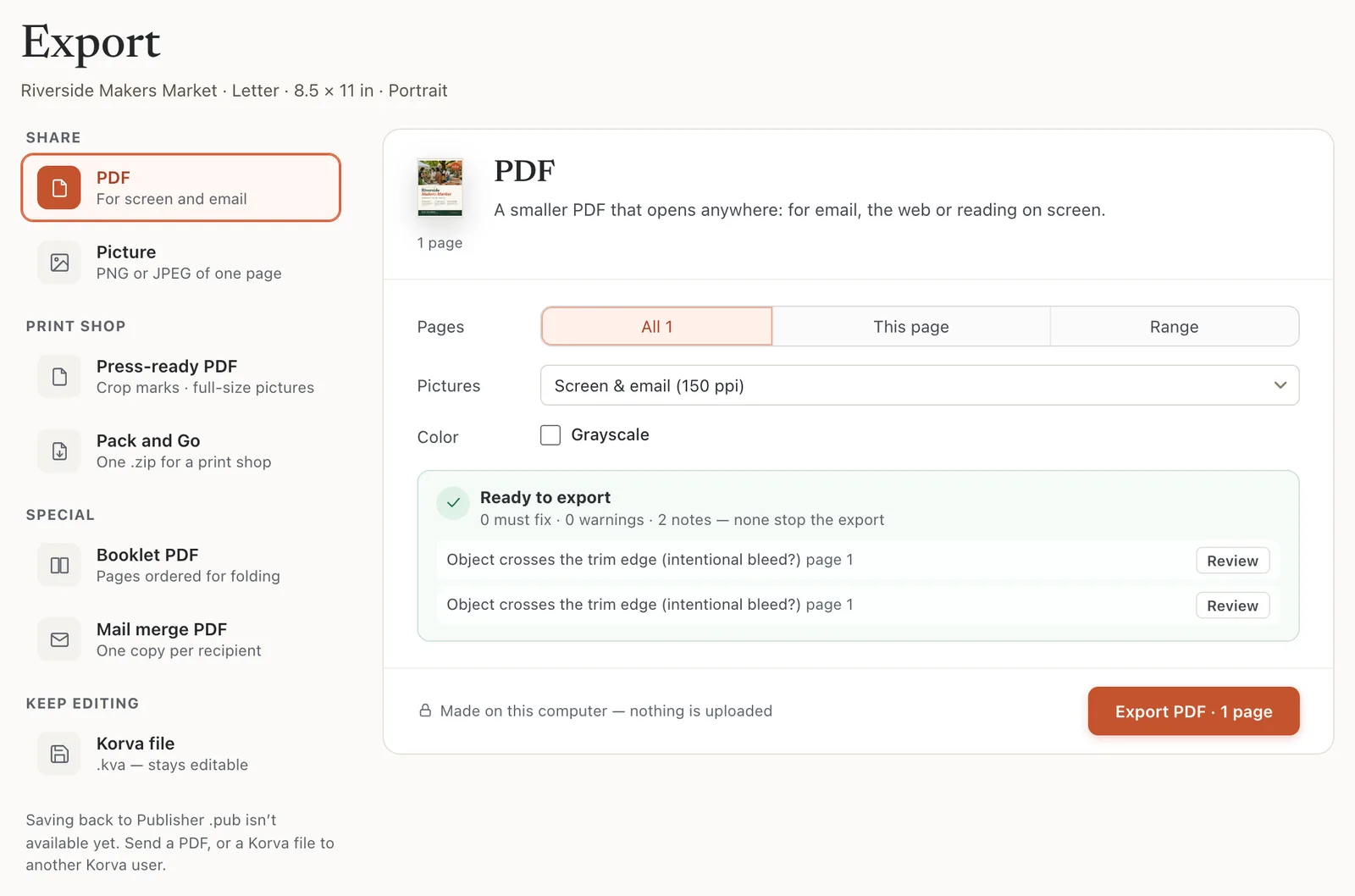
- 1PDF
- 2Pages
- 3Pictures
- 4Export PDF
On the Free plan
Korva Free exports your first project as a PDF (or picture, booklet or printout) as many times as you like. When you export a different project, Korva shows Export every project with Pro. Korva Pro ($49, one time) exports any number of projects. See Free vs Pro.
If it still doesn’t work
The Export PDF button is greyed out
The check found a problem that would spoil the PDF, such as text that doesn’t fit its box. The message next to the button says how many. Fix them, or tick I reviewed the problems and want to export anyway. See Fix problems before you print or export.
The PDF file is too big to email
Export again with Pictures set to Smallest file (96 ppi). Large photos are the usual cause, and this setting shrinks them in the PDF only. Your publication keeps the originals.
Some letters show as “?” in the PDF
The font used for that text has no shape for those characters, so the check warns PDF font cannot print…. Change that text to a font that has them. See Text prints wrong.
Lines break in different places than in Publisher
A font from the Publisher file isn’t installed on this computer, so Korva used a similar one. See Why did Korva replace a font?
Something wrong or missing in this article? Email support or open an issue on GitHub.
