Why is text missing or wrong in my PDF or printout?
Most often the text doesn't fit its box, and anything past the bottom of the box doesn't print. Korva marks such a box with a red overflow marker, and the check under File, then Export says Text does not fit — the end of this story will not print. Make the box bigger, set AutoFit in the Format pane, or continue the story in another box. Text in a different font or with ? in it comes from a font that isn't installed or doesn't have those characters.
- In Korva
- File, then Export (the ready-to-print check), Format pane, then Text fit
Korva checks your publication before every export and print, and names the problems it finds. Open File, then Export (or the arrow next to Export PDF) and read the check at the bottom of the options.
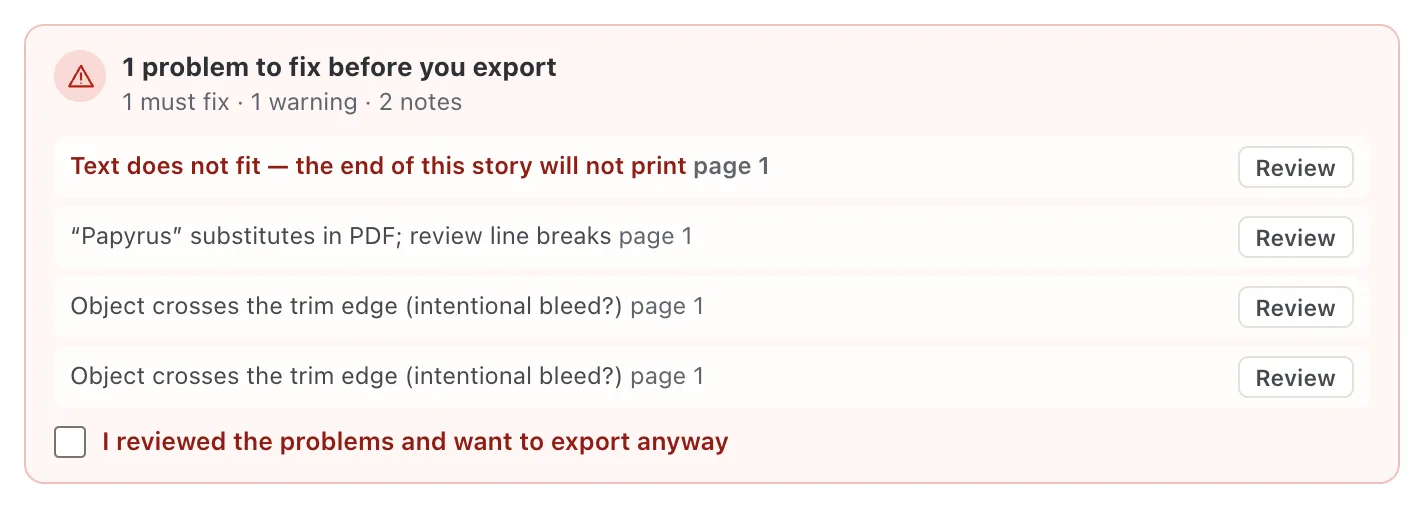
- 1Text does not fit
- 2Font substitutes in PDF
- 3Review
- Text does not fit means the end of the text won’t print.
- …substitutes in PDF; review line breaks means the PDF will use another font for that text.
- Review closes the export page and selects the box, so you can fix it.
Problems marked in red must be fixed, or you must tick I reviewed the problems and want to export anyway before Korva exports.
The end of the text is missing
A text box only prints what fits inside it. When there’s more, Korva shows a small red marker at the bottom right of the box, and the Format pane says the box overflows.
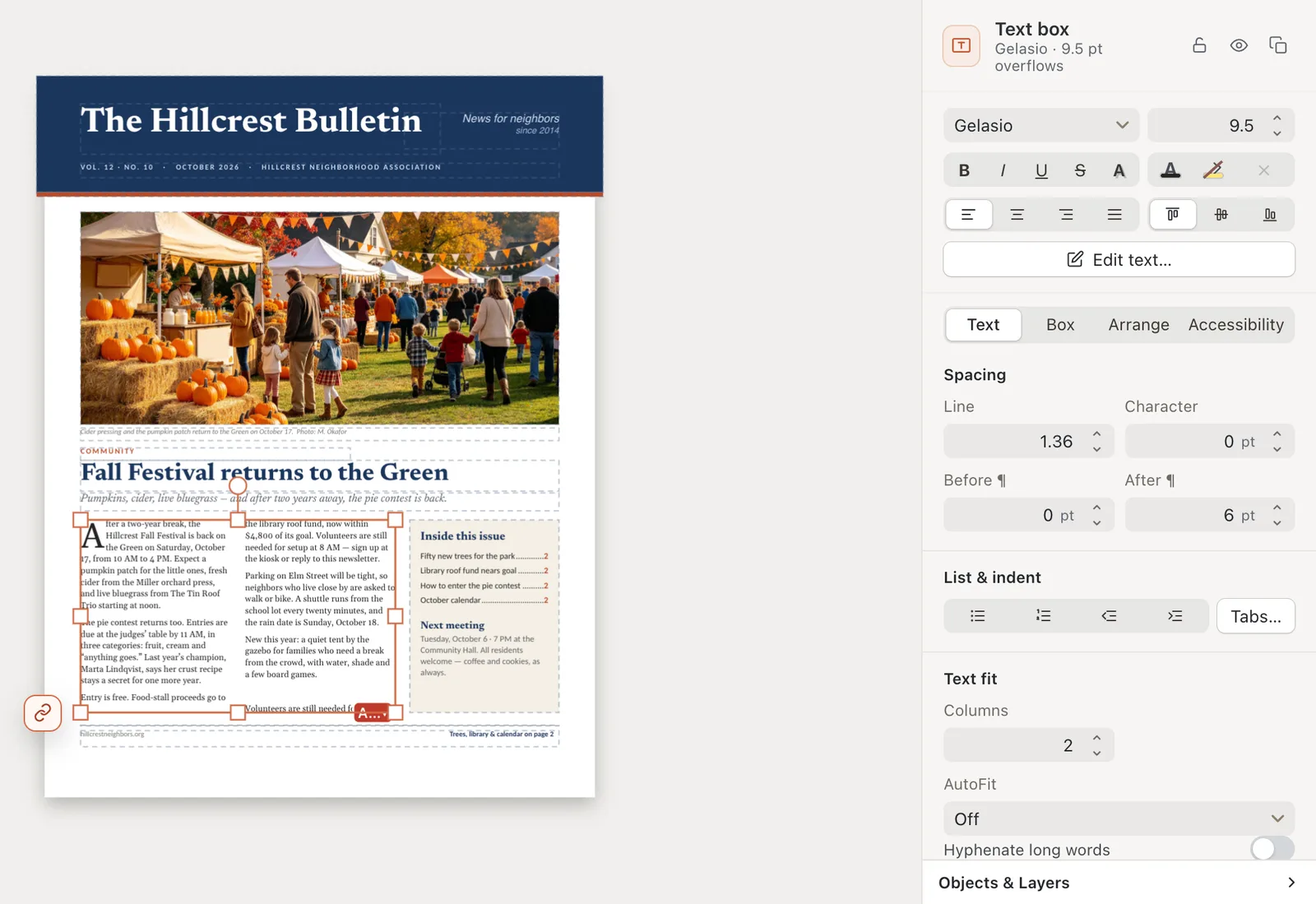
- 1Overflow marker
- 2Text box … overflows
- 3AutoFit
Fix it in one of these ways:
- Make the box bigger. Drag the handle at the bottom of the box down.
- Let Korva fit the text. Select the box. In the Format pane, under Text fit, set AutoFit to Shrink on overflow (smaller text when needed), Best fit (text sized to fill the box) or Grow text box to fit (a taller box).
- Continue the story in another box. Link the box to a next one so the text flows on. See Linked text boxes.
- Cut some text.
If the file came from Publisher and the check says Text did not fit when the file was opened, the text already overflowed in Publisher or the replacement font is wider. See Fit text in a box.
The text is in a different font, or lines break in different places
A font used in the publication isn’t on this computer, or Korva can’t put it in a PDF, so a similar font is used instead. A different font is a little wider or narrower, so lines, and sometimes pages, break in different places.
- Check which fonts were replaced under File, then Info, in the Fonts list.
- Install the missing font on this computer and open the file again, or select the text and choose a font you have.
- After any font change, look through every page for text that no longer fits.
See Why did Korva replace a font?
Some characters print as question marks
The check says PDF font cannot print followed by the characters, and that these characters would become “?”. The font doesn’t have those letters, which happens with some accented letters, symbols, and scripts such as Thai or Arabic. Select the text and choose a font that has them, then export again.
Korva says a font has an unsupported format
The message ends Choose a TrueType or OpenType font for printing. Korva can only put TrueType and OpenType fonts in a PDF, and some fonts installed on your computer are in an older format. Select the text, choose another font, and export again.
If it still doesn’t work
Everything prints in gray
Grayscale is ticked in the export or print options. Untick it under Color and export again.
The PDF is right, but the paper printout isn’t
The PDF is what Korva sends. On Windows and Linux, Korva prints through your PDF viewer, so check that viewer’s print settings: turn off “fit to page” or “shrink” if the page comes out smaller, and pick the right paper size. See Print a publication.
I can’t find the box the check talks about
Click Review next to the problem. If there’s no Review button, the problem may be on a master page, which repeats on several pages. Also see The ready-to-print check.
Something wrong or missing in this article? Email support or open an issue on GitHub.
