How do I install Korva on Linux?
Download a file from korva.korsund.com/download. The AppImage runs on any 64-bit distribution. Make it executable with chmod +x, then run it. On Ubuntu, Debian or Mint you can install the .deb with sudo apt install, and on Fedora, RHEL or openSUSE the .rpm with sudo dnf install or sudo zypper install.
- In Korva
- korva.korsund.com/download, then Linux
Korva runs on 64-bit (x86-64) Linux. The download page has three files. Pick one:
- AppImage: one file that runs on any distribution, with nothing to install. Recommended if you’re not sure.
- Debian (.deb): for Ubuntu, Debian, Linux Mint and other Debian-based systems. Korva appears in your applications menu.
- RPM (.rpm): for Fedora, RHEL, openSUSE and other RPM-based systems. Korva appears in your applications menu.
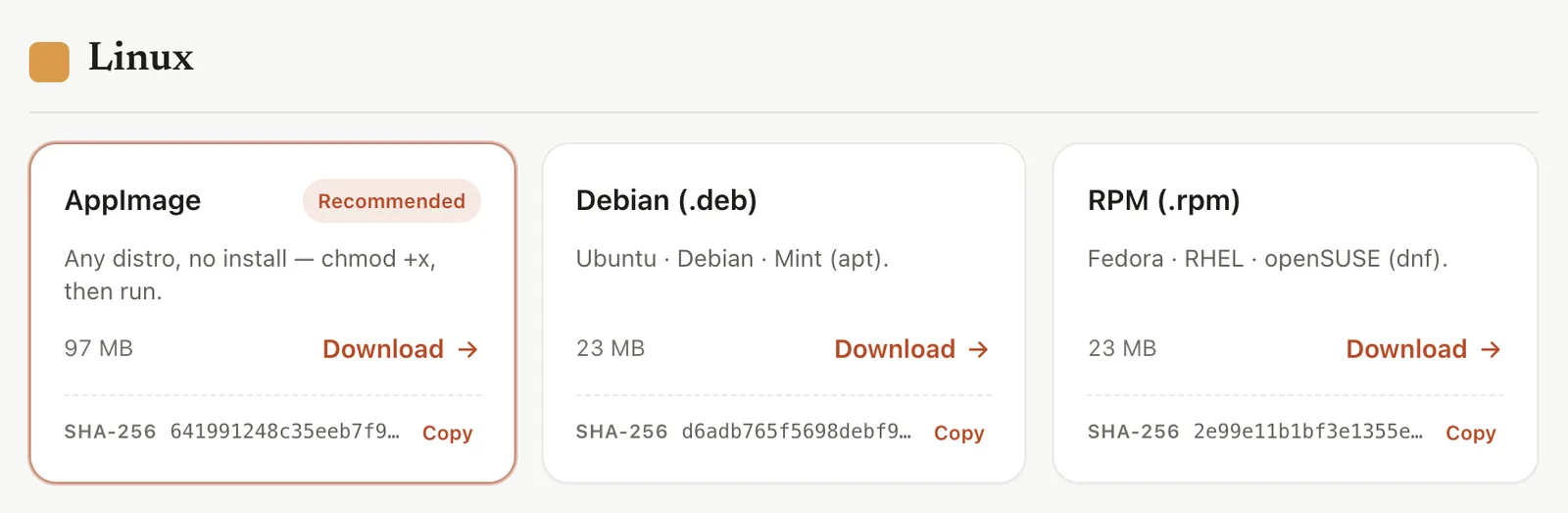
- 1AppImage: any distro
- 2.deb for Ubuntu, Debian, Mint
- 3.rpm for Fedora, RHEL, openSUSE
The commands below use the 1.9.6 file names. If you downloaded a newer version, use the name of the file you have.
Run the AppImage
-
On the download page, click Download on the AppImage card.
-
Open a terminal in the folder you saved it to (usually Downloads) and make the file executable:
chmod +x Korva_1.9.6_amd64.AppImage -
Run it:
./Korva_1.9.6_amd64.AppImage
You can also make it executable in your file manager: right-click the file, choose Properties, and turn on Allow executing file as program (the wording depends on your desktop). Then double-click it.
Install the .deb (Ubuntu, Debian, Mint)
-
Click Download on the Debian (.deb) card.
-
In a terminal, in the folder with the file, run:
sudo apt install ./Korva_1.9.6_amd64.deb -
Open Korva from your applications menu.
Install the .rpm (Fedora, RHEL, openSUSE)
-
Click Download on the RPM (.rpm) card.
-
In a terminal, in the folder with the file, run one of these:
sudo dnf install ./Korva-1.9.6-1.x86_64.rpm
sudo zypper install ./Korva-1.9.6-1.x86_64.rpm
Use
dnfon Fedora and RHEL,zypperon openSUSE. -
Open Korva from your applications menu.
Open Korva the first time
The start screen appears. From here you can open a .pub file, start a blank page or pick a template.
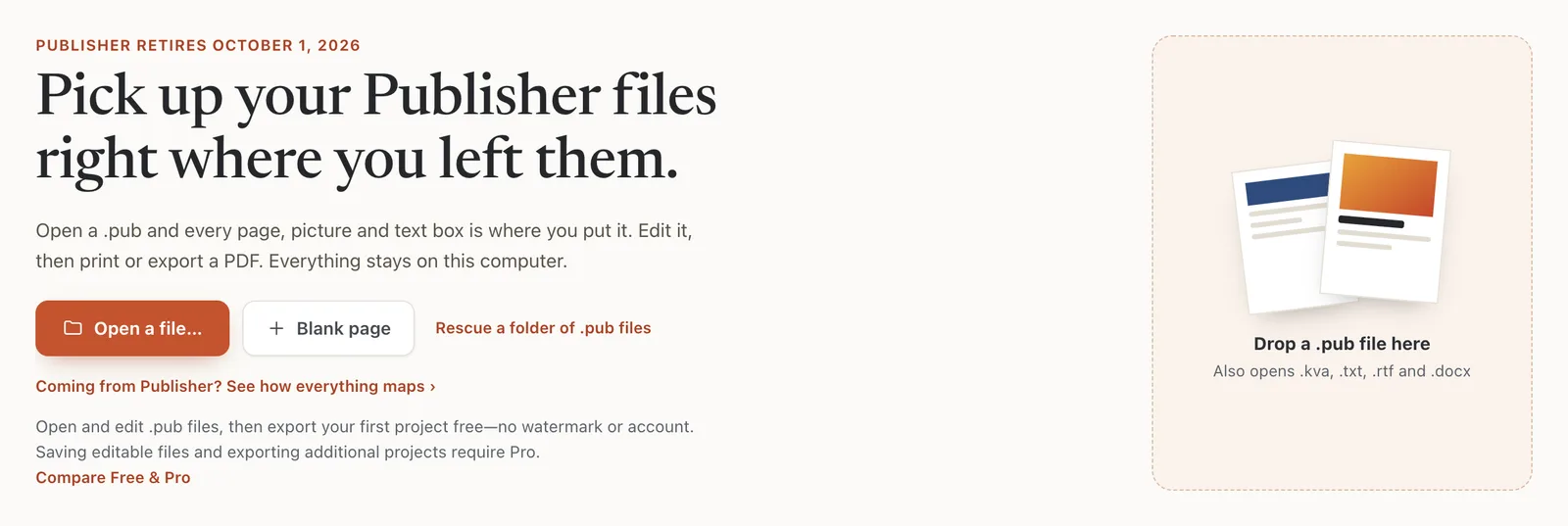
- 1Open a file…
- 2What Free includes
Next: open your first .pub file or take the tour of the Korva window.
Update or remove Korva
- The AppImage checks for new versions when it starts and asks before it downloads anything. For the .deb or .rpm, download the new package from the download page and install it with the same command. See How do I update Korva?
- To remove Korva, delete the AppImage file, or remove the Korva package with your software manager or package tool. Your .kva files, PDFs and .pub files are not touched.
If it still doesn’t work
The AppImage doesn’t start, or says something about FUSE
Many AppImages need the FUSE 2 library, which newer Ubuntu releases don’t install by default. Install it with sudo apt install libfuse2 (on Ubuntu 24.04, sudo apt install libfuse2t64), or use the .deb instead. See Korva won’t install or open on Mac or Linux.
Nothing happens when I double-click the AppImage
The file isn’t executable yet. Run chmod +x on it as shown above, or turn on Allow executing file as program in its properties.
I have an ARM computer (such as a Raspberry Pi)
Korva for Linux is built for 64-bit Intel and AMD processors (x86-64) only.
Something wrong or missing in this article? Email support or open an issue on GitHub.
