How do I check an imported Publisher file before I print it?
Click Review on the note at the bottom of the Format pane (or open File, then Info). Korva lists everything worth a look in the imported file, such as replaced fonts, low-resolution pictures and text that doesn't fit, each with a Go to or Page link that takes you straight to it.
- In Publisher
- File, then Info, then Run Design Checker
- In Korva
- Review on the import note, Review, then Design Checker, or File, then Info
A .pub file usually comes in looking the way it did in Publisher. A few things can still differ, mostly because of what’s on this computer: a font that isn’t installed, or a picture that was small to begin with. Korva checks the whole file for you so you don’t have to compare it page by page.
Open the list
- Open your .pub file. A note appears at the bottom of the Format pane: Layout kept or Layout reflowed, followed by the file name.
- Click Review on that note.
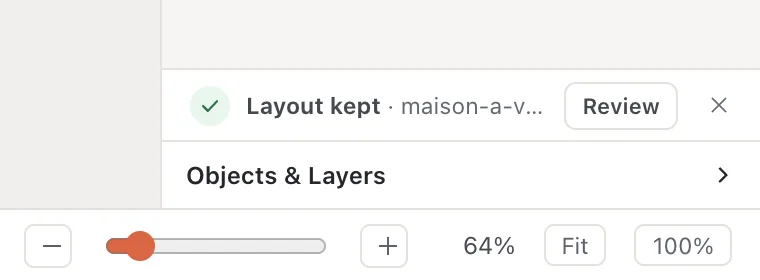
- 1Review
The Spelling & Proofing window opens. Its Ready to print · Design Checker section lists what it found. The line above the list sums it up, for example No blocking errors · 10 warnings.
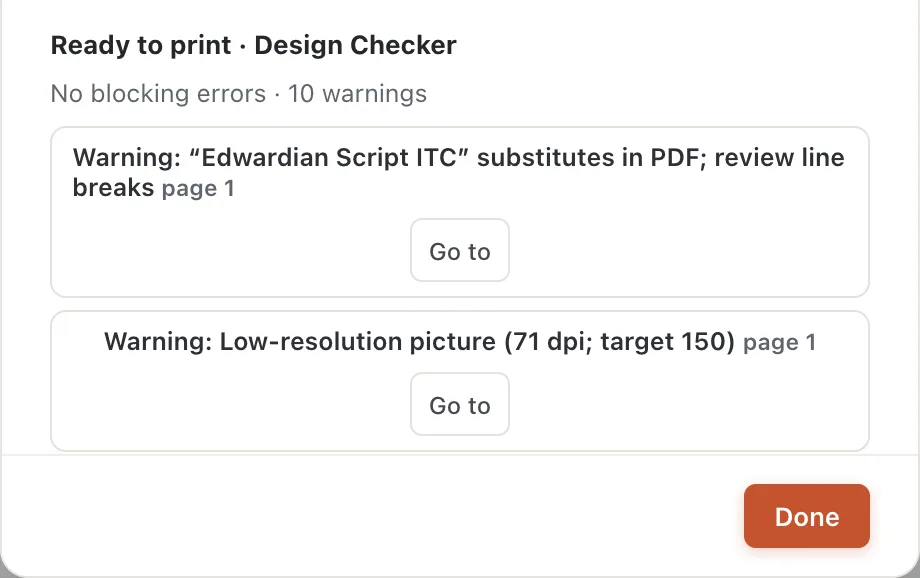
- 1What needs fixing, and what's a warning
- 2Go to
You can open the same window any time from Review, then Design Checker on the ribbon.
Fix each item
- Click Go to next to an item. The window closes, Korva turns to that page and selects the object.
- Fix it (see the list below).
- Open the list again to check the next item.
Some items have a one-click fix next to Go to, such as Delete empty box or Move onto page.
What the common items mean:
- “Font name” substitutes in PDF; review line breaks: the font isn’t on this computer. See Why did Korva replace a font?
- Low-resolution picture (71 dpi; target 150): the picture may look blurry in print. Use a larger copy of the picture if you have one, or print it smaller.
- Picture needs alt text or must be marked decorative: matters only for PDFs people read on screen with a screen reader. See Alt text.
- Text does not fit — the end of this story will not print: make the box bigger, the text smaller, or continue the story in another box. See Make text fit.
- Empty text box: a box with nothing in it. It doesn’t print, so you can leave it or delete it.
Or use File › Info
File, then Info shows the same check under Before you print or export, along with what was imported and which fonts were replaced. Click the Page link on the right of an item to go to it.
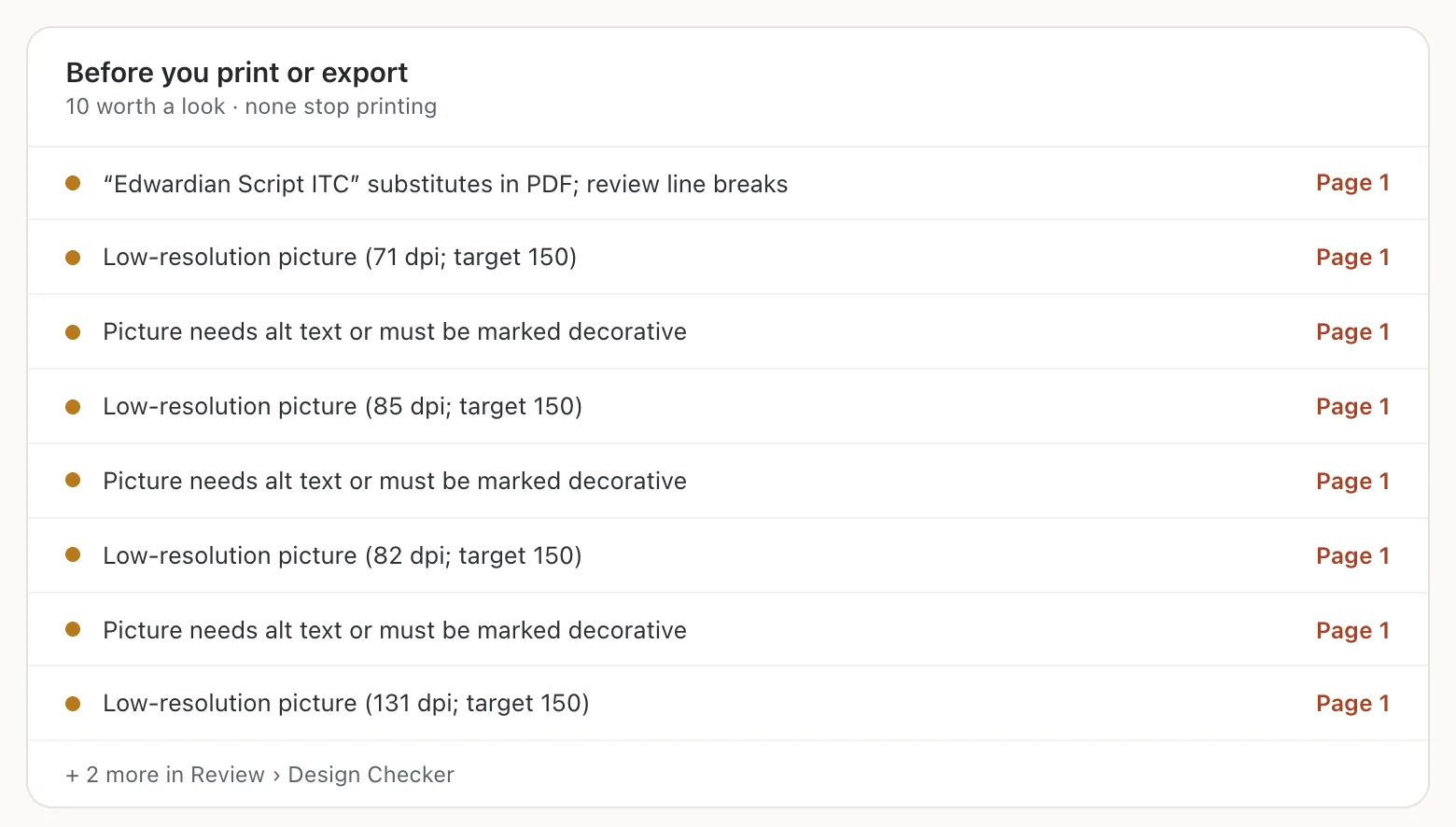
- 1Page link
If it still doesn’t work
There is no Review button
The note with Review appears only after you open a .pub file, and goes away if you click its ×. Use Review, then Design Checker on the ribbon instead.
Spelling flags words in another language
The Spelling section of the same window checks English and Polish only. For other languages it checks against English, so ordinary words can show up as mistakes. Click Ignore, or skip the Spelling section and use the Design Checker below it.
The file looks nothing like it did in Publisher
If the note says Layout reflowed, Korva could read only the text and pictures. See Layout kept or reflowed.
Something wrong or missing in this article? Email support or open an issue on GitHub.
