What do "Layout kept" and "Layout reflowed" mean?
Layout kept means Korva read the page layout of your Publisher file: pages, text boxes and pictures are where Publisher had them. Layout reflowed means Korva could read only the text and pictures, usually because the file is older than Publisher 2003 or damaged, so it laid them out on new pages for you to rearrange.
- In Korva
- Format pane (bottom right) after opening a .pub, and File, then Info
Every time you open a .pub file, a one-line note appears at the bottom of the Format pane on the right. It tells you how much of the file Korva could read. Your original .pub file is never changed either way.
Layout kept
Files saved by Publisher 2003 or any later version (2007, 2010, 2013, 2016, 2019, 2021 and Microsoft 365) store their page layout in a form Korva reads. When that works, the note says Layout kept followed by the file name.
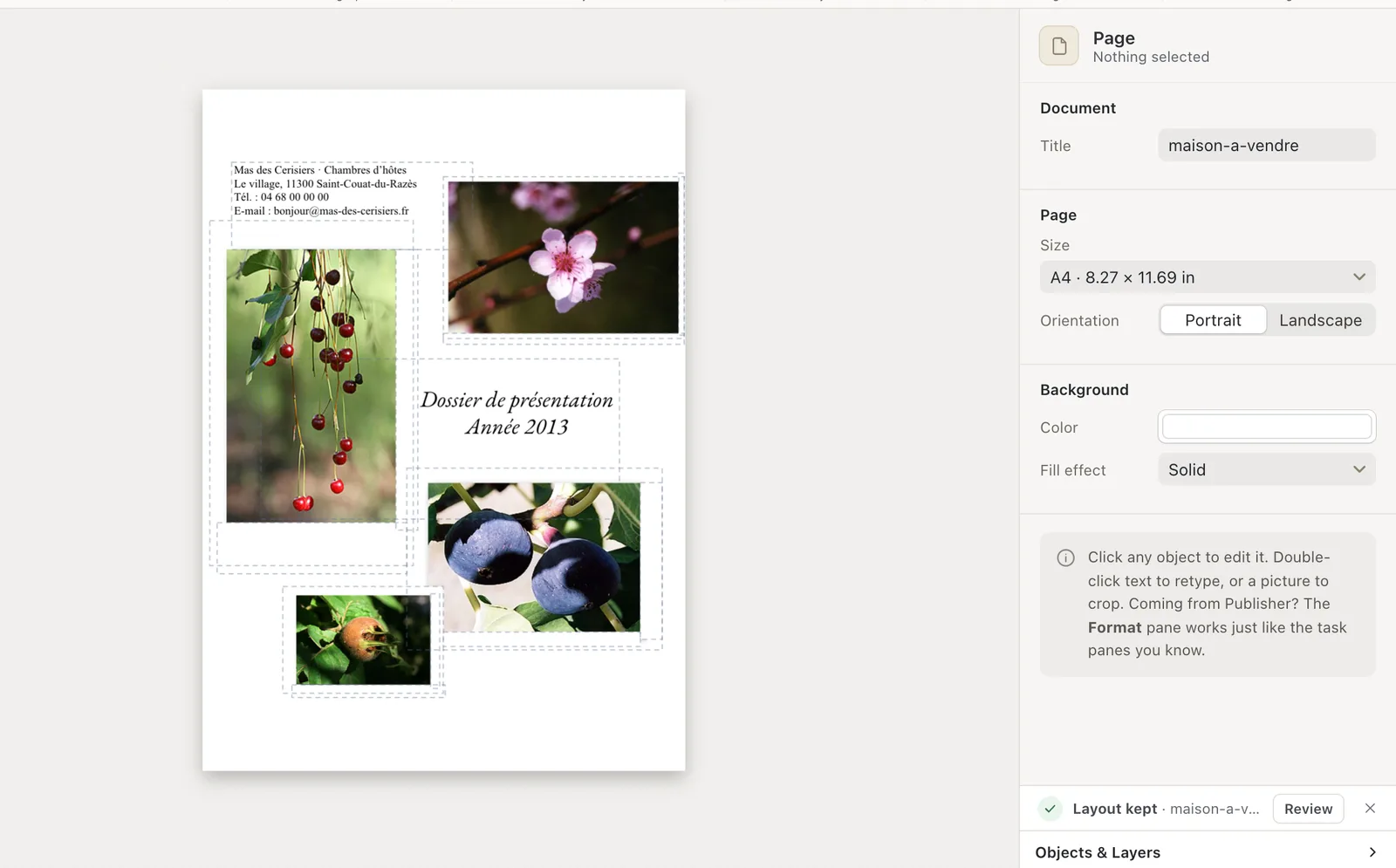
- 1Layout kept
You get the same page size, the same number of pages, and every text box, picture, shape, table and linked story in its place, with the file’s fonts and colors.
A kept layout can still differ from Publisher in small ways. The most common is a font that isn’t installed on your computer, which makes lines break in different places. Click Review on the note to see the list. See Check an imported file before you print.
Layout reflowed
If Korva can’t read the layout, it doesn’t give up on the file. It rescues the text and the pictures and lays them out on new Letter-size pages:
- the first line becomes a headline at the top,
- the pictures go in a grid under it,
- the rest of the text follows in one long story, onto as many pages as it needs.
The note then says Layout reflowed.
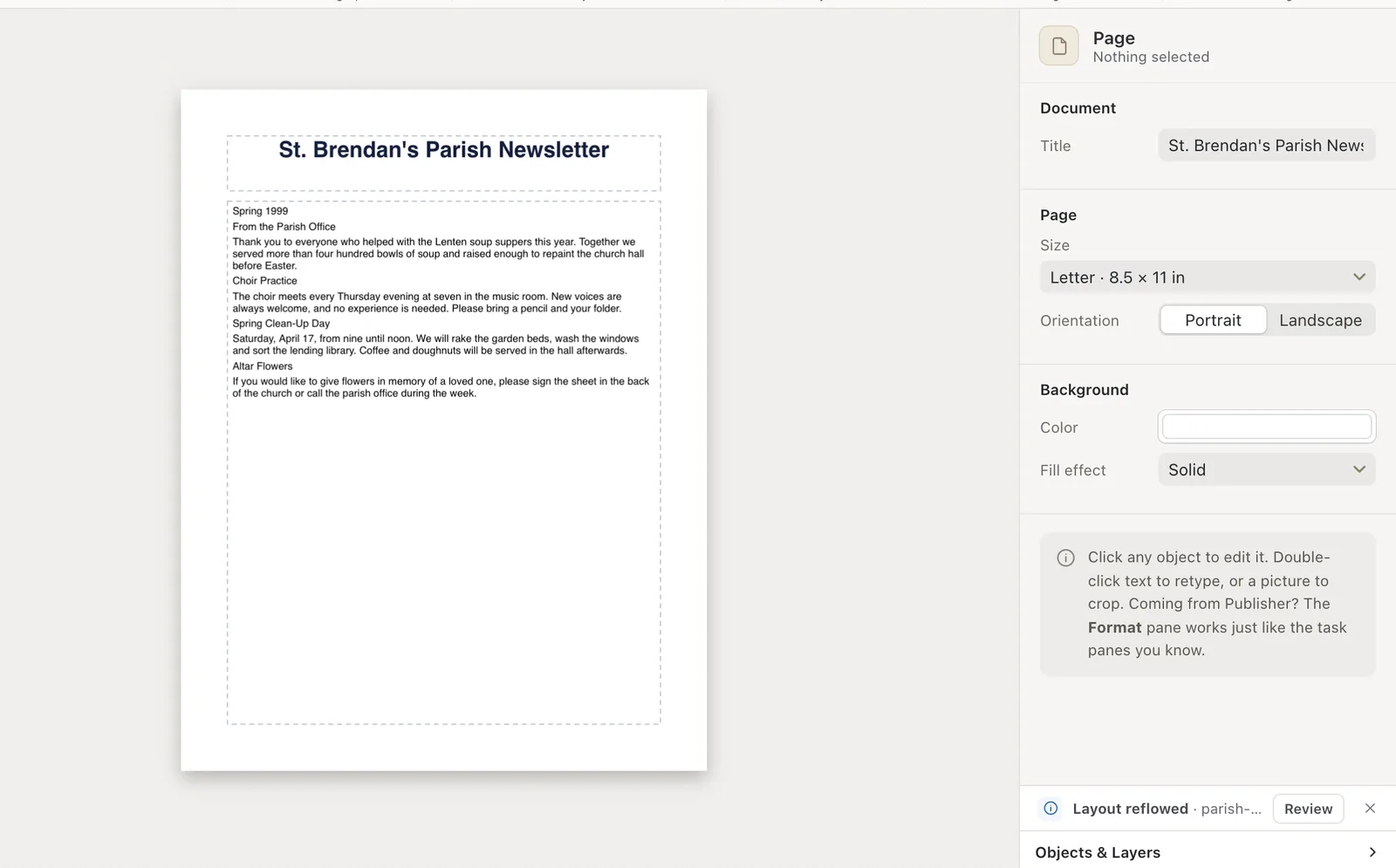
- 1Layout reflowed
File, then Info says the same thing in words: Layout is reflowed — Only the text and pictures of this file could be read, so they were laid out on new pages.
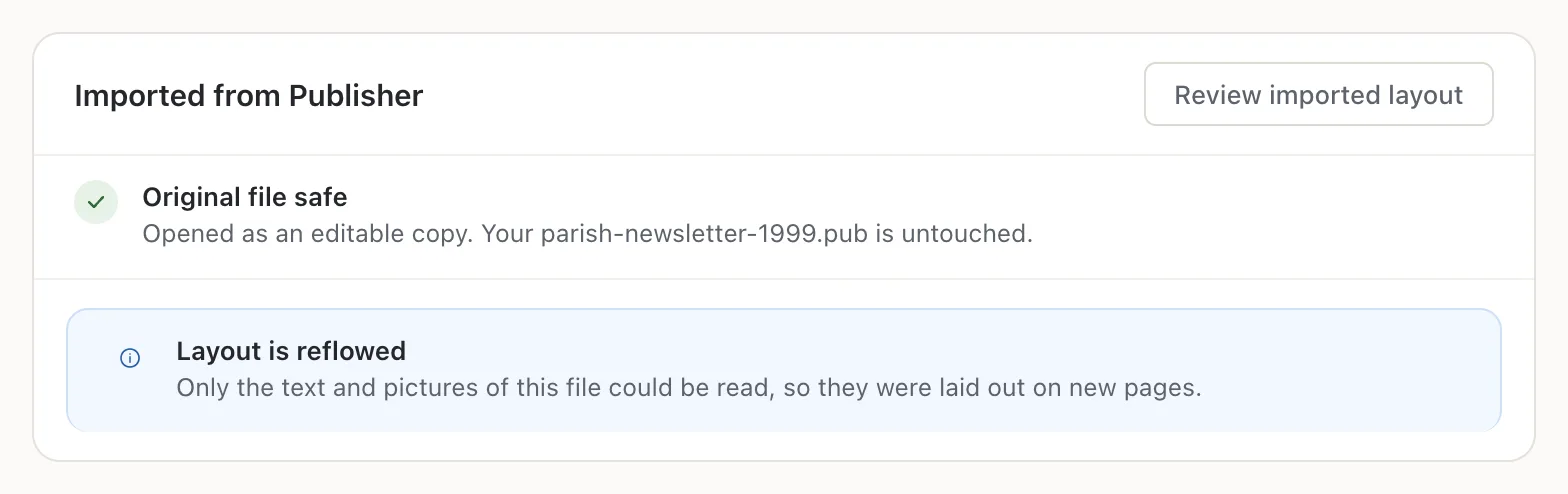
- 1Layout is reflowed
Why a file gets reflowed
- It was made in Publisher 2002 or earlier (Publisher 98, 2000 or 2002). Those versions store the layout differently. See Open files from old versions of Publisher.
- The file is damaged, for example cut short by a failed copy or a full USB stick.
- The file is unusual in a way Korva doesn’t recognize yet. Korva reflows rather than showing a wrong layout.
What to do with a reflowed file
- Check that all the text is there. Nothing is dropped on purpose; the text runs onto extra pages if it needs to.
- Rebuild the design: change the page size under Page Design, then Size, move and resize the boxes, and drag pictures where you want them. Starting from a template and pasting the text in is often quicker.
- If you still have Publisher 2003 or later on any computer, open the old file there, save it again as a .pub, and open the new copy in Korva. It will usually come in with Layout kept.
If it still doesn’t work
The note says Layout kept, but something is in the wrong place
Click Review on the note, or open Review, then Design Checker. If an object is still wrong, move it with the mouse or set its position on the Format pane’s Arrange tab. If you can share the file, contact support so we can fix the import.
There is no note at all
The note appears only for .pub files. Korva files (.kva), Word files and text files don’t show it. If you closed it with ×, look at File, then Info.
Korva says it couldn’t open the file
Then not even the text could be read. See A .pub file won’t open.
Something wrong or missing in this article? Email support or open an issue on GitHub.
