Keyboard shortcuts in Korva
Most Korva shortcuts are Publisher's own. Mod means ⌘ on a Mac and Ctrl on Windows and Linux. Three use the Control key on a Mac too, because macOS keeps those ⌘ keys for itself: ⌃HCtrl+H Replace, ⌃ECtrl+E Center and ⌃MCtrl+M Master page. Press ? in Korva to see the list.
- In Korva
- Help, then Help & Shortcuts, or press ?
If your fingers know Publisher’s shortcuts, most of them work in Korva unchanged.
How to read the keys on this page:
- Mod is ⌘ (Command) on a Mac and Ctrl on Windows and Linux. On a Mac, the Control key works for these too.
- Ctrl means the Control key on every computer, Mac included. Only a few shortcuts need it on a Mac.
- Alt is the Option (⌥) key on a Mac.
- On many Mac keyboards the F keys (F3, F7, F9…) need the Fn key held down. Without PageUp and PageDown keys, use Fn+↑ and Fn+↓.
To see the list inside Korva, press ? (when you aren’t typing in a box), or click Help, then Help & Shortcuts. On a Mac it shows ⌘, ⌥, ⇧ and ⌃ symbols.
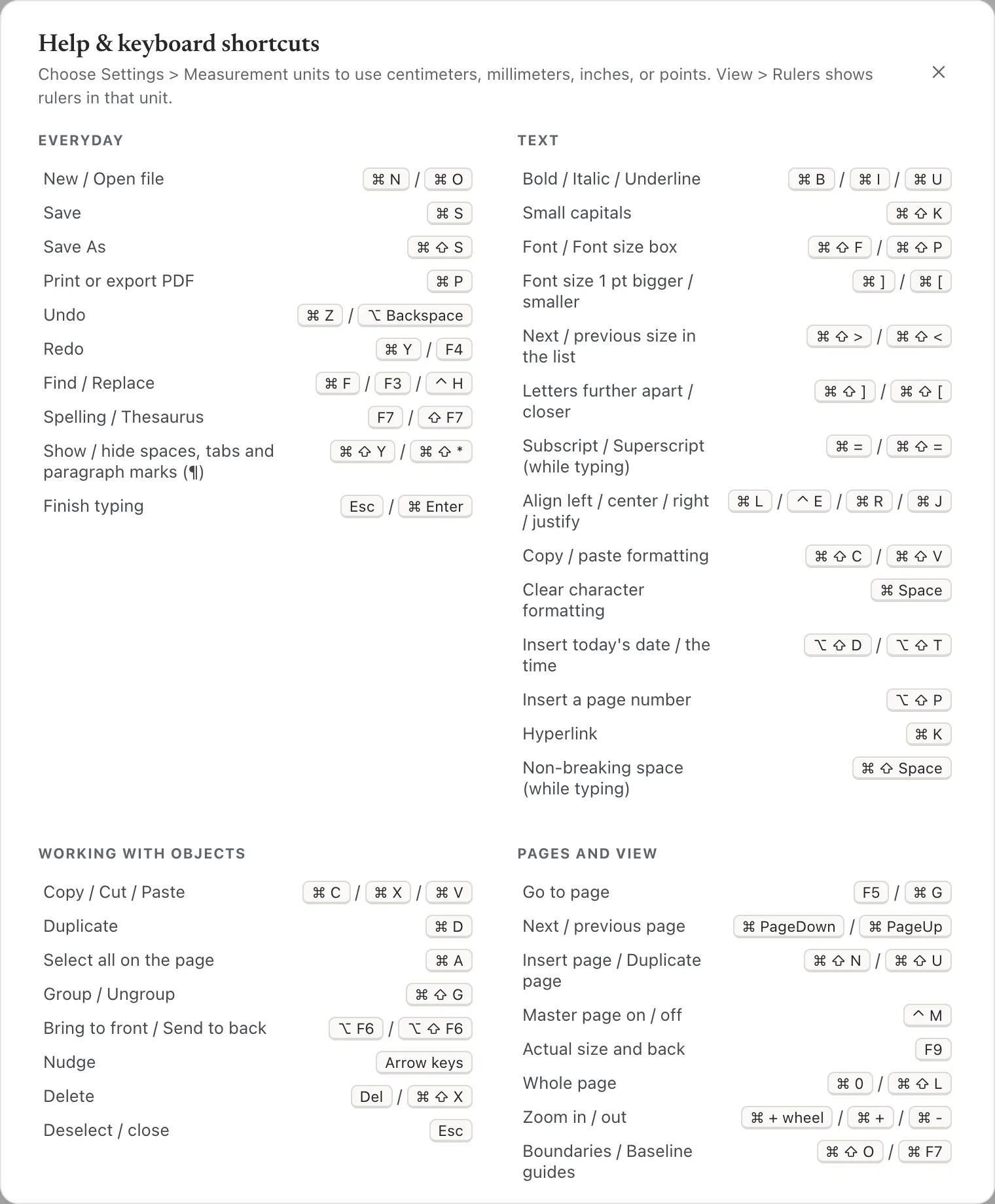
Everyday
| Action | Keys |
|---|---|
| New (opens the start screen with templates) | ⌘NCtrl+N |
| Open a file | ⌘OCtrl+O |
| Save (Pro) | ⌘SCtrl+S |
| Save As (Pro) | ⌘⇧SCtrl+Shift+S |
| Print or export PDF (File › Print) | ⌘PCtrl+P |
| Undo | ⌘ZCtrl+Z or ⌥⌫Alt+Backspace |
| Redo | ⌘YCtrl+Y, ⌘⇧ZCtrl+Shift+Z or F4 |
| Find | ⌘FCtrl+F, F3 or ⇧F4Shift+F4 |
| Replace | ⌃HCtrl+H (Control on a Mac too) |
| Spelling | F7 |
| Thesaurus | ⇧F7Shift+F7 |
| Show or hide spaces, tabs and paragraph marks (¶) | ⌘⇧YCtrl+Shift+Y or ⌘⇧8Ctrl+Shift+8 |
| Settings | ⌘,Ctrl+, |
| Help and this list | ? |
Typing in a text box
| Action | Keys |
|---|---|
| Start typing in the selected text box | ↩Enter or F2 (or double-click) |
| New paragraph | ↩Enter |
| New line in the same paragraph | ⇧↩Shift+Enter |
| Finish typing (keeps what you typed) | escEsc or ⌘↩Ctrl+Enter |
| Move a list item in or out a level (at its start) | ⇥Tab / ⇧⇥Shift+Tab |
| Non-breaking space | ⌘⇧SpaceCtrl+Shift+Space |
| Next table cell / previous table cell | ⇥Tab / ⇧⇥Shift+Tab |
| Tab character inside a table cell | ⌃⇥Ctrl+Tab (Control on a Mac too) |
Formatting text
These work on selected words, or on all the text of a selected box.
| Action | Keys |
|---|---|
| Bold / Italic / Underline | ⌘BCtrl+B / ⌘ICtrl+I / ⌘UCtrl+U |
| Small capitals | ⌘⇧KCtrl+Shift+K |
| Go to the Font box / the Font size box | ⌘⇧FCtrl+Shift+F / ⌘⇧PCtrl+Shift+P |
| Font size 1 pt bigger / smaller | ⌘]Ctrl+] / ⌘[Ctrl+[ |
| Next / previous size in the list | ⌘⇧.Ctrl+Shift+. / ⌘⇧,Ctrl+Shift+, (the > and < keys) |
| Letters further apart / closer | ⌘⇧]Ctrl+Shift+] / ⌘⇧[Ctrl+Shift+[ |
| Subscript / Superscript (while typing) | ⌘=Ctrl+= / ⌘⇧=Ctrl+Shift+= |
| Align left | ⌘LCtrl+L |
| Align center | ⌃ECtrl+E (Control on a Mac too) |
| Align right / Justify | ⌘RCtrl+R / ⌘JCtrl+J |
| Single / 1.5 / double line spacing | ⌘1Ctrl+1 / ⌘5Ctrl+5 / ⌘2Ctrl+2 |
| Copy formatting / paste formatting | ⌘⇧CCtrl+Shift+C / ⌘⇧VCtrl+Shift+V |
| Clear character formatting | ⌘SpaceCtrl+Space |
Inserting
| Action | Keys |
|---|---|
| Today’s date / the time | ⌥⇧DAlt+Shift+D / ⌥⇧TAlt+Shift+T |
| Page number | ⌥⇧PAlt+Shift+P |
| Hyperlink | ⌘KCtrl+K |
Working with objects
| Action | Keys |
|---|---|
| Copy / Cut / Paste | ⌘CCtrl+C / ⌘XCtrl+X / ⌘VCtrl+V |
| Cut | ⇧⌦Shift+Delete |
| Duplicate | ⌘DCtrl+D |
| Select everything on the page | ⌘ACtrl+A |
| Select the next / previous object | ⇥Tab / ⇧⇥Shift+Tab |
| Group or ungroup | ⌘⇧GCtrl+Shift+G |
| Bring to front / Send to back | ⌥F6Alt+F6 / ⌥⇧F6Alt+Shift+F6 |
| Nudge | Arrow keys (with ⇧Shift to move further) |
| Delete | ⌦Delete, ⌫Backspace or ⌘⇧XCtrl+Shift+X |
| Deselect, or close a menu or window | escEsc |
Pages and view
| Action | Keys |
|---|---|
| Go to page | F5 or ⌘GCtrl+G |
| Next / previous page | ⌘Page DownCtrl+Page Down / ⌘Page UpCtrl+Page Up |
| Insert page | ⌘⇧NCtrl+Shift+N |
| Duplicate page | ⌘⇧UCtrl+Shift+U |
| Master page view on / off | ⌃MCtrl+M (Control on a Mac too) |
| Actual size (100%), and back | F9 |
| Whole page | ⌘0Ctrl+0 or ⌘⇧LCtrl+Shift+L |
| Zoom in / out (when not typing) | ⌘=Ctrl+= / ⌘-Ctrl+-, or Mod and the mouse wheel |
| Boundaries on / off | ⌘⇧OCtrl+Shift+O |
| Baseline guides on / off | ⌘F7Ctrl+F7 |
Mac menu bar
On a Mac, Korva also has a menu bar. These menu items have shortcuts of their own:
| Menu | Item | Keys |
|---|---|---|
| Korva | Settings… | ⌘,Ctrl+, |
| Korva | Hide Korva / Hide Others | ⌘HCtrl+H / ⌘⌥HCtrl+Alt+H |
| Korva | Quit Korva | ⌘QCtrl+Q |
| File | New from Template… / Open… | ⌘NCtrl+N / ⌘OCtrl+O |
| File | Close Window | ⌘WCtrl+W |
| File | Save / Save As… | ⌘SCtrl+S / ⌘⇧SCtrl+Shift+S |
| File | Export PDF… | ⌘ECtrl+E |
| File | Print… | ⌘PCtrl+P |
| Edit | Undo / Redo | ⌘ZCtrl+Z / ⌘⇧ZCtrl+Shift+Z |
| Edit | Select All | ⌘ACtrl+A |
| Window | Minimize | ⌘MCtrl+M |
| Help | Korva Help | ⌘⇧/Ctrl+Shift+/ |
This is why Replace, Align center and Master page use the Control key on a Mac: ⌘H, ⌘E and ⌘M already hide Korva, export a PDF and minimize the window. Export PDF… with ⌘ECtrl+E is on the Mac only; on Windows and Linux, Ctrl+E centers text, and you export with File, then Export or the Export PDF button at the top right.
Windows and Linux have no menu bar; use the ribbon and the File tab.
Related
- Publisher command map: where each Publisher command is in Korva.
- Coming from Publisher.
Something wrong or missing in this article? Email support or open an issue on GitHub.
