How do I change the color scheme or page background?
On the Page Design tab, click one of the Color scheme swatches to recolor the whole publication, or + to make your own. Page Color sets the background color of the page you're on, and Background offers soft tints and gradients for one page or all of them.
- In Publisher
- Page Design, then Schemes and Background
- In Korva
- Page Design, then Color scheme and Background
A color scheme is a set of five colors that work together. Picking one recolors your shapes, text and backgrounds to match, so a flyer can go from autumn orange to blue in one click.
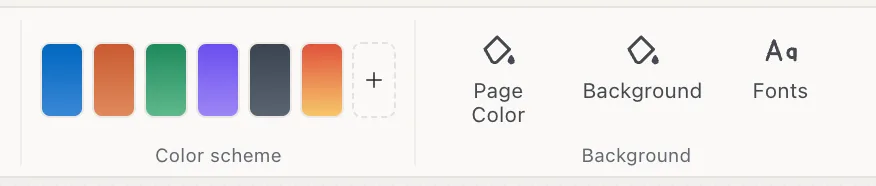
- 1Color schemes
- 2New color scheme
- 3Page Color
- 4Background
Recolor the publication with a scheme
- On the Page Design tab, hover over the swatches in the Color scheme group to see their names: Cobalt, Terracotta, Forest, Plum, Slate and Sunset.
- Click one. Every page changes at once.

What changes and what doesn’t:
- Fills, outlines, gradients, text colors and page backgrounds take the scheme’s colors. Each color is matched by its role: dark colors take the scheme’s dark, pale ones its light, and so on.
- Black, white and grays stay as they are. Photos are never changed.
- Korva checks every piece of text against what’s behind it, so text stays readable.
- New shapes, text and tables you add afterwards take the scheme’s colors too.
Don’t like it? Press ⌘ZCtrl+Z to go back.
Make your own color scheme
- Click + at the end of the swatches.
- Type a Name for the scheme.
- Click each color well to choose the Main, Accent 1, Accent 2, Hyperlink and Followed (visited link) colors. The strip at the bottom previews them.
- Click Apply.
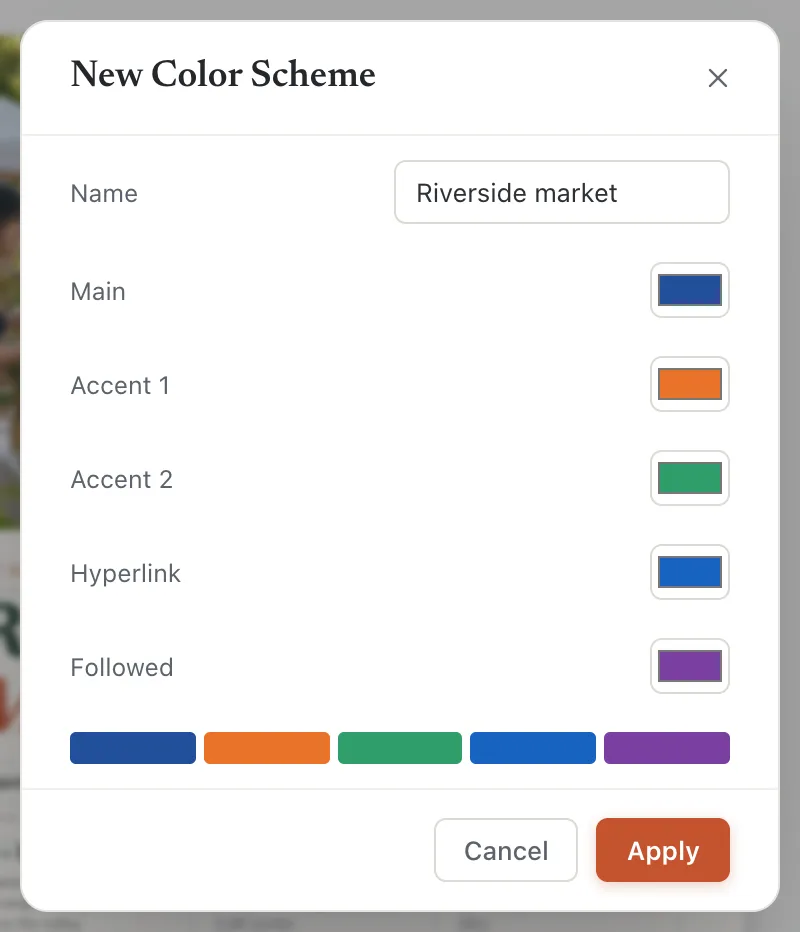
- 1Name
- 2Apply
Your scheme is applied and saved on this computer. It appears as a new swatch in the Color scheme group, ready for other publications, and under Saved schemes next time you open this dialog.
Set the page background
A plain color for this page: click Page Color and pick a color. It changes the page you’re on.
A tint or gradient:
- Click Page Design, then Background.
- Click one of the Solid tints or Gradients. The page shows it straight away.
- Tick Apply to all pages to use it on every page.
- Click Done. Cancel puts the page back as it was.
To remove a background, click No background.
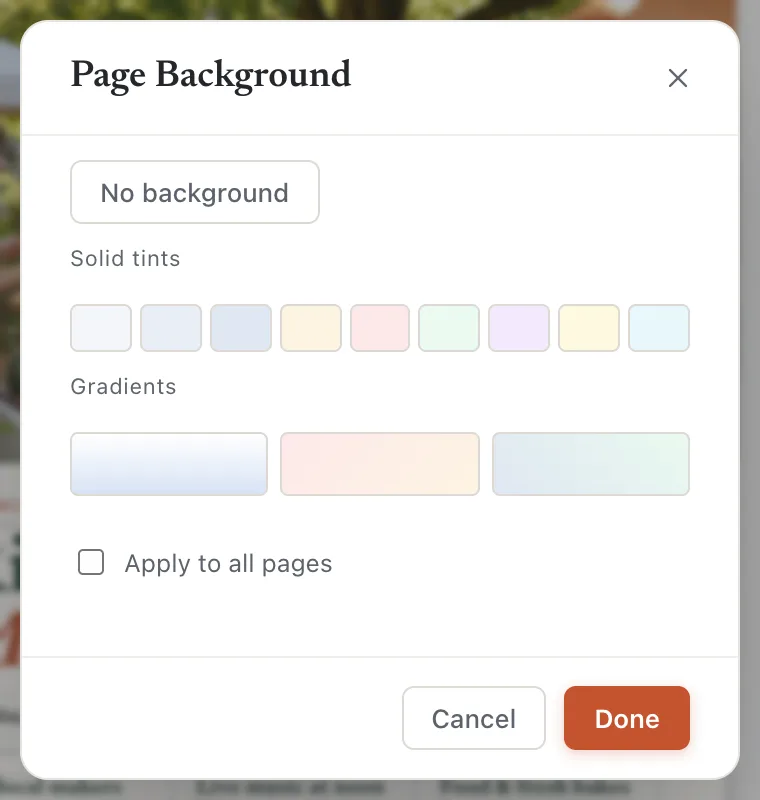
- 1No background
- 2Solid tints
- 3Gradients
- 4Apply to all pages
For your own gradient colors, click an empty part of the page so nothing is selected. Under Background in the Format pane, set Fill effect to Gradient, then choose the From and To colors and the Direction.
If it still doesn’t work
Some colors didn’t change with the scheme
Black, white, grays and photos never change. Colors inside pictures, such as a logo, stay as they are too.
The background is only on one page
Page Color and Background change the page you’re on. In the Background dialog, tick Apply to all pages. If you use a master page, put the background on the master and every page using it will show it (see Master pages).
My saved scheme isn’t on my other computer
Custom schemes are saved on the computer where you made them. Make the scheme again on the other computer with the same colors.
Something wrong or missing in this article? Email support or open an issue on GitHub.
