How do I print my publication?
Press ⌘PCtrl+P or open File, then Print, choose the pages, and click Print. On a Mac your system's print window opens, where you pick the printer and copies. On Windows and Linux the pages open as a PDF in your PDF viewer, and you print from there.
- In Publisher
- File, then Print
- In Korva
- File, then Print
Free for your first project. Export it as many times as you like; exporting other projects needs Korva Pro. Free vs Pro
Korva prepares your pages as a print-quality PDF and hands them to your computer’s printing. You choose the printer, the number of copies and double-sided printing in your system’s own print window.
- Open your publication.
- Press ⌘PCtrl+P, or click File, then Print.
- Next to Pages, choose All, This page (the page in the preview), or Range and type pages such as 1-3, 5.
- Leave Pictures on High-quality print (300 ppi). Choose a lower setting only if a large job prints slowly.
- Tick Grayscale to print in black and white.
- Check the box under the options. Ready to print means nothing needs fixing.
- Click Print N pages….
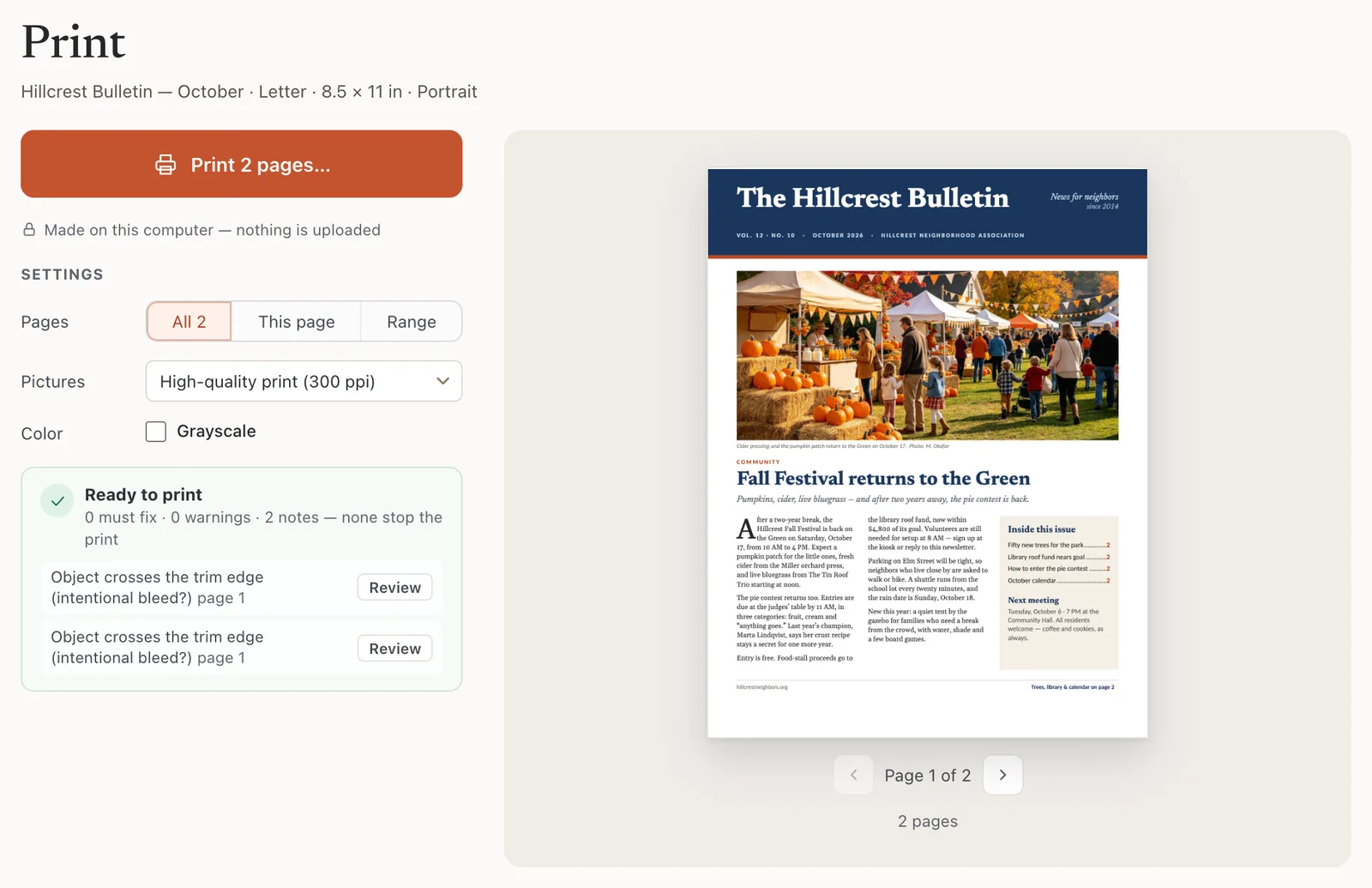
- 1Pages
- 2Pictures
- 3Grayscale
- 4Print 2 pages…
What happens next
In the print window, set the scale to 100% or Actual size so the pages print at their real size. “Fit to page” shrinks them slightly.
Things File › Print doesn’t do
- Crop marks and CMYK are only in File, then Export, then Press-ready PDF. See Make a press-ready PDF.
- Booklets (two pages per side, in folding order) are made with Booklet PDF. See Print a booklet.
- Several pages per sheet, such as business cards, need to be laid out on the page itself. Korva doesn’t place copies across a sheet when printing.
- Posters bigger than your paper: tick Tile across sheets, which appears only for oversized pages. See Print a poster on several sheets.
On the Free plan, printing counts like exporting: your first project prints as often as you like. See Free vs Pro.
If it still doesn’t work
The Print button is greyed out
The check found a problem that would spoil the printout, such as text that doesn’t fit its box. Fix it, or tick I reviewed the problems and want to print anyway. See Fix problems before you print or export.
Nothing opens after I click Print (Windows or Linux)
Your computer needs a program that opens PDF files. Install a PDF viewer, or set one as the default for .pdf files, and print again.
The printout has a white border or is slightly smaller
Most home printers can’t print to the very edge of the paper. Keep important text at least 1/4 inch from the edges. If everything shrank, set the scale to 100% in the print window.
The colours or pictures look poor
Check that Pictures is High-quality print (300 ppi) and that Grayscale isn’t ticked. A picture listed as low resolution in the check will look soft at any setting.
Something wrong or missing in this article? Email support or open an issue on GitHub.
