How do I insert symbols, the date and hyperlinks?
Click in the text where you want it, then use Insert, then Symbol, Insert, then Date & Time (⌥⇧DAlt+Shift+D for today's date) or Insert, then Hyperlink (⌘KCtrl+K). For a link, select the words first. Links stay clickable in the PDF you export.
- In Publisher
- Insert, then Symbol, Insert, then Date & Time, Insert, then Hyperlink
- In Korva
- Insert, then Symbol, Insert, then Date & Time, Insert, then Hyperlink
These commands all put something into your text at the cursor. Double-click a text box and click where it should go before you start. If no text box is selected, Symbol and Date & Time put what you choose in a new text box.

- 1Symbol
- 2Date & Time
Insert a symbol
- Click in the text where the symbol goes.
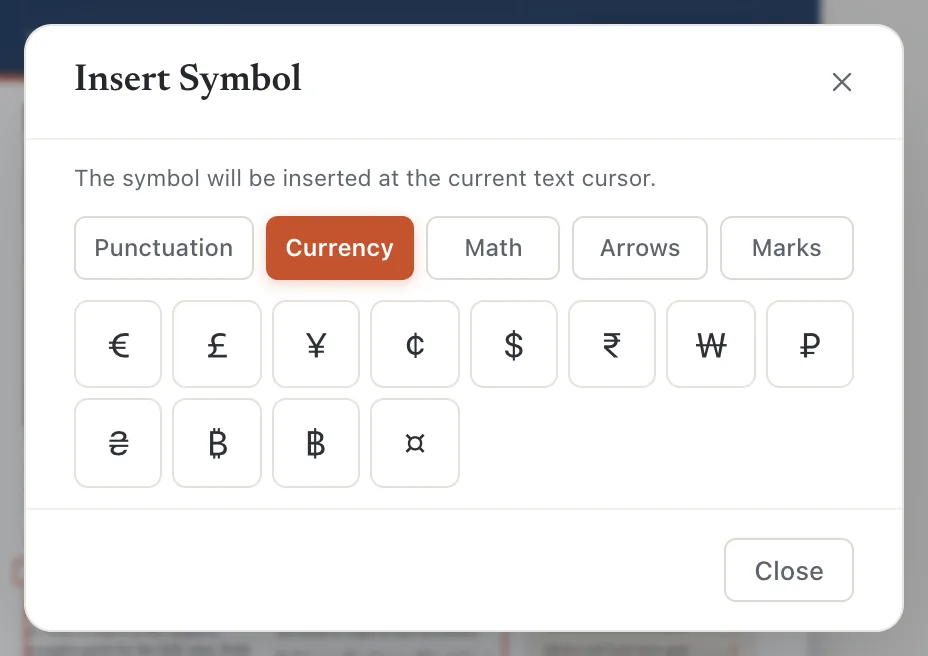
- Click Insert, then Symbol. The window says where the symbol will go, for example The symbol will be inserted at the current text cursor.
- Pick a group: Punctuation, Currency, Math, Arrows or Marks.
- Click a symbol. The window stays open, so you can click several in a row.
- Click Close.
- 1Where it goes
- 2Groups
- 3Click a symbol
The groups hold the symbols people use most: dashes and quotes, currency signs including € £ ¥ ₹ and the Thai baht ฿, fractions and math signs, arrows, ©, ®, ™, check marks and the ☐ ☑ boxes for forms. Korva doesn’t have Publisher’s full character map of every character in a font. For anything else, use your computer’s own character viewer and paste.
Insert today’s date or the time
- Click in the text where the date goes.
- Click Insert, then Date & Time.
- Click the format you want, such as October 30, 2026 or 10/30/2026.
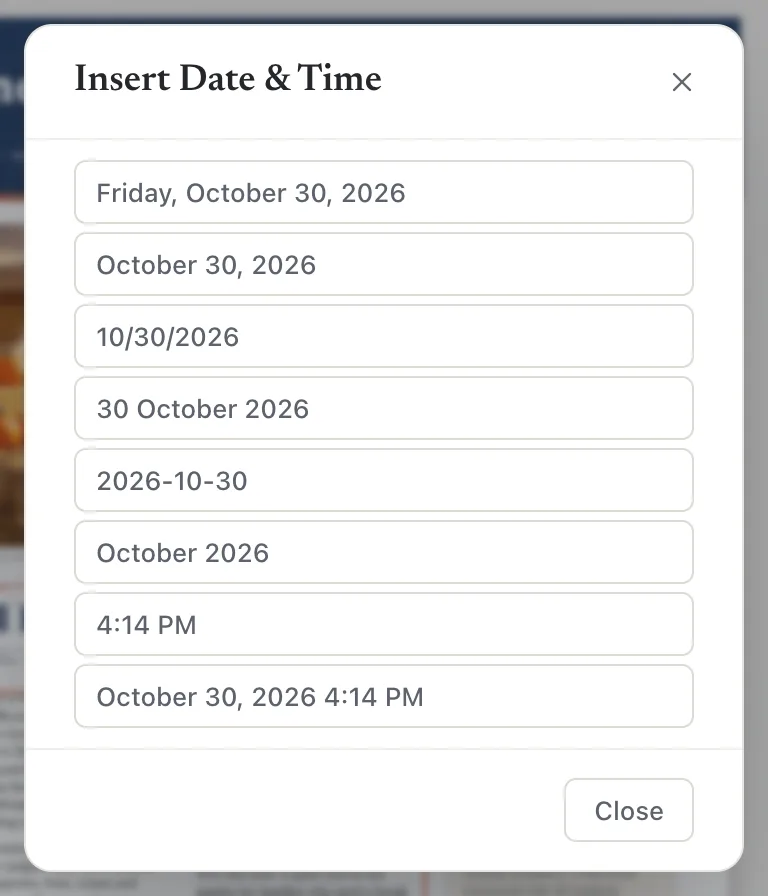
The formats follow the publication language, so a Polish publication offers Polish dates. To skip the window, press ⌥⇧DAlt+Shift+D for today’s date or ⌥⇧TAlt+Shift+T for the time. On a Mac, Alt is the Option key.
For page numbers, use Insert, then Page Number. See Page numbers and sections.
Add a hyperlink
- Double-click the text box and select the words to link, such as a web address. To link a whole object (a picture or a button shape), click it once instead.
- Click Insert, then Hyperlink, or press ⌘KCtrl+K.
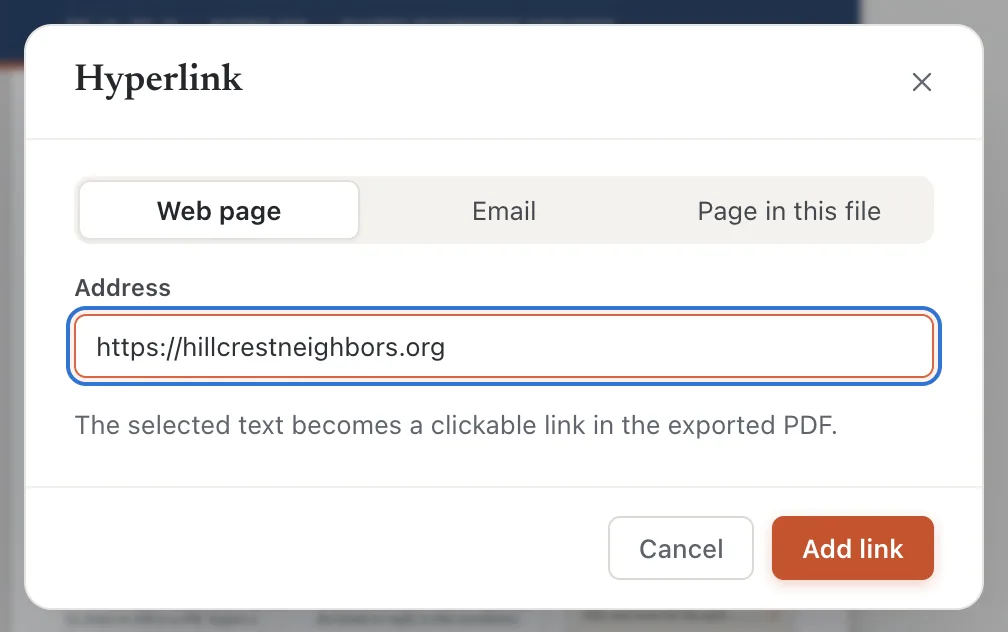
- Choose what to link to:
- Web page: type the Address, such as https://example.org.
- Email: type the Email address. Clicking it opens a new email.
- Page in this file: type the Page number.
- Click Add link.
- 1Link to
- 2Address
- 3Add link
Links work in the PDF you export. On paper they are ordinary text, so put the address itself on the page if people need to type it.
To change or remove a link, select the linked words (or object) and press ⌘KCtrl+K again. Change the address and click Update link, or click Remove link.
If it still doesn’t work
Hyperlink is grayed out
Select something first: words in a text box, or an object. With nothing selected, Korva can’t tell what to link.
Korva says the link isn’t allowed
Korva accepts web (http and https), email (mailto) and phone (tel) links. Check the address for typing mistakes and start web addresses with https://.
A symbol shows as a box or a question mark
The font doesn’t have that character. Choose another font for that word, such as Arial or Times New Roman. In an exported PDF, a character the font can’t print becomes “?”, and the check before export warns you about it.
Something wrong or missing in this article? Email support or open an issue on GitHub.
