How do I add and edit text boxes?
Click Home, then Text Box (or Insert, then Text Box) and start typing. Double-click any text box to change its words, and press escEsc when you're done. Select words to format them, or select the whole box to format all its text at once.
- In Publisher
- Home, then Draw Text Box
- In Korva
- Home, then Text Box, or Insert, then Text Box
Every word on a Korva page sits in a text box, just as in Publisher. Text you open from a .pub file is in text boxes too, so the same steps work for changing an imported flyer or bulletin.
Add a text box
- Click Home, then Text Box. (Insert, then Text Box does the same.)
- A new, empty box appears on the page with a cursor in it. Start typing.
- Press ↩Enter to start a new paragraph, or ⇧↩Shift+Enter for a new line inside the same paragraph.
- Press escEsc or ⌘↩Ctrl+Enter, or click Done in the Format pane, to finish. Esc keeps what you typed.
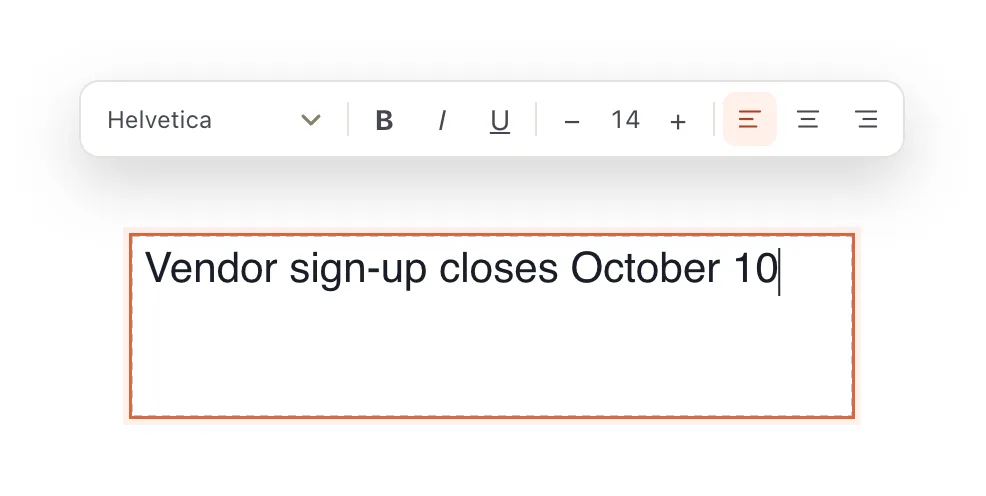
- 1Quick formatting while you type
- 2The box you're typing in
A new text box grows taller as you type, so nothing gets cut off. You can change that in the Format pane under Text fit, then AutoFit. See Fit text in a box.
Change the words in a box
- Double-click the text box, then click where you want to type.
- Or click the box once and press ↩Enter or F2.
- Or click the box and then Edit text… in the Format pane.
To bring in a lot of text at once, use Insert, then Insert File. It reads .txt, .rtf, .docx and .odt files and puts the text in the selected text box at the cursor, or in a new box if none is selected.
Change the font, size and color
- Double-click the box and select the words you want to change. To change all the text in the box, click the box once instead and don’t open it.
- On the Home tab, use the Font group: the font list, the size box, Bold, Italic, Underline, the font color and highlight.

- 1Text Box
- 2Font
- 3Font size
- 4Bold, Italic, Underline
The same controls are at the top of the Format pane on the right. The Clear formatting button (the A with a small ✕) removes bold, italic, color and other character formatting from the selected text.
The Paragraph group sets alignment, lists, indents and line spacing. See Lists, tabs and indents.
Move, resize or style the box
- Move: drag the box by its edge. With the box selected, the arrow keys nudge it, and ⇧Shift plus an arrow moves it further.
- Resize: drag one of the square handles. For exact numbers, use the Format pane’s Arrange tab.
- Fill and outline: select the box and open the Format pane’s Box tab. It has Fill, Outline, Effects and Border art.
- Delete: click the box once (so you aren’t typing in it) and press ⌦Delete.
If it still doesn’t work
Double-clicking doesn’t let me type
The box may be locked. Locked objects show a lock in the Format pane header. Click the lock to unlock it, then double-click again. If the text is in a header or footer, Korva opens the master page it belongs to; see Master pages.
My text disappears at the bottom of the box
The box is too small for its text. A small red A… marker appears at the box’s corner, and while you type, a red Overflow — won’t print label marks the hidden lines. See Fit text in a box.
The font I picked doesn’t show
The font list shows the fonts installed on this computer. If an imported file uses a font you don’t have, Korva shows a similar one. See Why did Korva replace a font?
Something wrong or missing in this article? Email support or open an issue on GitHub.
