Windows says "Windows protected your PC". Is Korva safe?
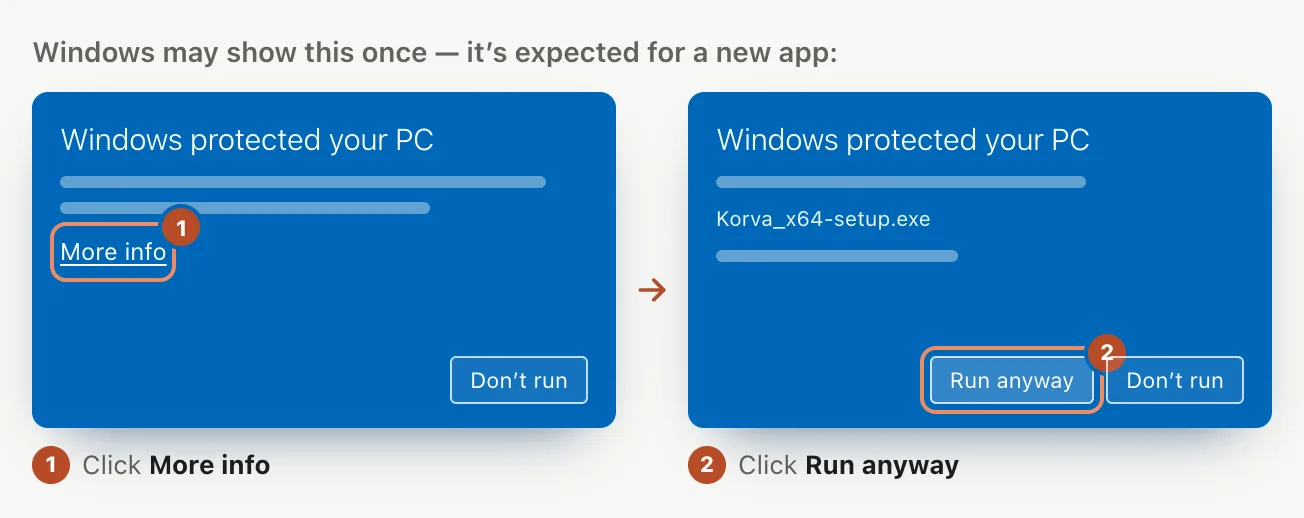
The warning appears because the installer on our site isn't code-signed yet, so Windows doesn't recognize it. Click More info, then Run anyway, and the installer continues. To avoid the screen, install Korva from the Microsoft Store instead; Store apps don't show it, and the Store keeps Korva updated.
- In Korva
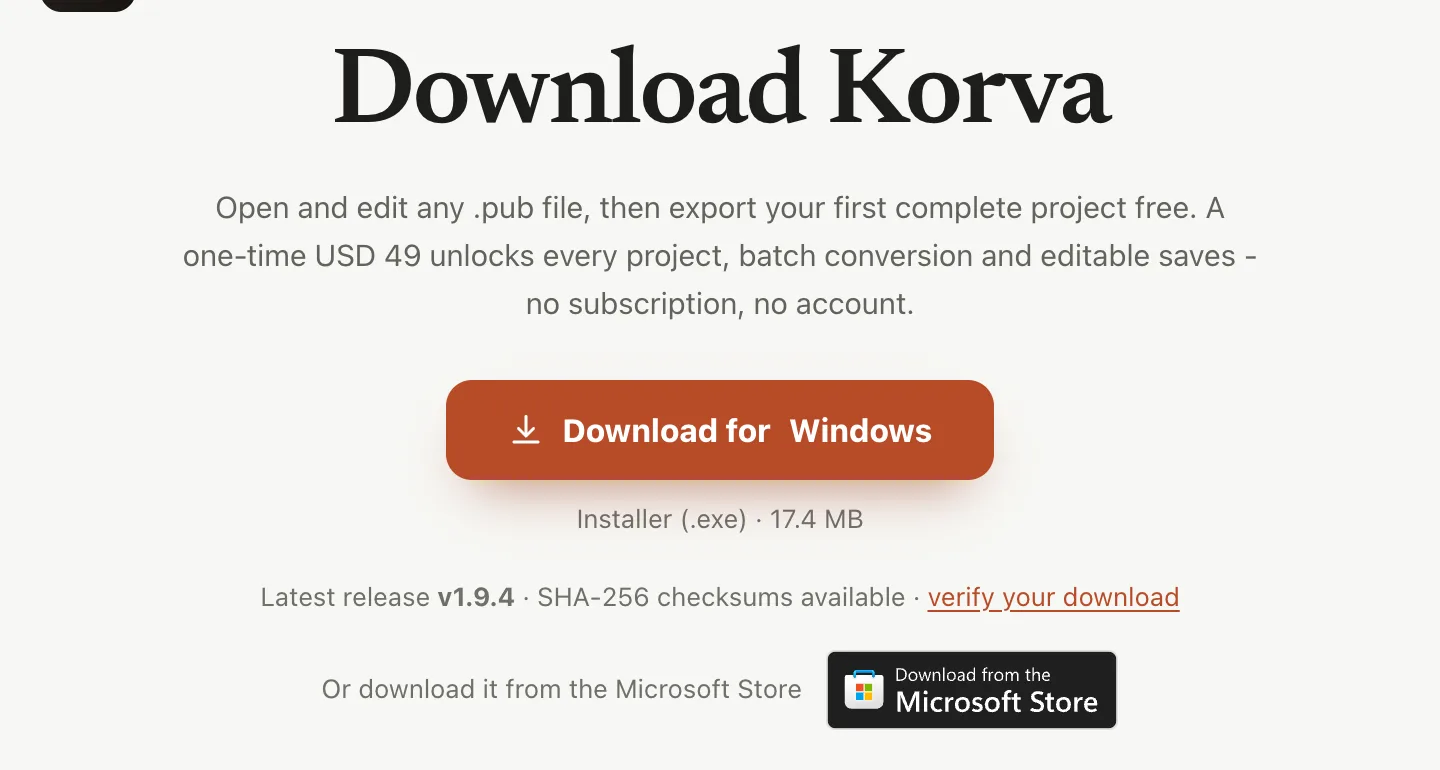
- korva.korsund.com/download, then Microsoft Store badge
Windows SmartScreen shows a blue Windows protected your PC screen for programs it doesn’t know yet. Korva’s installer from our site isn’t code-signed yet, so Windows can’t tell who made it and shows this screen. It doesn’t mean Windows found anything wrong in the file.
Get past the screen
- On the blue screen, click More info. It’s a small link under the text.
- The screen now shows the file name and a Run anyway button. Click Run anyway.
- The installer starts. Follow its steps.
Or install from the Microsoft Store (no warning)
The Microsoft Store version is the same Korva. Windows doesn’t show SmartScreen for it, and the Store installs updates for you.
- Go to the download page and click the Microsoft Store badge, or search for Korva in the Microsoft Store app.
- Click Get (or Install).
- 1Microsoft Store
Check the file before you run it
If you want to be sure the installer is the one we published:
- On the download page, find the Installer (.exe) card and click Copy next to SHA-256.
- Open PowerShell in your Downloads folder and run
certutil -hashfilefollowed by the installer’s file name andSHA256. For example:certutil -hashfile Korva_1.9.6_x64-setup.exe SHA256 - Compare the long number it prints with the one you copied. If they’re the same, the file arrived intact and unchanged.
If it still doesn’t work
There is no Run anyway button
Click More info first. If there’s still no Run anyway, your PC (often a work or school PC) only allows apps from the Microsoft Store or apps approved by IT. Install Korva from the Microsoft Store, or ask your IT team; they can also use the MSI package (.msi) from the download page.
My antivirus program blocked or removed the installer
Antivirus programs sometimes block new, unsigned installers. Check the SHA-256 checksum as described above, then allow the file in your antivirus, or install from the Microsoft Store.
The Microsoft Store says Korva isn’t available
Korva needs 64-bit Windows 10 or 11. Use the installer from the download page instead, or contact support.
Something wrong or missing in this article? Email support or open an issue on GitHub.
