How do I open a Publisher (.pub) file?
Click Open a file… on Korva's start screen (or press ⌘OCtrl+O), pick your .pub file, and it opens with its pages, text boxes and pictures where Publisher put them. Korva works on a copy, so your original .pub file is never changed.
- In Publisher
- File, then Open
- In Korva
- File, then Open, or drag the file onto the start screen
Korva opens files made in Microsoft Publisher 2003 and later with their layout: every page, text box, picture and linked story lands where Publisher had it. You don’t need Publisher installed, and nothing is uploaded.
Open the file
- Start Korva. The start screen appears.
- Click Open a file…, or press ⌘OCtrl+O. You can also drag a .pub file from your desktop, Finder or File Explorer onto Drop a .pub file here.
- Choose your .pub file and click Open.
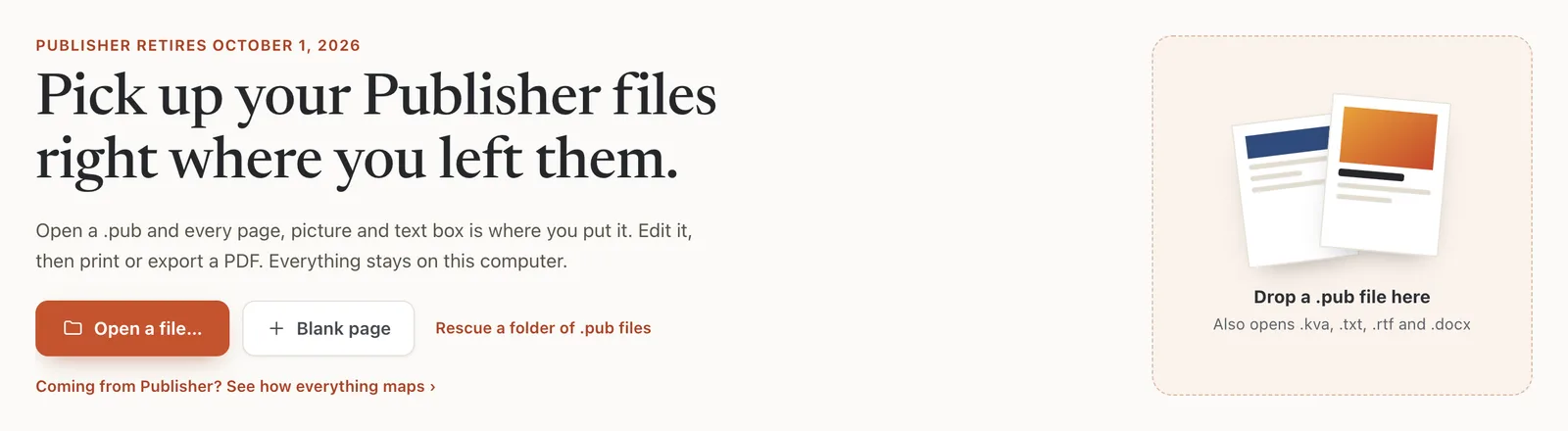
- 1Open a file…
- 2Or drop a .pub file here
The file opens as an editable copy. Its title appears at the top of the window and the status bar says Opened followed by the file name.
Check what Korva kept
When the file opens, a short note appears at the bottom of the Format pane on the right:
- Layout kept means pages, pictures and text boxes are where Publisher had them.
- Layout reflowed means Korva could read the text and pictures but not the page layout (usually a very old or damaged file), so it laid them out on new pages. See Layout kept or reflowed.
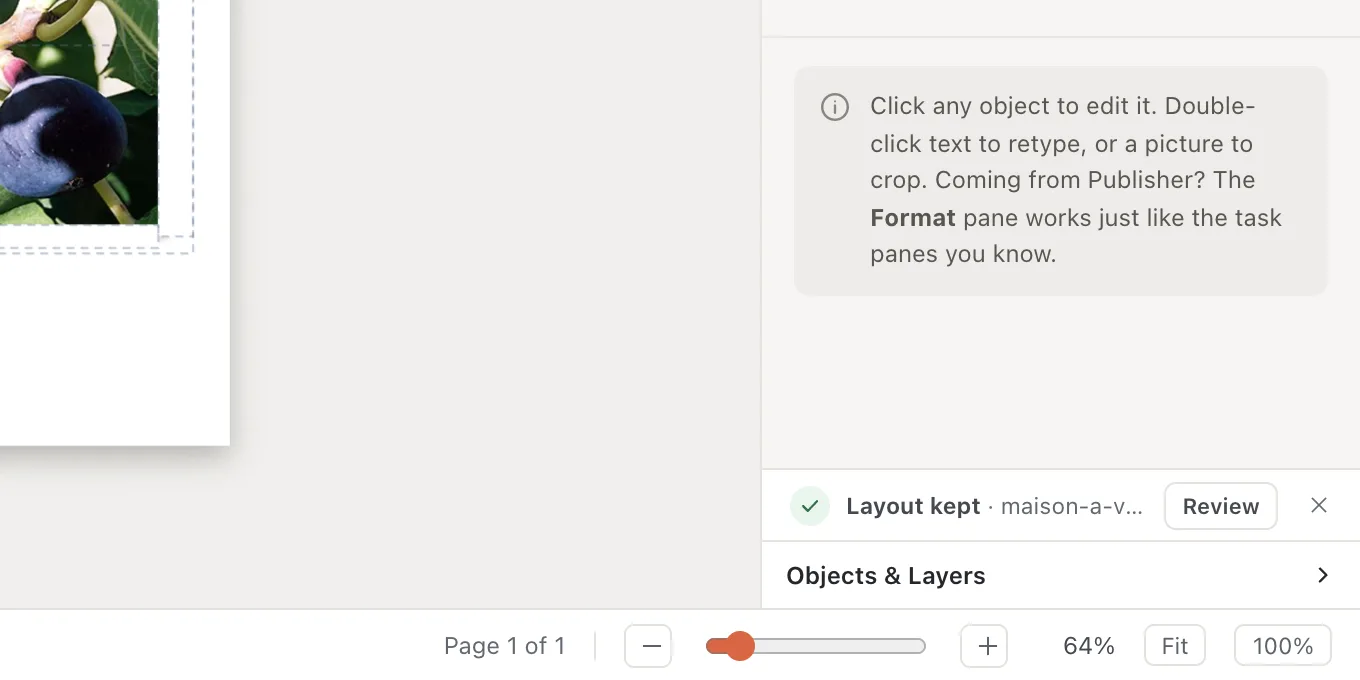
- 1Layout kept: the import note
- 2Review opens the Design Checker
For the full report, open File, then Info. It lists:
- Original file safe: your .pub was opened as a copy and left untouched.
- Fonts replaced: any font that isn’t on your computer, and the one Korva shows instead.
- Before you print or export: low-resolution pictures, text that doesn’t fit and similar things, each with a link to the page.
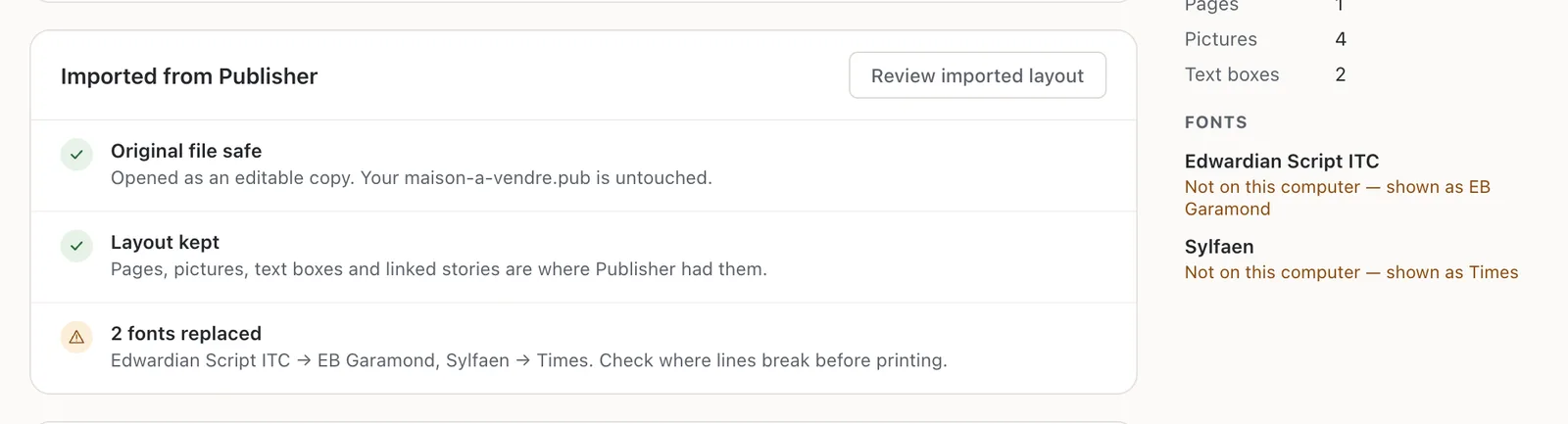
- 1Imported from Publisher
- 2Fonts used in the file
Save your changes
Korva can’t save back to .pub yet. When you’ve made changes, you have two options:
- Export a PDF to print or send it. See Export a PDF.
- Save as a Korva file (.kva) to keep it editable. This needs Korva Pro. See Save your work.
If it still doesn’t work
Korva says it couldn’t open the file
The file may be damaged, or it may not be a Publisher file even though its name ends in .pub. Try the Rescue Center, which reports what it can read. Also see A .pub file won’t open.
The text looks different from Publisher
A font used in the file isn’t installed on this computer, so Korva shows a similar one. Lines may break in different places. See Why did Korva replace a font?
I double-click a .pub file and Publisher (or nothing) opens
Double-clicking a .pub file doesn’t open it in Korva yet. Open Korva first, then use File, then Open or drag the file onto the start screen.
Something wrong or missing in this article? Email support or open an issue on GitHub.
