How do I save a page as a picture (PNG or JPEG)?
Open File, then Export, choose Picture, pick PNG or JPEG under Format, and click Save picture. To save every page, choose **All *N* pages, a picture each, in one .zip under Pages** first.
- In Publisher
- File, then Save As, then PNG or JPEG
- In Korva
- File, then Export, then Picture
Free for your first project. Export it as many times as you like; exporting other projects needs Korva Pro. Free vs Pro
A picture of a page is handy for a Facebook post, a slide, a website or the body of an email, where a PDF attachment is less welcome.
Save one page
- Click File, then Export and choose Picture under Share.
- Use the arrows under the small preview to show the page you want.
- Next to Format, choose:
- PNG — sharp edges, transparency for text-heavy pages and logos.
- JPEG — smaller, photos for photo-heavy pages. Then choose a Quality: Maximum — largest file, High, Medium or Low — smallest file.
- Click Save picture, choose where to save, and click Save.
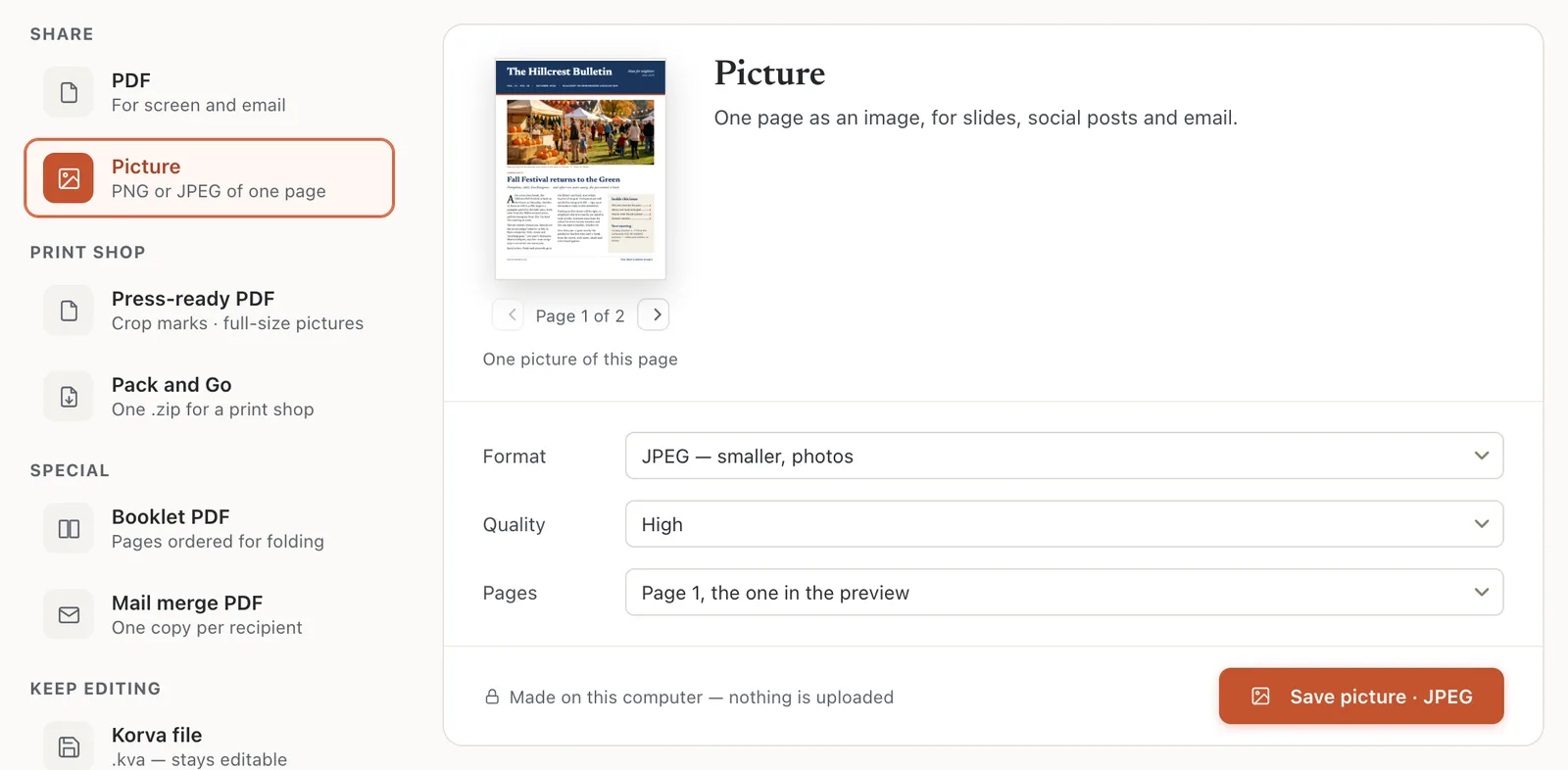
- 1Picture
- 2Format
- 3Quality
- 4Pages
Save every page
In a publication with more than one page, set Pages to All N pages, a picture each, in one .zip before you click Save N pictures. The .zip holds one picture per page, numbered in page order (name-01.png, name-02.png…).
How big is the picture?
Korva saves pictures at 144 pixels per inch of page. A Letter page (8.5 × 11 in) becomes 1224 × 1584 pixels, and a square 8 × 8 in page becomes 1152 × 1152 pixels. There’s no setting for a larger size.
For a social media post, set your page to the shape the site wants before you save. See Change the page size. For printing, use a PDF instead, which keeps text sharp at any size. See Export a PDF.
On the Free plan, saving a picture counts like exporting a PDF: your first project can be saved as often as you like. See Free vs Pro.
If it still doesn’t work
The picture looks blurry when I zoom in
Pictures are saved at a fixed size (see above). For print or close-up viewing, export a PDF instead.
The JPEG has fuzzy text
JPEG blurs sharp edges a little, especially at Medium or Low. Use PNG for pages that are mostly text.
Only one page was saved
Pages was set to the page in the preview. Choose All N pages, a picture each, in one .zip and save again.
Something wrong or missing in this article? Email support or open an issue on GitHub.
