Korva won't install or open on my Mac or Linux computer
On a Mac, drag Korva into Applications before opening it, and click Open when macOS asks about an app from the Internet. On Linux, make the AppImage executable with chmod +x, and install libfuse2 if it won't start. If a download seems damaged, download it again and compare its SHA-256 checksum with the one on the download page.
Most install problems come from a download that stopped part way, or a step that was skipped. Find your problem below.
Mac
macOS asks whether to open an app downloaded from the Internet
That’s normal the first time. Click Open. Korva is signed and notarized by Apple, so this is the only question macOS asks.
Korva opens, but it’s gone after I restart or eject something
You opened Korva straight from the disk image. Open the .dmg again, drag Korva onto Applications, then open it from Applications.
macOS says Korva is damaged or can’t be opened
The download is probably incomplete.
- Drag Korva from Applications to the Trash, and delete the .dmg file.
- Download the Disk image (.dmg) again from the download page.
- Check the file’s checksum (see below) before you open it.
- Install it again by dragging Korva into Applications.
If it still won’t open, contact support with your macOS version (Apple menu › About This Mac).
My Mac runs an older macOS
Korva needs macOS 12 or later. It works on both Intel and Apple silicon Macs.
Linux
Double-clicking the AppImage does nothing
The file isn’t executable yet. In a terminal, in the folder with the file, run:
chmod +x Korva_1.9.6_amd64.AppImage
./Korva_1.9.6_amd64.AppImage
Use your file’s name if you downloaded a different version. Running it from a terminal also shows any error message.
The AppImage says it needs FUSE, or “libfuse.so.2”
AppImages need the FUSE 2 library, which recent Ubuntu releases don’t install by default. Install it:
- Ubuntu 22.04 and Debian:
sudo apt install libfuse2 - Ubuntu 24.04 and later:
sudo apt install libfuse2t64
Or install the Debian (.deb) package instead, which doesn’t need FUSE.
apt or dnf won’t install the package
Install the file by its path, with ./ in front of the name, from the folder it’s in. For example sudo apt install ./Korva_1.9.6_amd64.deb or sudo dnf install ./Korva-1.9.6-1.x86_64.rpm. The package manager then fetches anything Korva needs. Korva is built for 64-bit Intel and AMD processors (x86-64) only.
Check that the download is complete
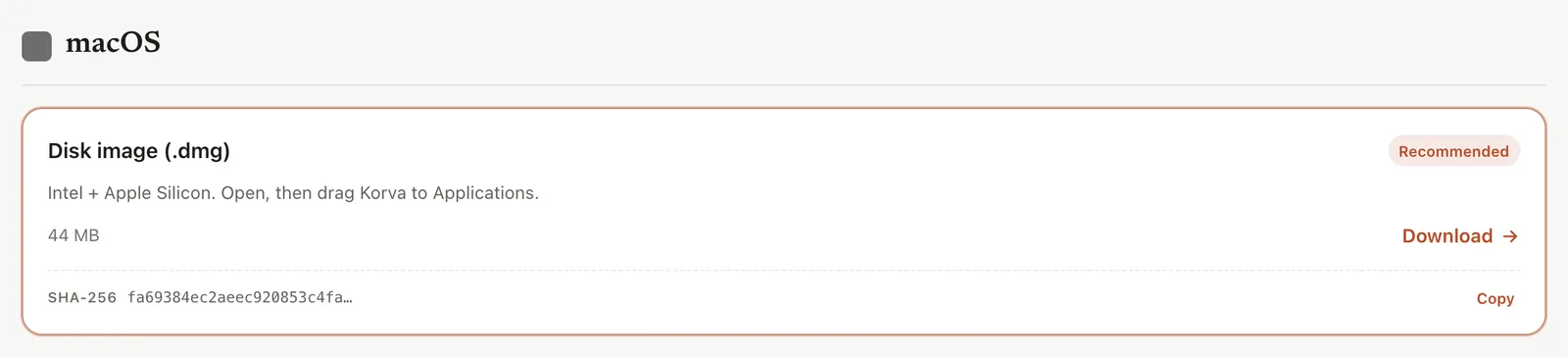
Every file on the download page has a SHA-256 checksum, a long number that changes if even one byte of the file is different.
-
On the download page, click Copy next to SHA-256 on the card for your file.
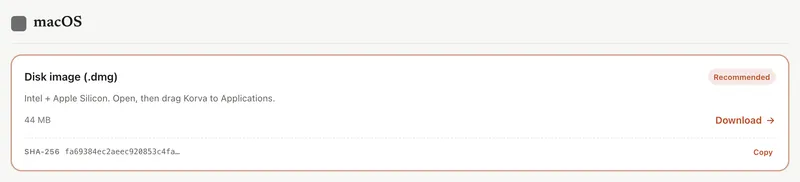
- 1Copy the SHA-256
-
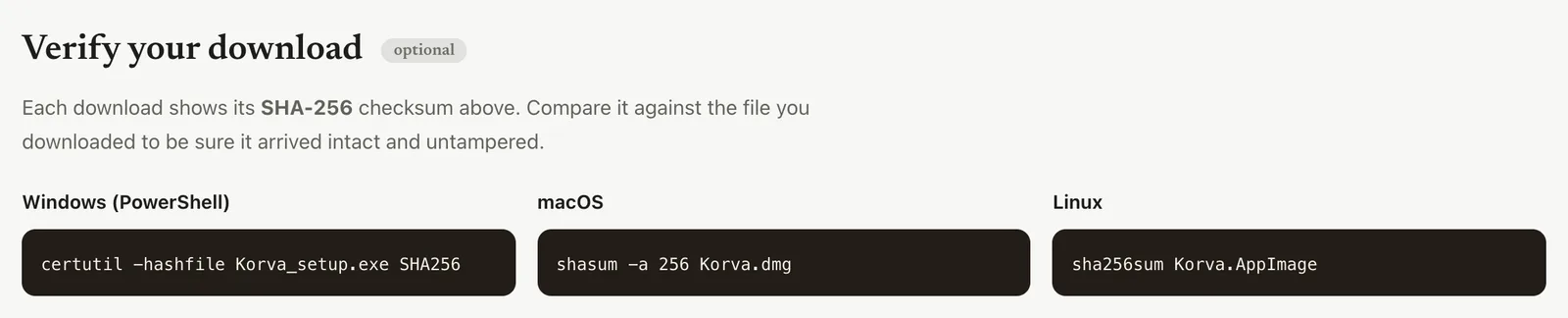
Open Terminal in the folder with the file and run the command for your system:
- Mac:
shasum -a 256followed by the file name - Linux:
sha256sumfollowed by the file name
- Mac:
-
Compare the result with the checksum you copied. If they differ, download the file again.
If it still doesn’t work
Korva starts, then closes straight away
Start it from a terminal to see the error. On a Mac, run /Applications/Korva.app/Contents/MacOS/Korva in Terminal. On Linux, run the AppImage from a terminal as shown above. Then contact support with the message, your system and its version.
I can’t find Korva after installing the .deb or .rpm
Look for Korva in your applications menu. Some desktops only show new apps after you log out and back in.
Something wrong or missing in this article? Email support or open an issue on GitHub.
