How do I update Korva?
When a new version is out, Korva tells you as it starts. Click Download & install, then Restart now when it's done. To check yourself, click the Help tab, then Check for Updates (on a Mac, also Help, then Check for Updates… in the menu bar). If you installed Korva from the Microsoft Store, the Store updates it for you. Updates are free.
- In Korva
- Help, then Check for Updates
Every update is free, on the Free plan and with Pro. Korva never downloads or installs an update without asking you first.
When Korva tells you about an update
Each time Korva starts, it checks quietly for a newer version. If there is one, a window appears: A new version of Korva is available. It says which version you have, which one is new, and what changed.
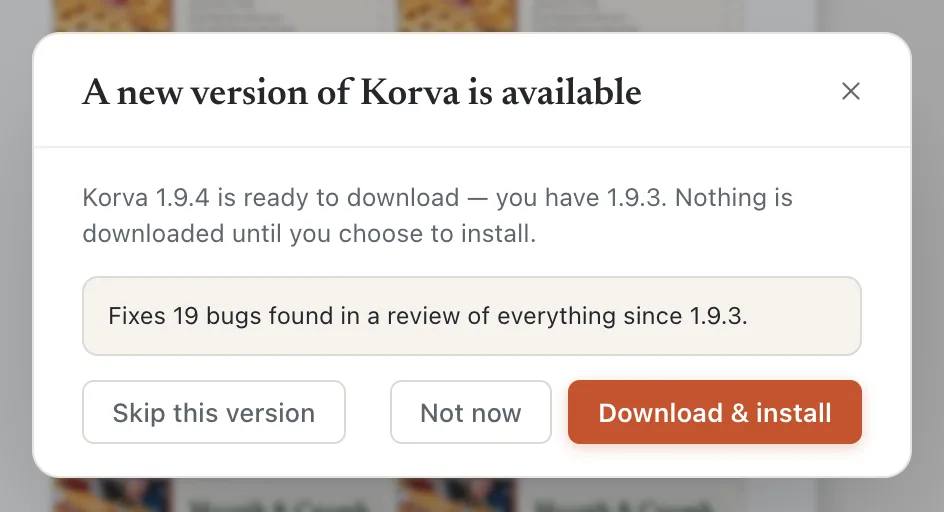
- 1Download & install
- 2Not now
- 3Skip this version
- Save your work first if you have unsaved changes. The window reminds you if you do.
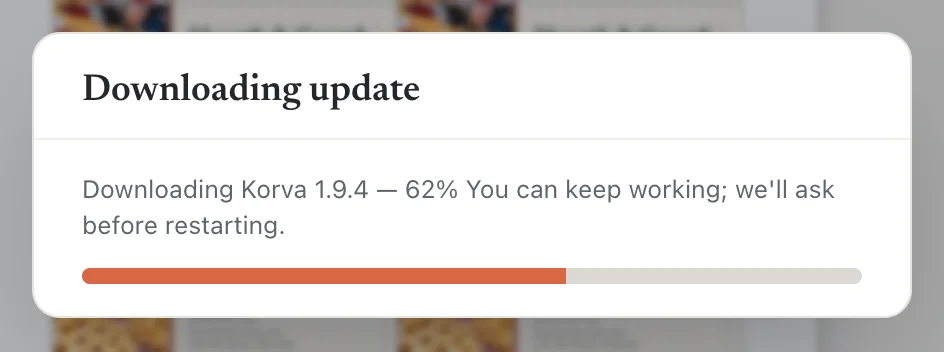
- Click Download & install. A progress bar shows the download.
- When it’s done:
- Mac and Linux: the window says Update installed. Click Restart now to start the new version, or Restart later to keep working; the new version starts next time you open Korva.
- Windows: Korva closes for a moment while the installer runs, then opens again.
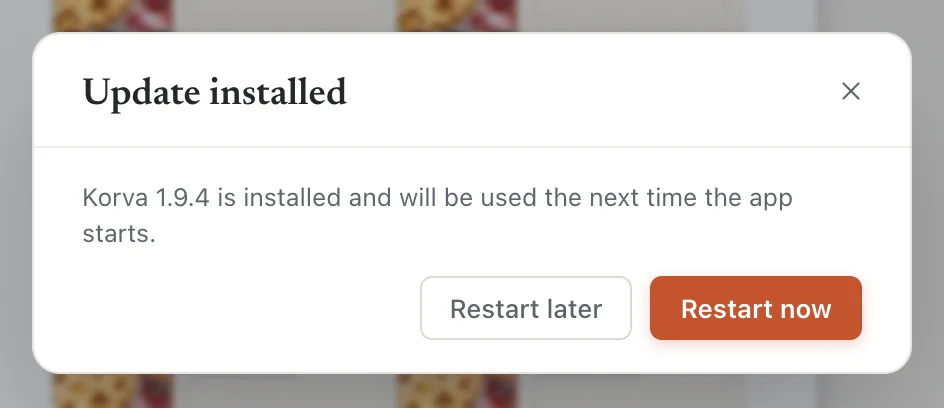
- 1Restart now
- 2Restart later
The other buttons:
- Not now closes the window. Korva asks again the next time it starts.
- Skip this version stops Korva from offering this version when it starts. You can still install it later with Check for Updates.
Check for an update yourself
- Click the Help tab.
- Click Check for Updates.

- 1Help tab
- 2Check for Updates
On a Mac, you can also choose Help, then Check for Updates… in the menu bar. Help & Shortcuts has a Check for updates… button too.
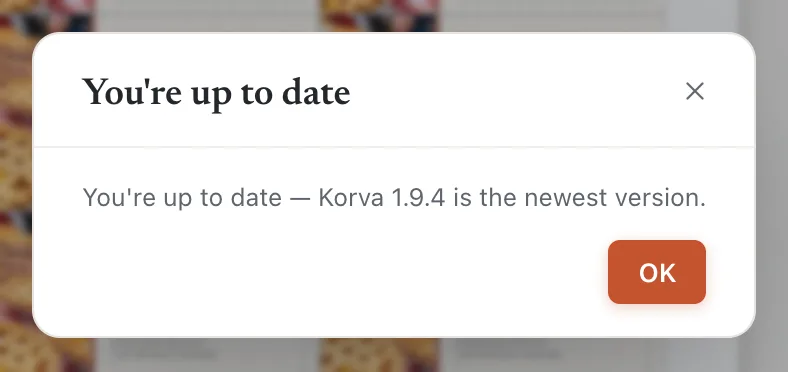
If you already have the newest version, Korva says You’re up to date and shows your version number. This is also the quickest way to find out which version you have.
If you installed from the Microsoft Store
The Store installs new versions of Korva for you. Check for Updates says so instead of checking:
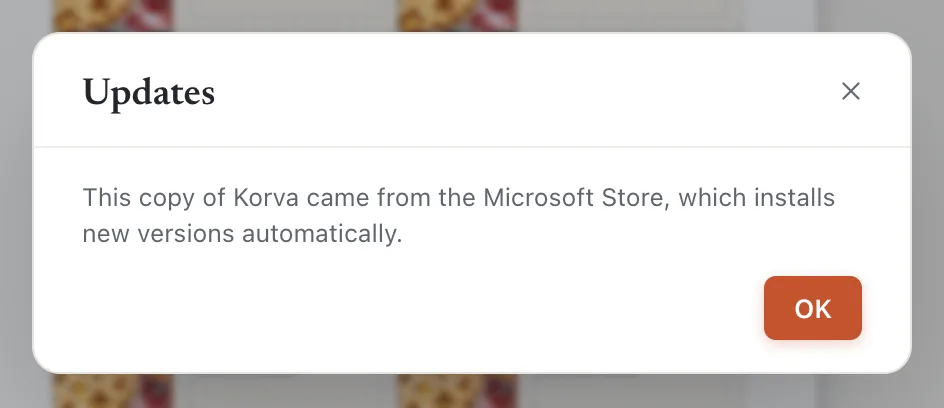
To update straight away, open the Microsoft Store app, go to Library, and click Get updates.
If it still doesn’t work
Korva says it couldn’t get the update
The window says Couldn’t get the update — check your internet connection and try again. Check that you’re online, then use Help, then Check for Updates again. A firewall or proxy at work can block the download; in that case download the new version from the download page and install it over the old one.
On Linux, if you installed the .deb or .rpm package, Korva’s own update can’t install the new version. Download the new package from the download page and install it with sudo apt install or sudo dnf install, as before.
I skipped a version and now want it
Click Help, then Check for Updates. It offers skipped versions too.
The update window keeps saying the same version after I restarted
Quit Korva completely (on a Mac, Korva, then Quit Korva or ⌘QCtrl+Q) and open it again. If it still offers the same version, download it from the download page and install it over the old one. Your files are not affected.
Something wrong or missing in this article? Email support or open an issue on GitHub.
