What does the ready-to-print check mean, and how do I fix problems?
Before you print or export a PDF, Korva checks the pages going out. Ready to export means nothing needs fixing. Problems to fix (such as text that doesn't fit) turn the button off until you fix them or tick I reviewed the problems and want to export anyway. Click Review next to a problem to go straight to it.
- In Publisher
- File, then Info, then Run Design Checker
- In Korva
- The check card in File › Print and File, then Export; Review, then Design Checker
Korva checks your pages each time you open File, then Print or the PDF and Press-ready PDF options in File, then Export, so you find out about a cut-off paragraph before you print 200 copies, not after. It only checks the pages you’re printing or exporting.
Read the check
The card under the options shows one of these:
- Checking before you export…: wait a moment. The button stays off until the check finishes.
- Ready to export (or Ready to print): nothing needs fixing.
- N things worth a look: warnings, such as a low-resolution picture. They don’t stop the export.
- N problems to fix before you export: something will print wrong. The button is off until you deal with it.
Up to six items are listed, each with its page number. If there are more, the card says how many and points you to Review, then Design Checker, which lists them all.
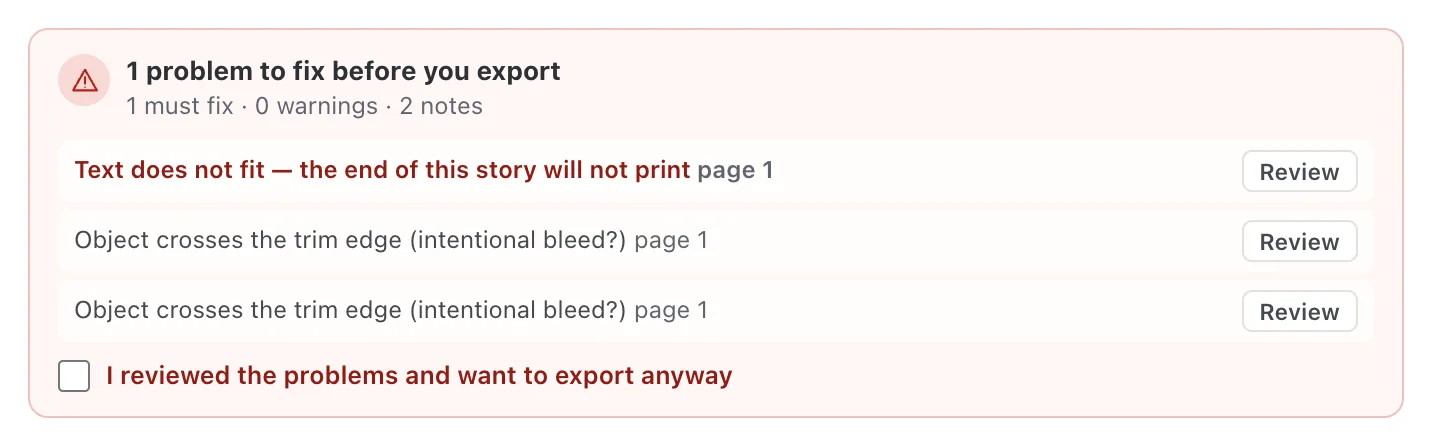
- 1Must fix before export
- 2Review
- 3Export anyway
Fix a problem
- Click Review next to the problem. Korva closes the page, goes to that page and selects the object.
- Fix it. For text that doesn’t fit, make the box bigger, shorten the text, or continue the story in another box. See Make text fit its box.
- Open File, then Print or File, then Export again. The check runs again.
If you’ve decided the problem doesn’t matter, tick I reviewed the problems and want to export anyway (or …print anyway). Until then, the line next to the button says what’s holding it up:

- 1Why the button is off
What the check looks for
Must fix (turns the button off):
- Text does not fit — the end of this story will not print
- Picture is missing — its frame prints empty
- PDF font cannot print … — these characters would become “?”
- Broken text flow between linked boxes, such as Linked text boxes form a cycle
Worth a look (warnings):
- Low-resolution picture (N dpi; target M). The target is 96 dpi for a PDF, 150 for printing and 200 for a press-ready PDF.
- A replaced font (“font” substitutes in PDF; review line breaks)
- A photo that will print sideways, upside down or mirrored
- Picture needs alt text or must be marked decorative. See Add alt text.
- For a press-ready PDF only: Edge artwork may need 0.125 in (9 pt) bleed past the trim. See Make a press-ready PDF.
Notes (shown, never in the way): blank pages, empty text boxes and picture frames, objects off the page that won’t print, and Object crosses the trim edge (intentional bleed?).
If it still doesn’t work
A problem has no Review button
The object is on a master page, not on the page itself, so there’s nothing on the page to select. The message starts with Master and the master’s name. Fix it on the master page. See Master pages.
Text still doesn’t fit after I made the box bigger
Another box in the same linked story may be the one overflowing. Check each box in the story, or turn on Shrink on overflow in the Format pane. See Make text fit its box.
The check says “Choose pages to check”
The Range you typed doesn’t name any page in this publication. Type a range such as 1-3, 5, or choose All.
Something wrong or missing in this article? Email support or open an issue on GitHub.
