How do I make a catalog or directory from a list?
Design one entry (a text box with fields like {{Item}}), select it and choose Mailings, then Catalog Merge ▾, then Mark Region. Then open Catalog Merge ▾, then Layout…, set how many go Across and Down, and click Merge Catalog to Pages. Korva repeats the entry for every record and adds pages as needed. The merge needs Korva Pro.
- In Publisher
- Mailings, then Catalog Merge
- In Korva
- Mailings, then Catalog Merge
Korva Pro feature. Korva Pro is $49 once. The free version shows you this feature and asks for Pro when you use it. Free vs Pro
A normal mail merge makes one copy of the publication per record. A catalog merge puts many records on one page: a gift list, a price list, a church member directory, a sheet of name badges.
Set up the page
- Load your list: Mailings, then Select Data…, then choose a .csv or Excel (.xlsx) file. See Do a mail merge for how the list should look.
- Add anything that should appear once per page, such as a title or a logo.
- Draw one entry near the top-left of where the grid should start: a text box with fields from Insert Field, for example {{Item}} on one line and {{Price}} · {{Maker}} on the next. You can use several objects, such as a picture frame and a text box.
Mark the entry and merge
- Select the entry. For an entry made of several objects, select them all.
- Click Catalog Merge ▾ and choose Mark Region. (Choose Clear Region to undo it.)
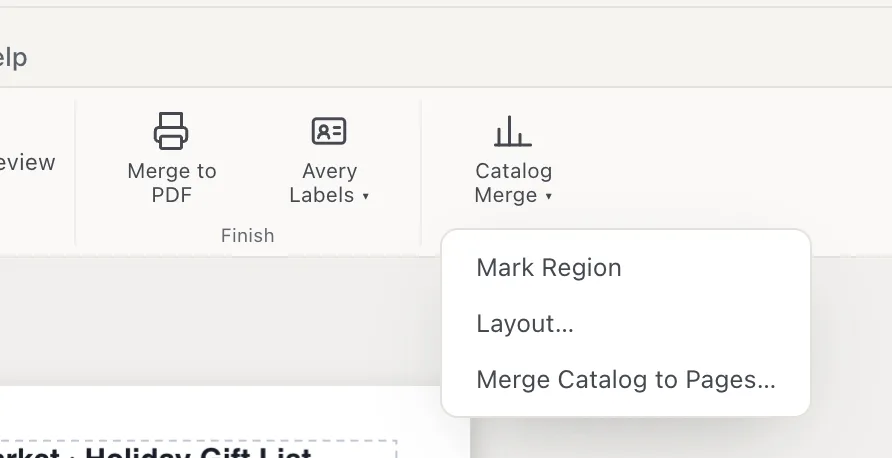
- 1Catalog Merge
- 2Mark Region
- 3Layout…
- Click Catalog Merge ▾ and choose Layout….
- Set Across (entries per row) and Down (rows per page), each 1 to 50.
- Set Gap X and Gap Y, the space between entries side by side and one above the other.
- Click Merge Catalog to Pages.
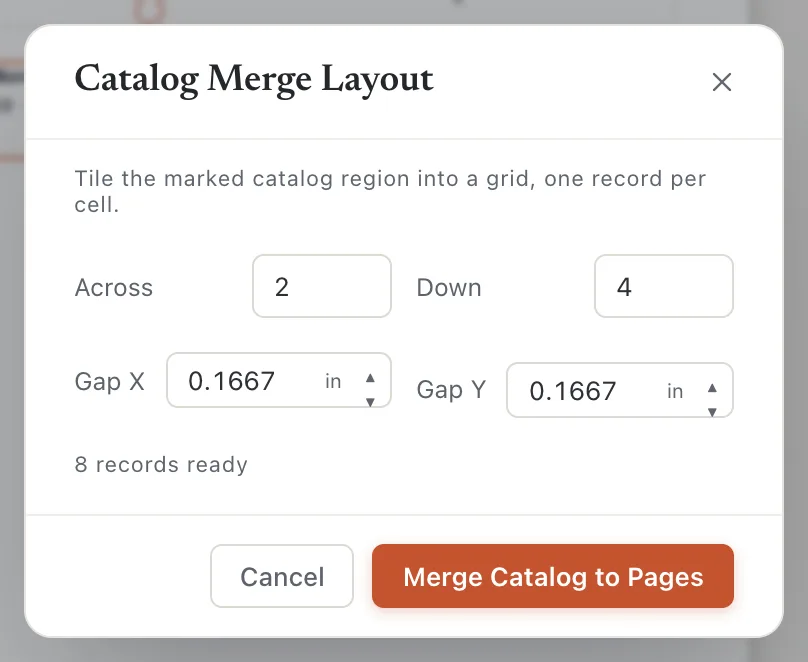
- 1Across
- 2Down
- 3Gap X
- 4Merge Catalog to Pages
Korva replaces the page with the filled-in pages: entries run across, then down, and a new page starts when one is full. The title and other objects you didn’t mark appear once on every page.
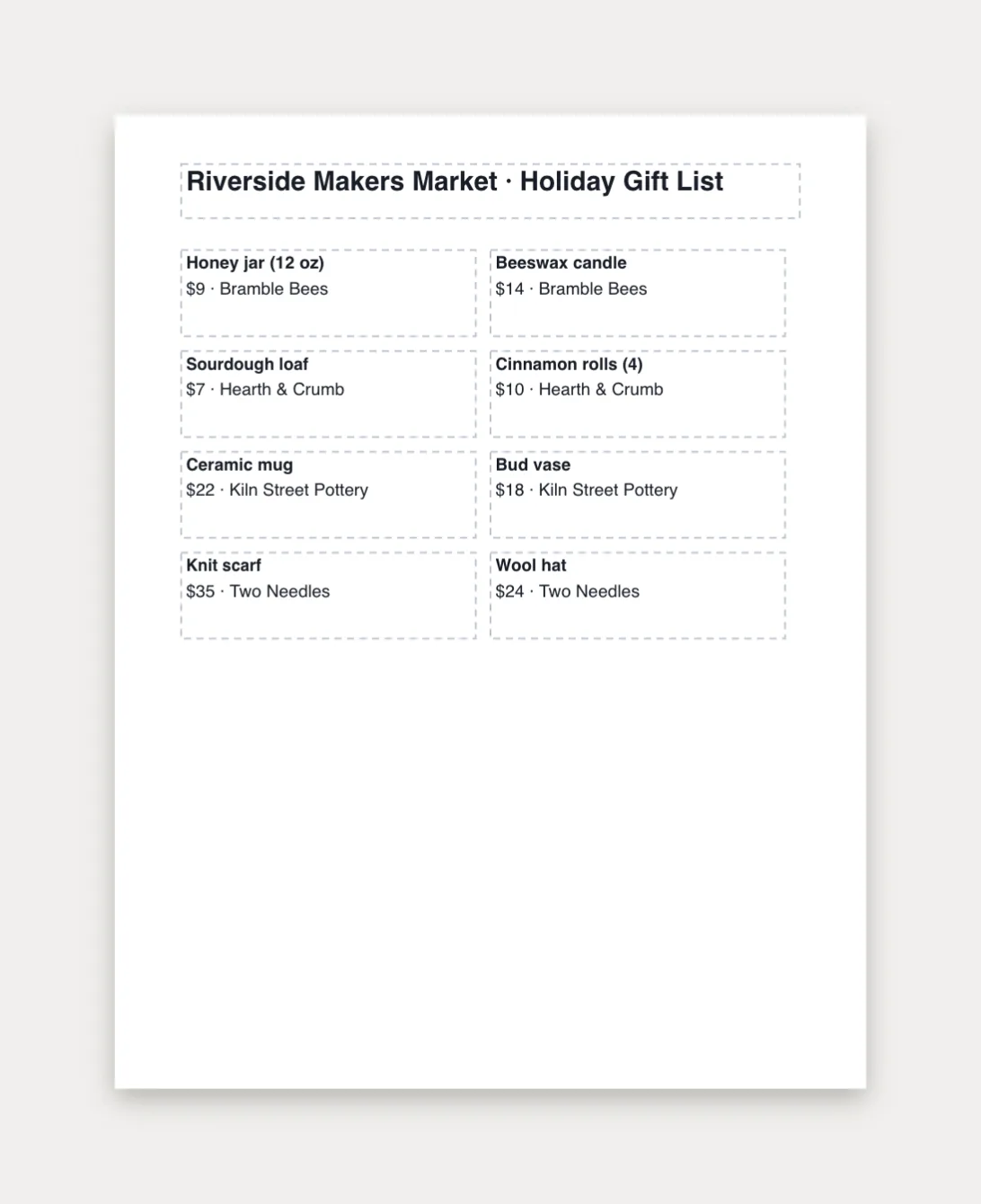
The result is ordinary pages you can edit, export or print. To change the list or the layout, press ⌘ZCtrl+Z to undo the merge, change it, and merge again.
If it still doesn’t work
“does not fit on the page”
The grid is bigger than the page. The message says how big each entry is and how many fit, for example There is room for 2 across × 8 down. Make the entry smaller, move it up or left, lower Across or Down, or reduce the gaps.
Nothing happens when I click Merge Catalog to Pages
Check the line above the buttons. No catalog region marked means you need to select the entry and choose Mark Region first. No merge data loaded means you need to load a list with Select Data….
Mark Region is greyed out
Nothing is selected. Click the entry on the page first.
Some records are missing
Only ticked recipients that pass the filter are merged. Open Edit Recipient List… to check. See Choose, sort and filter recipients.
Something wrong or missing in this article? Email support or open an issue on GitHub.
