How do I add page numbers and sections?
Click Insert, then Page Number (⌥⇧PAlt+Shift+P). Korva puts a page number at the foot of every page, and each page shows its own number. To number some pages i, ii, iii or start again at 1, go to the first page of that part and click Insert, then Section….
- In Publisher
- Insert, then Page Number; Page, then Page Numbers, then Format
- In Korva
- Insert, then Page Number and Insert, then Section…
Page numbers in Korva are automatic: add, delete or move pages and every number updates.
Number every page
- On the Insert tab, in the Pages group, click Page Number, or press ⌥⇧PAlt+Shift+P (on a Mac, ⌥⇧PAlt+Shift+P).
- With no text being typed, Korva adds the number where every page shows it: at the bottom center of a master page that every page uses, or in the footer if you added one with Page Design, then Master Pages. The status bar says which.
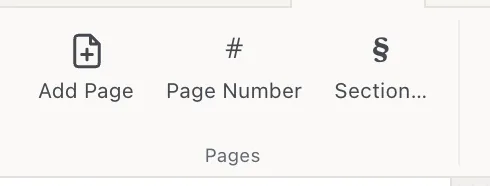
- 1Page Number
- 2Section…
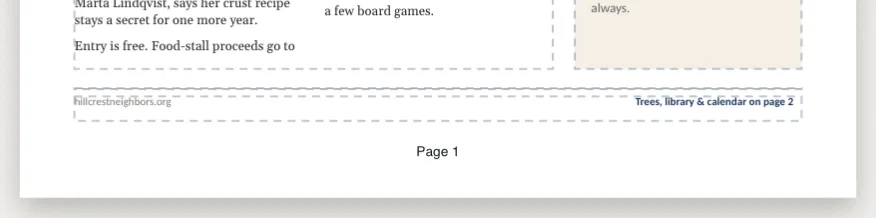
To move or restyle the number, open the master page with Page Design, then Edit Master, change it there, and click Close Master. Editing master pages needs Korva Pro; see Master pages.
Put a number inside your own text
If you’re typing in a text box (for example a footer that says Page … of the October bulletin), click where the number should go and press Page Number or ⌥⇧PAlt+Shift+P. The number goes in at the cursor and always shows the number of the page it’s on.
Leave the number off the cover
Right-click the cover’s thumbnail in the Pages panel and choose Master Page: None. That page no longer shows anything from the master page, including the number. The other pages keep their numbers.
If the number is part of a footer added with Master Pages, it’s an ordinary object on each page: on the cover, click the footer and press ⌦Delete.
Use roman numerals or restart the numbering
A booklet often numbers its front pages i, ii, iii and the main pages from 1. In Korva, that’s a section.
- Go to the first page of the part you want to number differently.
- Click Insert, then Section….
- Tick Start a section on this page.
- Choose a Page-number format: 1, 2, 3, i, ii, iii, I, II, III, a, b, c or A, B, C.
- To start counting again, tick Restart page numbering at and type the first number.
- Click OK.
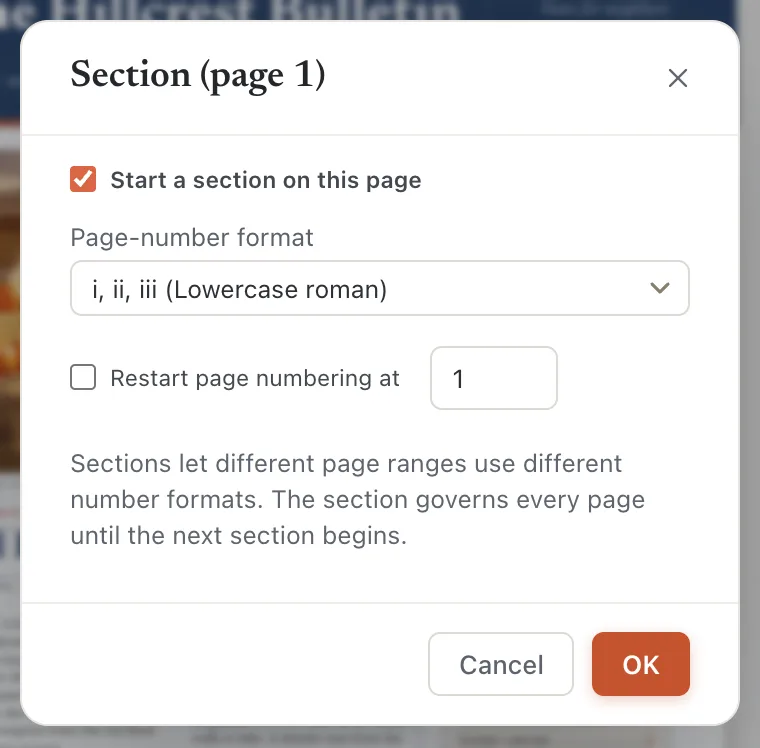
- 1Start a section on this page
- 2Page-number format
- 3Restart page numbering at
The section runs until the next section begins. For i, ii, iii followed by 1, 2, 3: add a section with i, ii, iii on the first page, then a section with 1, 2, 3 and Restart page numbering at 1 on the first main page. The Pages panel labels each page with its new number, for example Page ii.
To remove a section, go to its first page, open Insert, then Section… and untick Start a section on this page.
If it still doesn’t work
The page number covers my footer text
The number went to the bottom center of the page, where your own footer already was. Open Page Design, then Edit Master and drag the number to a free spot, or delete it there and insert the number inside your footer’s text instead (see above).
Korva says every page already shows its number
The publication already has an automatic page number. Look at the foot of the pages, or on the master page.
I typed the numbers by hand and they’re wrong now
Typed numbers don’t update. Delete them and use Insert, then Page Number instead.
Something wrong or missing in this article? Email support or open an issue on GitHub.
