How do I print Avery address labels from a list?
Start from the Address labels (Avery 5160) template, load your list with Mailings, then Select Data…, then click Avery Labels ▾ and choose your sheet. Korva makes a PDF with one recipient per label, ready to print at 100% scale. Avery 5160, 5161 and 5163 are built in. Labels need Korva Pro.
- In Publisher
- Mailings, then Mail Merge, with a label page size from Page Design › Size
- In Korva
- Mailings, then Avery Labels
Korva Pro feature. Korva Pro is $49 once. The free version shows you this feature and asks for Pro when you use it. Free vs Pro
Korva fills a sheet of Avery labels from your recipient list: one name and address per label, as many sheets as the list needs.
Print the labels
- Click File, then New and choose Address labels (Avery 5160) under Labels. Its labels hold the fields {{name}}, {{address}} and {{city}}.
- On the Mailings tab, click Select Data… and choose your .csv or Excel (.xlsx) list. Columns called Name, Address and City fill those fields (capital letters don’t matter). If your columns have other names, change the fields: select the text in the first label and use Insert Field.
- Check the labels. With Preview ticked, every label on the page shows the current record. Use the arrows next to Record 1 / N to step through the list.
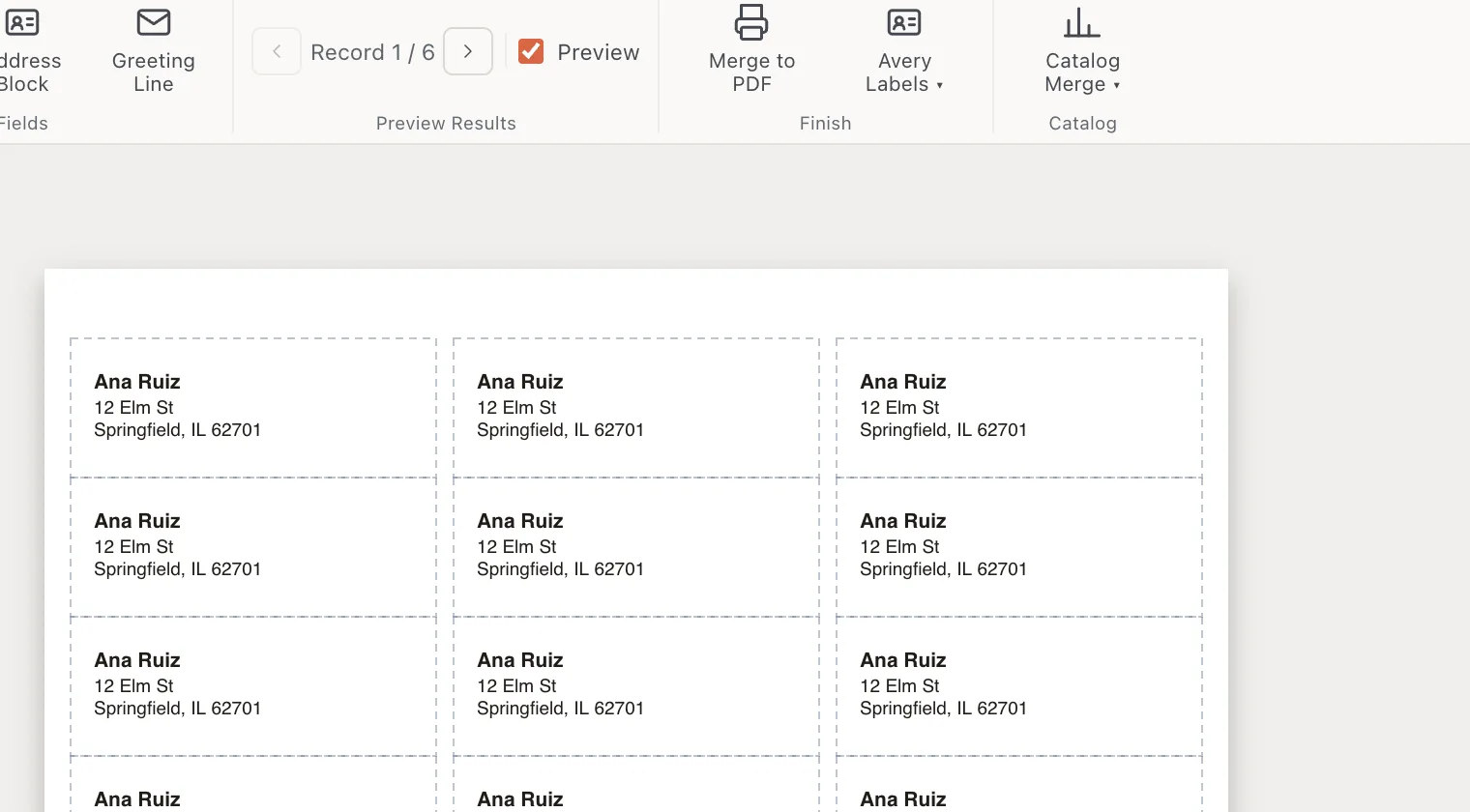
- 1Record 1 / 6
- 2Preview
- Click Avery Labels ▾ and choose your sheet:
- Avery 5160 — address (30 / sheet)
- Avery 5161 — address (20 / sheet)
- Avery 5163 — shipping (10 / sheet)
- Choose where to save the PDF and click Save. The status bar says how many records went onto how many sheets.
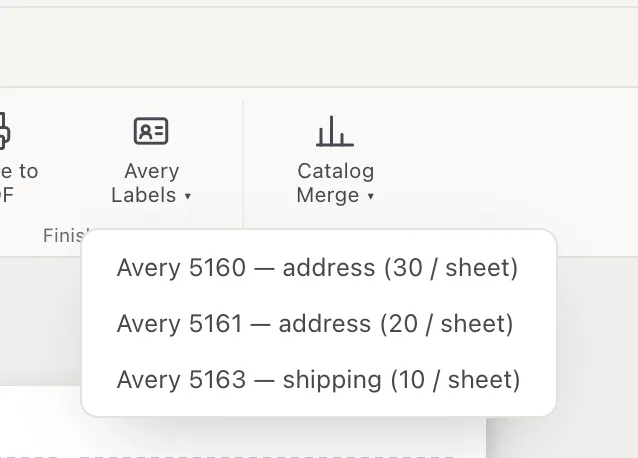
- 1Avery Labels
- 2Avery 5160
- Open the PDF and print it on the label sheets at 100% or Actual size, not “Fit to page”.
Your own label design
You don’t have to use the template. Korva takes the top-left label of page 1 as the design: everything that starts inside the first label’s area is copied into every label on the sheet. So put your design, such as a small logo and an address block, in the top-left corner of a Letter page. Text boxes are trimmed to the label and their text shrinks if it doesn’t fit.
Other label sheets
Only Avery 5160, 5161 and 5163 (all US Letter) are built in. For another sheet, such as an A4 label sheet, use a catalog merge, which repeats a box across a grid:
- Set the page to the sheet’s paper size (Page Design, then Size).
- Draw a text box exactly the size of one label, where the first label sits on the sheet (measure from the sheet’s top-left corner, or use the sizes printed on the label pack). Put your fields in it.
- Select it and choose Mailings, then Catalog Merge ▾, then Mark Region.
- Choose Catalog Merge ▾, then Layout…. Set Across and Down to the number of labels in a row and column, and Gap X and Gap Y to the space between labels.
- Click Merge Catalog to Pages, then export a PDF.
See Make a catalog or directory for details.
If it still doesn’t work
Every label in the PDF has the same address
The first label’s text doesn’t use fields, so there’s nothing to fill. Replace the typed name and address with fields from Insert Field.
The addresses drift lower down the sheet
The print window scaled the page. Print again at 100% or Actual size, with no “Fit to page”.
Choosing Avery Labels opens a file window
No recipient list is loaded yet. Choose your .csv or .xlsx file, then choose the sheet again.
Long addresses get small
A text box is trimmed to the label, and its text shrinks so the whole address fits. Shorten the longest lines in your list (for example “Street” to “St”), or use the larger Avery 5163 labels.
Something wrong or missing in this article? Email support or open an issue on GitHub.
