How do I move Korva Pro to a new computer?
On the old computer, click Pro in the title bar, then Deactivate this device and Yes, deactivate. Then activate the same key on the new computer. If the old computer is lost or broken, free its activation in the customer portal (polar.sh/korva/portal) first.
- In Korva
- Title bar, then Pro, then Deactivate this device
Korva Pro feature. Korva Pro is $49 once. The free version shows you this feature and asks for Pro when you use it. Free vs Pro
A Korva Pro licence is for one computer at a time. You can move it as often as you like, for example when you replace your computer or switch from a Mac to a Windows PC. There’s no fee and you don’t need to ask us.
Your documents aren’t tied to the licence. Copy your .kva and .pub files to the new computer the usual way (a USB stick, a cloud folder or email).
If you still have the old computer
-
Connect the old computer to the internet and open Korva.
-
Click Pro in the title bar. (Or Help, then Korva Pro on the ribbon.)
-
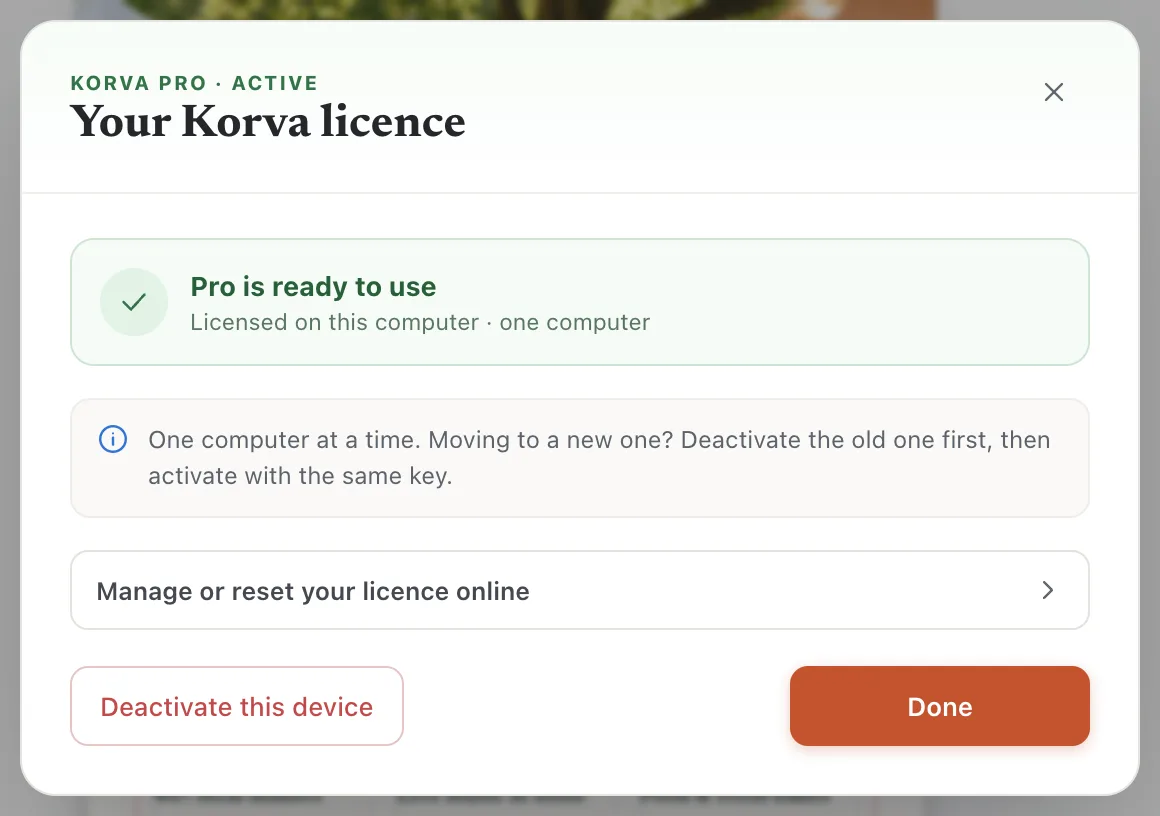
Click Deactivate this device.
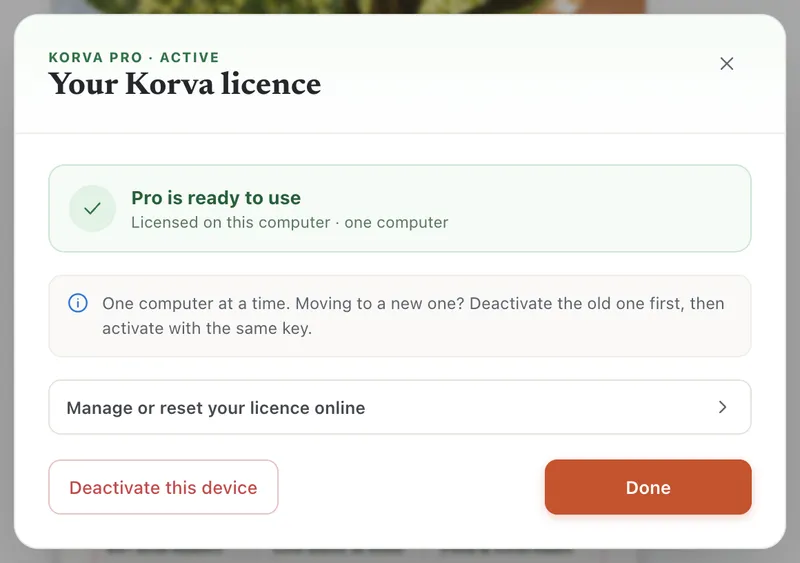
- 1Deactivate this device
- 2Manage or reset your licence online
-
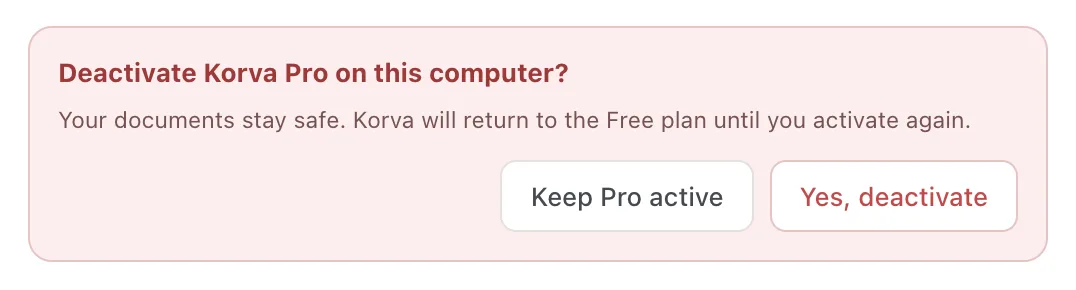
Click Yes, deactivate. Korva returns to the Free plan on this computer. Your documents stay as they are.
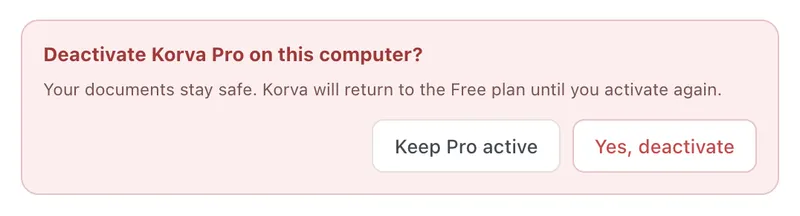
- 1Yes, deactivate
-
On the new computer, install Korva and activate it with the same key.
If the old computer is gone or broken
- Go to the customer portal at polar.sh/korva/portal. In Korva you can also reach it from Manage or reset your licence online, which opens our licence page.
- Sign in with the email address you bought with. Polar emails you a one-time code.
- Find your Korva licence and remove the old computer’s activation.
- Activate Korva on the new computer with your key.
If it still doesn’t work
“This licence is already in use on another computer”
The old activation is still there. Deactivate it on the old computer while it’s online, or remove it in the customer portal, then click Activate Pro again.
“Couldn’t release this device’s licence seat”
The licence server didn’t accept the deactivation. Pro stays active on this computer so you can try again in a moment. If it keeps happening, reset the licence in the customer portal.
I want Korva on two computers at once
One licence covers one computer at a time. For a second computer at the same time, buy a second licence, or contact support about more seats.
Something wrong or missing in this article? Email support or open an issue on GitHub.
