How do I choose, sort and filter mail merge recipients?
On the Mailings tab, click Edit Recipient List…. Untick anyone to leave out, click Find duplicates to untick repeated rows, click a column heading to sort, and use Filter to keep only rows whose column contains some text. Click Done. The merge, labels and preview all use the result.
- In Publisher
- Mailings, then Edit Recipient List
- In Korva
- Mailings, then Edit Recipient List…
Korva Pro feature. Korva Pro is $49 once. The free version shows you this feature and asks for Pro when you use it. Free vs Pro
Once your list is loaded, you can decide who gets a copy without touching the spreadsheet. Korva remembers your choices while the publication is open.
Open the list
- Load a list first with Mailings, then Select Data…. See Do a mail merge.
- Click Edit Recipient List… on the Mailings tab, or Edit list… in step 1 of the Mail Merge Wizard.
The window’s title line says how many recipients are included, for example 6 of 7 recipients included.
Leave people out
- Untick the box at the start of a row to leave that person out. Tick it again to put them back.
- Clear all unticks everyone, so you can tick just the few you want. Select all ticks everyone again.
- Find duplicates unticks every row that repeats an earlier row exactly, in every column. The first copy stays ticked.
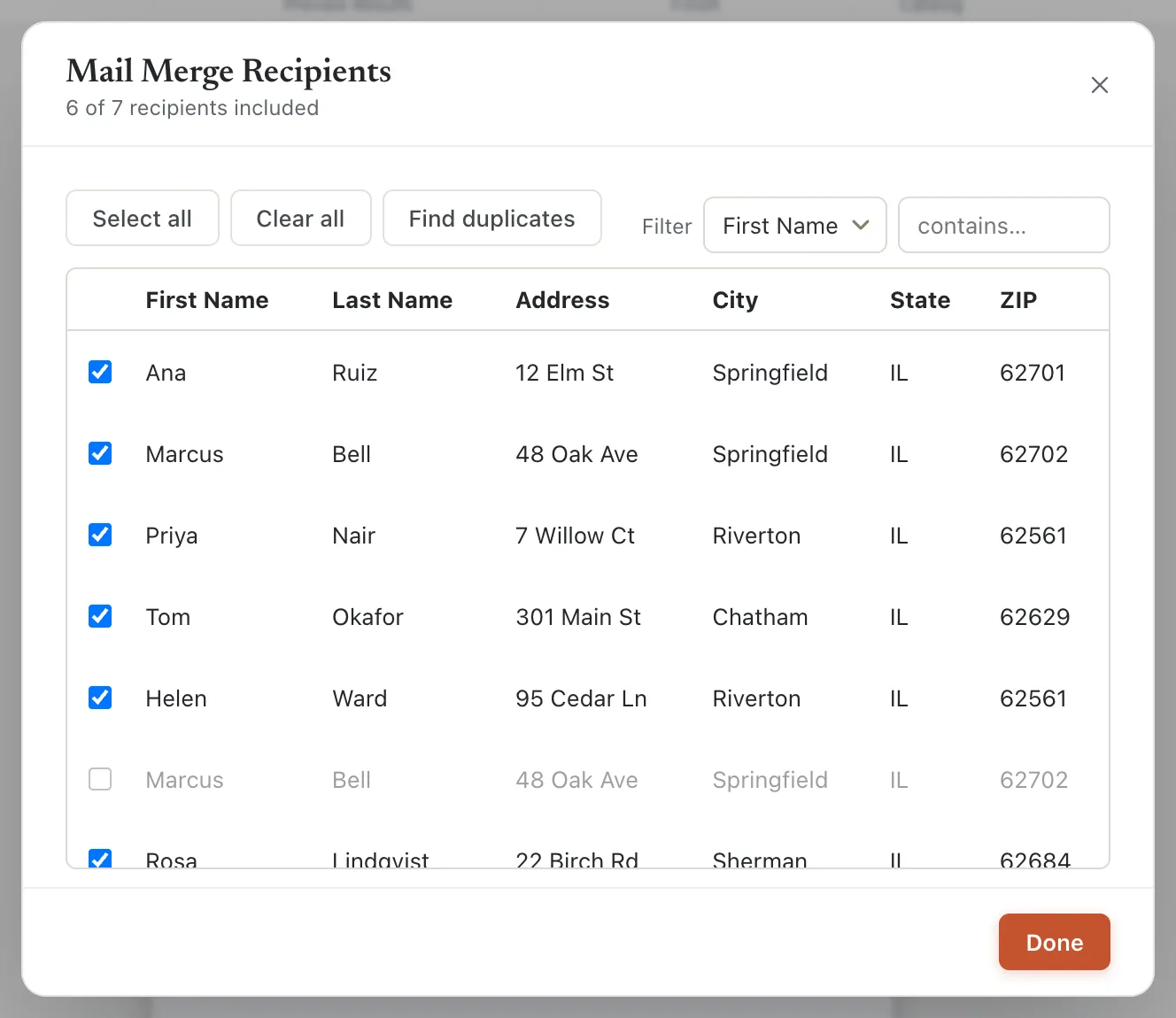
- 1Recipients included
- 2Find duplicates
- 3Duplicate unticked
- 4Click a heading to sort
Sort
Click a column heading to sort by it, A to Z. Click it again for Z to A. Numbers sort in number order, so 9 comes before 10. The merged PDF and labels come out in this order.
Filter
- Next to Filter, choose a column, such as City.
- Type in the contains… box, such as Riverton. Capital letters don’t matter.
Only matching rows stay in the list and in the merge. Clear the box to show everyone again.
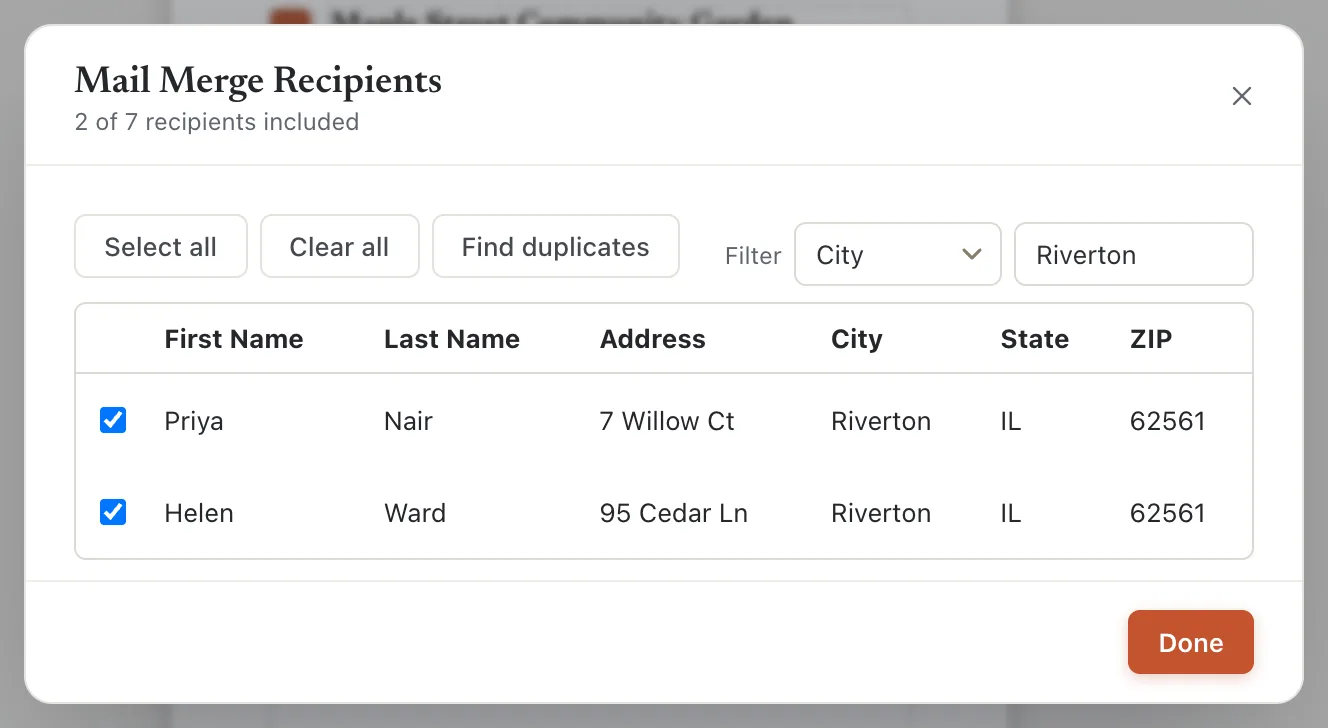
- 1Filter by column
- 2contains…
- Click Done.
A person is merged only if their row is ticked and matches the filter. Record 1 / N on the Mailings tab counts only those people.
Change the details themselves
You can’t type over a name or address in this window. Correct it in your spreadsheet, save it, and choose it again with Select Data… (or Change… in the wizard). Loading the list again resets the ticks, sorting and filter.
If it still doesn’t work
Edit Recipient List… is greyed out
No list is loaded yet. Click Select Data… and choose your .csv or .xlsx file.
The list shows nobody
The filter matches no rows. Clear the contains… box, or check the spelling.
The merge says “No recipients selected”
Every row is unticked or filtered out. Open Edit Recipient List… and click Select all, or clear the filter.
Something wrong or missing in this article? Email support or open an issue on GitHub.
