How do I add, delete or reorder pages?
Click + at the top of the Pages panel to add a blank page after the one you're on, or use Insert, then Add Page (⌘⇧NCtrl+Shift+N) to add several or copy a page. To reorder, drag a page thumbnail up or down. To delete, right-click a thumbnail and choose Delete Page.
- In Publisher
- Insert, then Page, and the Page Navigation pane
- In Korva
- Insert, then Add Page, and the Pages panel
The Pages panel on the left shows a thumbnail of every page. Click one to go to that page. Everything you do to pages can be undone with ⌘ZCtrl+Z.

- 1Add page
- 2Duplicate current page
- 3Delete current page
- 4Move page up / down
Add a page
- One blank page: click + (Add page) at the top of the Pages panel. It goes right after the page you’re on.
- A copy of this page: click Duplicate current page (the button with two overlapping squares), or press ⌘⇧UCtrl+Shift+U. The copy goes right after it, with everything on it.
Add several pages at once
- On the Insert tab, click Add Page, or press ⌘⇧NCtrl+Shift+N.
- In Number of pages, type how many you need (up to 50 at a time).
- Under Position, choose Before current page or After current page.
- Under Content, choose Blank page, Duplicate current page or One text box (a page with a text box filling the margins, ready to type into).
- Click Insert.
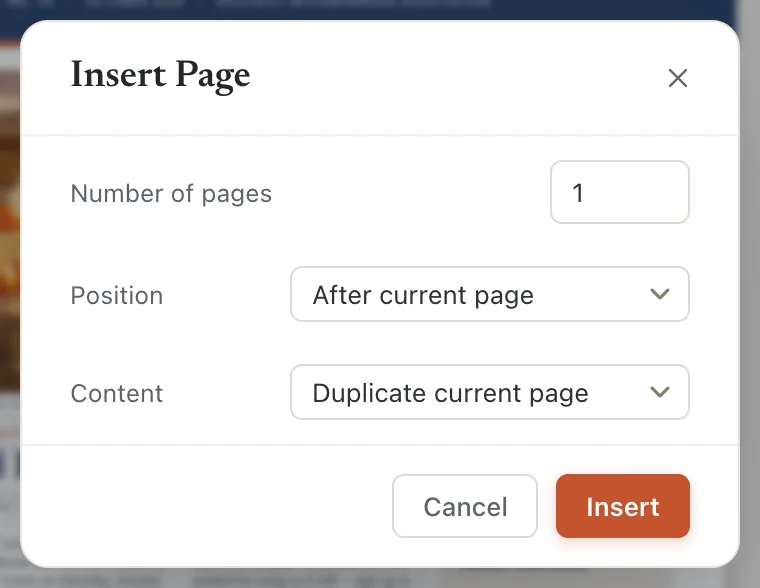
- 1Number of pages
- 2Position
- 3Content
Reorder pages
- Drag a thumbnail up or down the Pages panel and let go where it should be. Press escEsc while dragging to cancel.
- Or select a page and click Move page up or Move page down (the arrows at the top of the panel).
- Or right-click a thumbnail and choose Move Page Up or Move Page Down.
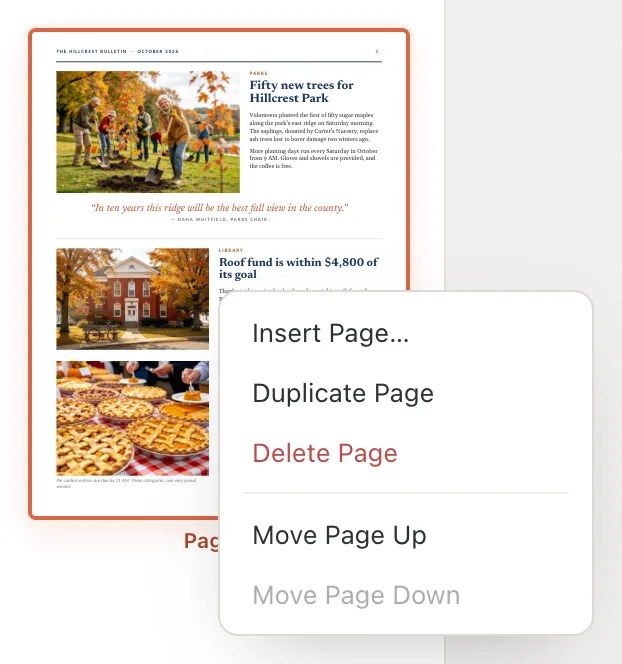
- 1Insert Page…
- 2Move Page Up
Delete a page
- Right-click the page’s thumbnail and choose Delete Page. Or click the thumbnail and press ⌦Delete, or click Delete current page (−) at the top of the panel.
- The page and everything on it are removed. The status bar says how many objects went with it.
Changed your mind? Press ⌘ZCtrl+Z. A publication always keeps at least one page, so the last page can’t be deleted.
Move between pages
- Click a thumbnail.
- Press ⌘Page DownCtrl+Page Down for the next page and ⌘Page UpCtrl+Page Up for the previous one.
- Press F5 or ⌘GCtrl+G to go to a page by its number.
If it still doesn’t work
Duplicating a page asks about linked pages
Text on this page continues in a text box on another page (a linked story). Korva copies all the linked pages together so the story stays whole, and asks how many copies you want.
Add Page says to close the master page first
You’re editing a master page, which isn’t a page of the publication. Click Close Master on the Page Design tab, then add the page. See Master pages.
My page numbers are wrong after moving pages
Page numbers inserted with Insert, then Page Number update on their own. Numbers typed by hand don’t. See Page numbers and sections.
Something wrong or missing in this article? Email support or open an issue on GitHub.
