What's on the Korva screen?
Korva's window has the ribbon across the top (File, Home, Insert, Page Design and the other tabs), the Pages panel on the left, your page in the middle, and the Format pane on the right, which shows the settings for whatever you select. Export PDF is at the top right, and the status bar along the bottom shows the page number and zoom.
- In Publisher
- The ribbon, Page Navigation pane and task panes
- In Korva
- The ribbon, Pages panel and Format pane
If you’ve used Microsoft Publisher, most of this will look familiar. Here is what each part of the window is for.
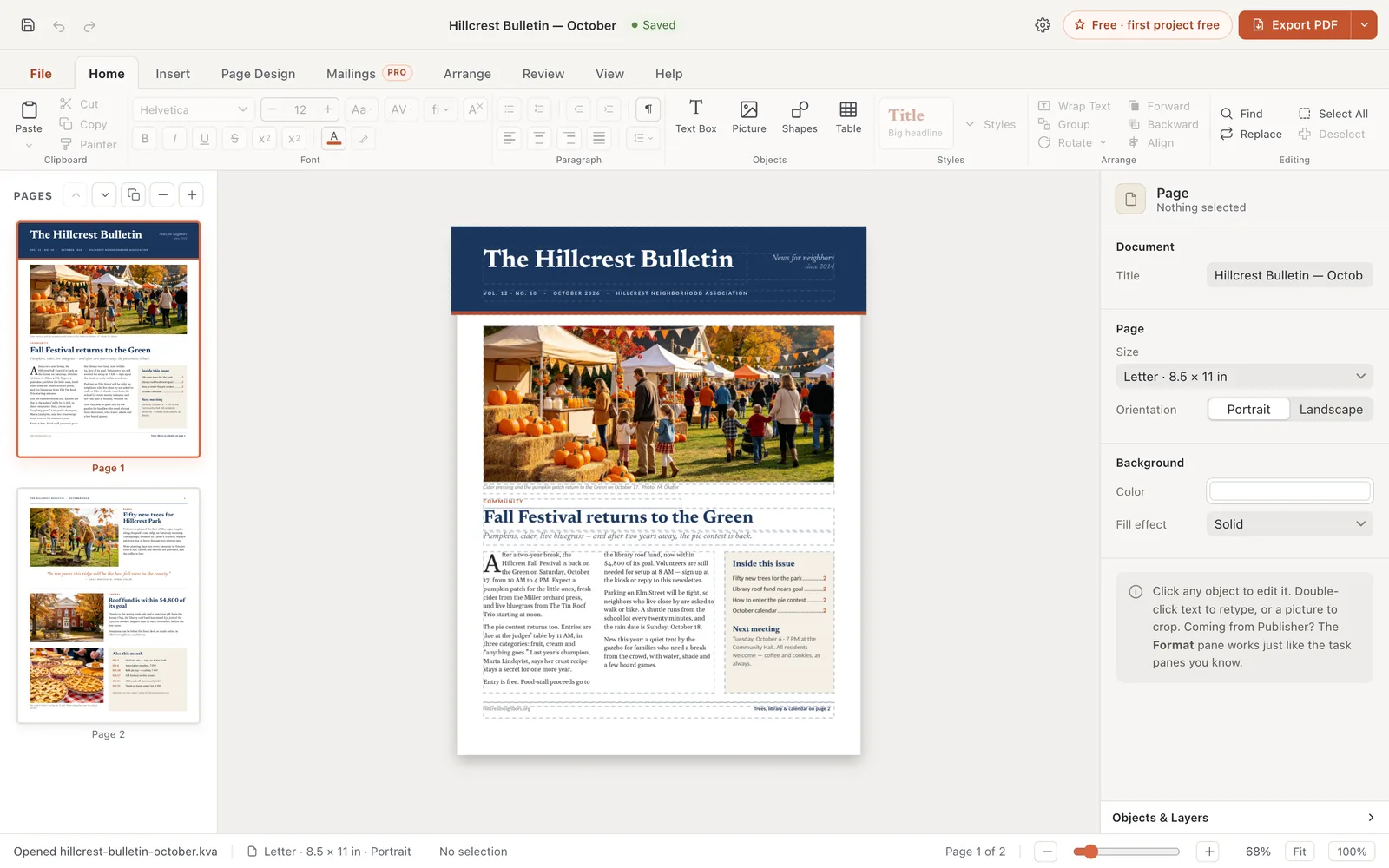
- 1Ribbon
- 2Pages panel
- 3Your page
- 4Format pane
- 5Status bar
- 6Export PDF
- 7Your plan
- Ribbon: the tabs and buttons along the top.
- Pages panel: a thumbnail of every page.
- Your page: where you click, type and drag.
- Format pane: the settings for what you’ve selected.
- Status bar: what just happened, the page size, the page number and the zoom.
- Export PDF: makes a PDF of your publication.
- Your plan: shows whether you’re on Free or Pro.
The title bar
On the left are Save, Undo and Redo. In the middle is the name of your publication and whether it’s saved: Saved, Unsaved changes, or Not saved yet for a publication that has never been saved.

- 1Save
- 2Undo
- 3Redo
- 4Save status
On the right are Settings (the gear), your plan, and Export PDF. The small arrow next to Export PDF opens all the print and export choices: press-ready PDF, picture, booklet and more.

- 1Settings
- 2Your plan
- 3Export PDF
- 4Print and export options
The ribbon
The tabs have the same names as in Publisher: File, Home, Insert, Page Design, Mailings, Arrange, Review, View and Help. Click a tab to see its buttons. Hold the pointer over a button to see what it does and its keyboard shortcut.

- 1File
- 2Home tab
File works like Publisher’s File tab: it fills the window with New, Open, Info, Save, Print and Export. Click the arrow at its top left to go back to your publication.
The Pages panel
Every page has a thumbnail. Click one to go to that page. The buttons above the thumbnails move the current page up or down, duplicate it, delete it, or add a page. Right-click a thumbnail for more, such as Insert Page…. You can also drag thumbnails to change the order.
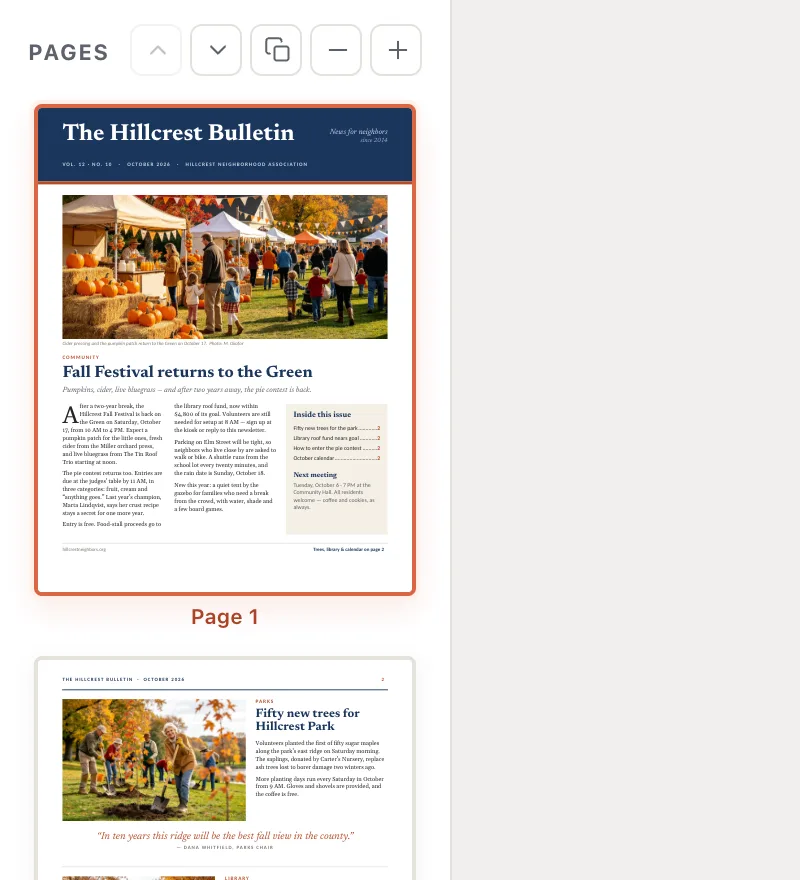
- 1Add page
- 2Page 2
See Add, move and delete pages.
The Format pane
This replaces Publisher’s task panes and most of its Format tabs. Select something on the page and the pane shows the settings for it. The top says what you selected. The tabs underneath change with it: a text box has Text, Box, Arrange and Accessibility; a picture has Picture, Frame, Arrange and Accessibility.
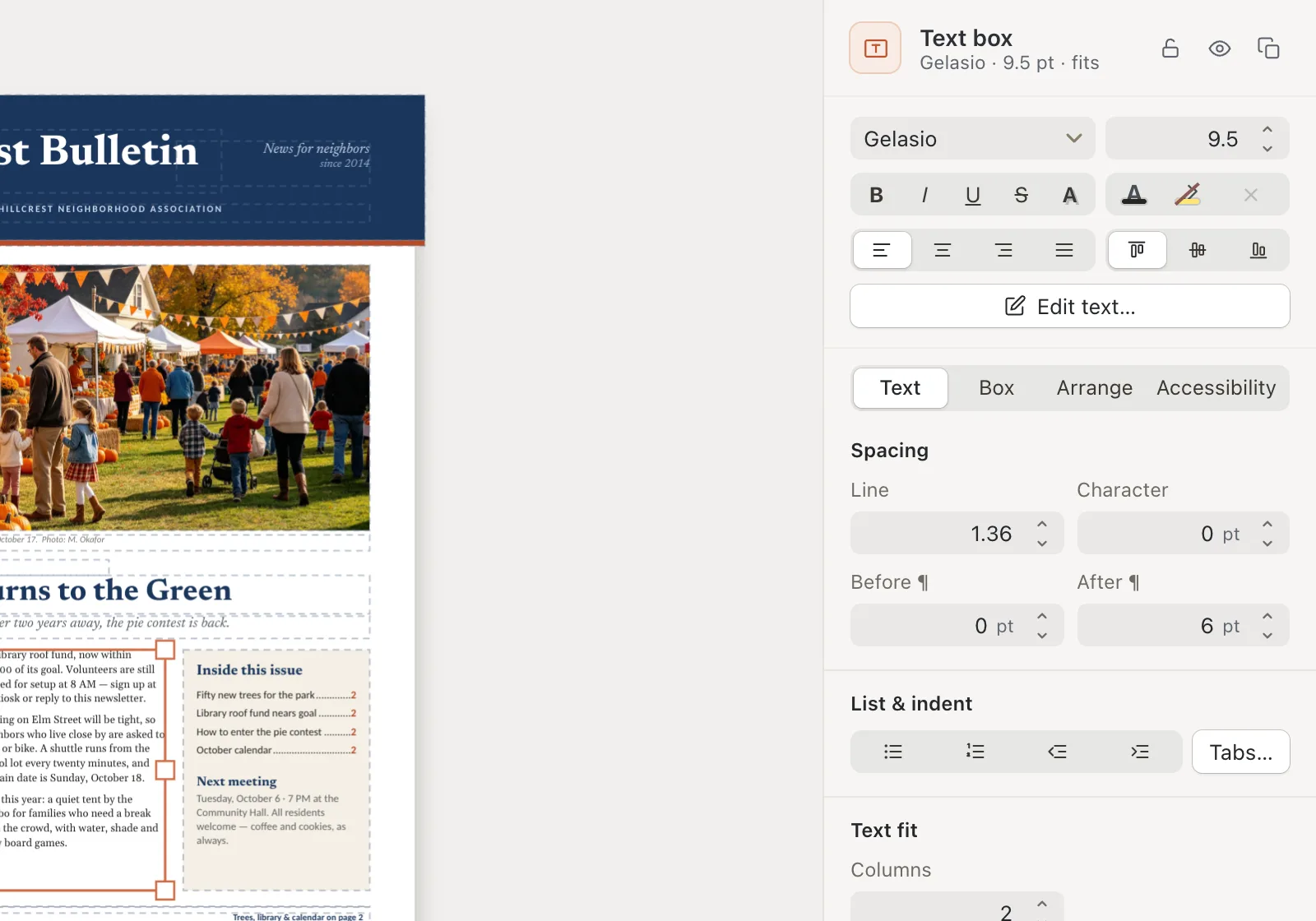
- 1What is selected
- 2Tabs for this object
At the bottom of the pane, Objects & Layers lists everything on the page. Use it to pick an object that’s hidden behind another.
The status bar
The left side says what just happened (for example, Opened and the file name), the page size, and what’s selected. The right side shows the page number and the zoom: zoom out, the slider, zoom in, Fit (the whole page) and 100%.

- 1Fit
- 2100%
If it still doesn’t work
The ribbon buttons are grayed out
Many buttons only work on something selected. Click a text box or picture first. With nothing selected, the font and paragraph buttons are gray.
The page is too small or too large to work on
Click Fit in the status bar to see the whole page, or 100% for its real size. Hold ⌘Ctrl and scroll with the mouse wheel to zoom in on one spot.
I can’t find a Publisher command
See the Publisher command map, or open Help, then Coming from Publisher in Korva. Also see Coming from Publisher.
Something wrong or missing in this article? Email support or open an issue on GitHub.
