How do I make lists, tab stops, indents and line spacing?
Select the paragraphs and click Bulleted list or Numbered list in the Home, then Paragraph group. For tab stops, click in the paragraph and choose Tabs… in the Format pane's Text tab. Indent and line spacing buttons are in the same Paragraph group.
- In Publisher
- Home, then Paragraph; Paragraph dialog, then Tabs
- In Korva
- Home, then Paragraph; Format pane, then Text, then List & indent and Spacing
Lists, tabs, indents and spacing are paragraph settings. They apply to the paragraph the cursor is in, to all the paragraphs you select, or to every paragraph in a box you select without opening it.
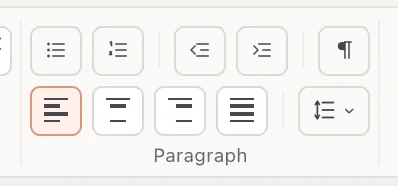
- 1Bulleted list
- 2Numbered list
- 3Decrease / Increase indent
- 4Line spacing
Make a bulleted or numbered list
- Double-click the text box and select the paragraphs for the list.
- Click Bulleted list or Numbered list in the Home, then Paragraph group. The same buttons are in the Format pane’s Text tab under List & indent.
- To change the bullet, click in the list and pick a character under List & indent: •, ◦, ▪, –, ✦, ➤, ✓ or ★.
- For a numbered list, choose the Numbering: 1, 2, 3 · a, b, c · A, B, C · i, ii, iii · I, II, III, or the Thai ๑, ๒, ๓ and ก, ข, ค.
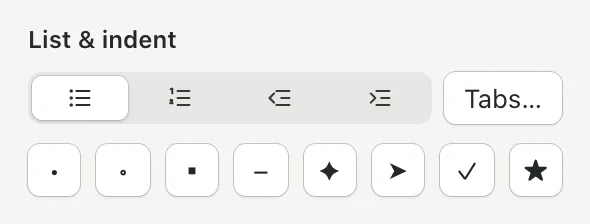
- 1Bulleted list
- 2Bullet character
- 3Tabs…
Each new paragraph you start with ↩Enter continues the list. Click the list button again to turn the list off for the selected paragraphs.

Indent a paragraph
Click Increase indent or Decrease indent in the Home, then Paragraph group, or in the Format pane under List & indent. Each click moves the whole paragraph a quarter of an inch (18 pt).
Korva has no separate first-line or hanging indent setting. To indent only the first line, type a tab at its start.
Line up text with tab stops
Tab stops line up text such as an order of service, a menu with prices, or a table of contents, often with a row of dots between the columns.
- Double-click the text box and click in the paragraph, or select several paragraphs.
- In the Format pane’s Text tab, under List & indent, click Tabs….
- Click Add tab stop. Set its position, then choose how text lines up at it (Left, Center, Right or Decimal) and what fills the gap (None, Dots, Dashes or Line).
- Click OK.
- In the text, press ⇥Tab where the text should jump to the stop.
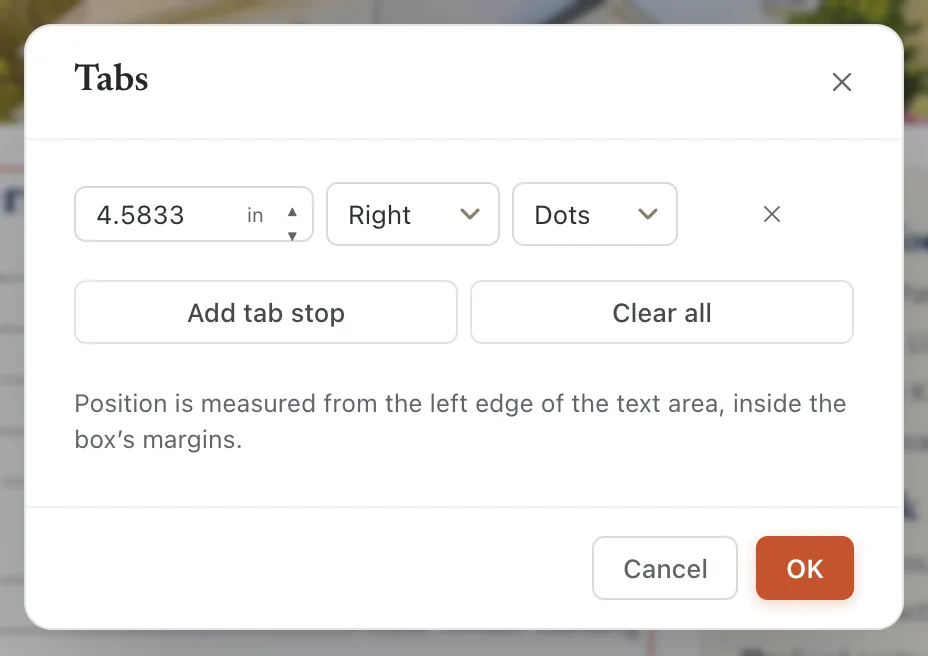
- 1Position
- 2Add tab stop
- 3OK
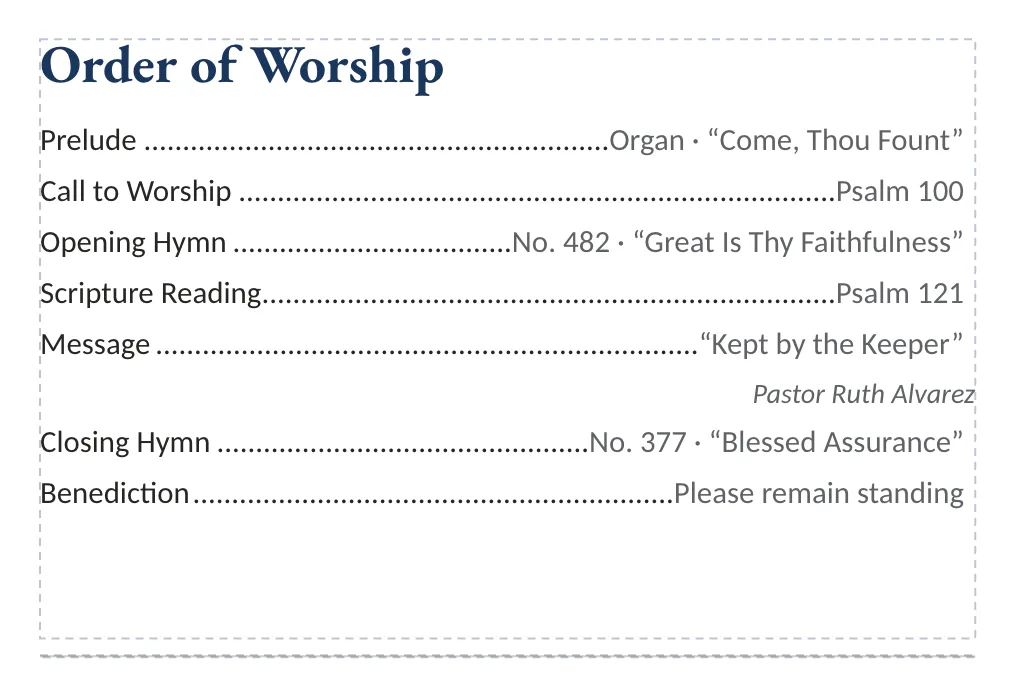
To remove a stop, click the ✕ beside it. Clear all removes every stop from the paragraph.
Change line and paragraph spacing
- Line spacing: click the line-spacing button in Home, then Paragraph and choose 1.0, 1.15, 1.5, 2.0, 2.5 or 3.0. With the text selected, ⌘1Ctrl+1 sets single, ⌘5Ctrl+5 one-and-a-half and ⌘2Ctrl+2 double spacing.
- Exact values: in the Format pane’s Text tab, under Spacing, set Line (in lines), Before ¶ and After ¶ (in points), and Character to spread letters apart or squeeze them together.
If it still doesn’t work
Pressing Tab moved me to another cell
In a table, ⇥Tab goes to the next cell. Press ⌃⇥Ctrl+Tab to type a tab inside a cell.
My text doesn’t line up at the tab stop
The stop is set on some paragraphs only. Select all the lines that should line up, open Tabs… again and set the same stop. Also check that each line has exactly one tab where it should jump: turn on Show/Hide ¶ to see them.
The bullets or numbers disappeared after I pasted
Pasted paragraphs keep their own formatting. Select them and click the list button again.
Something wrong or missing in this article? Email support or open an issue on GitHub.
