Korva closed before I saved. Can I get my work back?
Usually, yes. While you have unsaved changes, Korva keeps a recovery copy every second or so. Start Korva again and it asks Recover your work?; click Recover my work and your publication opens as it was, marked Unsaved changes. Then save it or export a PDF straight away.
- In Korva
- Start Korva again, then Recover your work?, then Recover my work
Korva has a safety net for crashes, power cuts and accidental closes. As long as there are unsaved changes, it keeps a copy of the open publication on your computer, updated about every second (a large publication with many pictures every few seconds). It works on the Free plan too.
Keep as draft when you close (Free)
On the Free plan you can’t save an editable file. When you close Korva with unsaved changes, the Save changes? window has a Keep as draft button (Korva 1.9.5 and later). Click it and Korva closes, keeping the recovery copy. The next time you start Korva, it asks Recover your work? and your publication comes back.
Keep as draft appears only when you close Korva, not when you open or start another publication, because the next publication’s changes would replace the draft. If the publication is too large for the recovery copy, the button isn’t there; export a PDF instead.
Recover your work
- Start Korva again.
- Before anything else, Korva asks Recover your work? and names the publication.
- Click Recover my work.
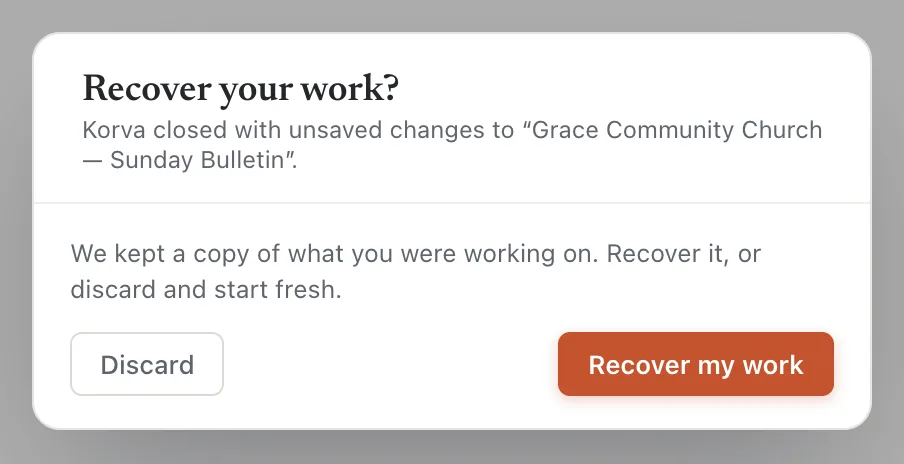
- 1Recover my work
- 2Discard
The publication opens as it was when Korva closed. The status bar says Recovered and the name, and the title bar says Unsaved changes, because the recovered work isn’t in a file yet.

- 1Unsaved changes

- 1Recovered
- Keep it right away:
- With Pro, click Save or press ⌘SCtrl+S. See Save your work.
- On Free, click Export PDF. A recovered first project is still your first project, so it stays free to export.
What the safety net doesn’t do
- It keeps one publication: the last one with unsaved changes. If you worked on two, only the most recent is kept.
- It isn’t a save. The copy is deleted when you save, when you choose Don’t save on closing, or when you click Discard. Exporting a PDF doesn’t delete it.
- It can’t bring back versions you saved over. Korva has no version history.
If it still doesn’t work
Korva started without asking to recover
There was nothing to recover. This happens when the work had been saved, when you chose Don’t save when Korva asked, or when you had clicked Discard. If you were working on a .pub file, your original is unchanged; open it again with File, then Open.
Korva could not read the saved copy
The prompt says Korva could not read the saved copy just now. Try again, or discard it. Click Recover my work again; a large publication can take a moment to read. If it still fails, quit Korva, start it again and try once more before you click Discard.
The status bar says Auto-recovery full
⚠ Auto-recovery full — save your file means the publication is too large for the recovery copy, so the safety net isn’t protecting it. Save it (Pro) or export a PDF now, and keep doing so as you work.
I still have a second Korva window open
The recovery prompt belongs to the window that was working on the publication. If another Korva window is still open, Korva doesn’t offer its work as a crash. Switch to that window and save there.
If you’ve lost work and none of this helps, contact support.
Something wrong or missing in this article? Email support or open an issue on GitHub.
