Does Korva Pro work without an internet connection?
Yes. You need the internet once, to activate. After that Korva checks your licence each time it starts, and if it can't reach the licence server, Pro keeps working for 30 days from the last successful check. After 30 days offline Korva switches to the Free plan until you start it once with an internet connection; nothing else is lost.
- In Korva
- Title bar, then Pro
Korva Pro feature. Korva Pro is $49 once. The free version shows you this feature and asks for Pro when you use it. Free vs Pro
Korva works on your computer, not in a browser, and your documents never leave it. The only thing Korva Pro uses the internet for is checking the licence (plus checking for updates).
How the licence check works
- Activation needs an internet connection. See Activate Korva Pro.
- Each time Korva starts, it checks the licence in the background. You don’t see this and don’t have to wait for it.
- If there’s no connection, Pro keeps working. Korva counts 30 days from the last time the check succeeded.
- Every successful check starts the 30 days again. If Korva starts with a connection at least once a month, you won’t notice anything.
Click Pro in the title bar to see that Pro is active on this computer:
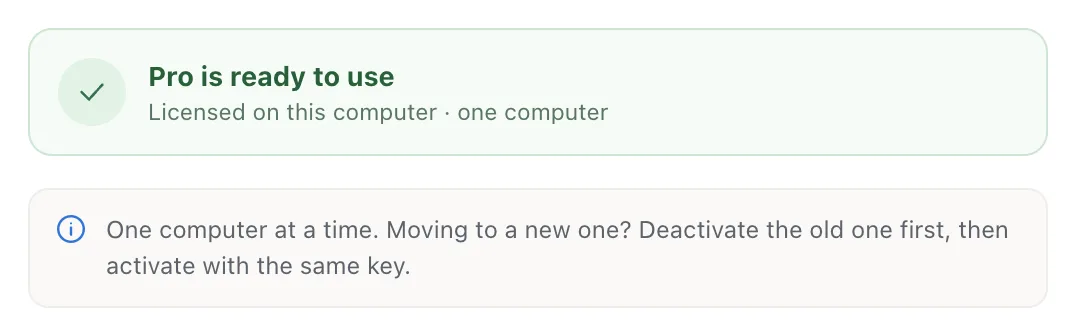
- 1Pro is ready to use
After 30 days without a connection
If Korva hasn’t been able to check the licence for more than 30 days, it starts on the Free plan. Korva doesn’t show a warning before this happens.
- Your licence isn’t lost and your key is still stored on the computer.
- Your files are fine. You can still open and edit them, and export your first project.
- Pro features (saving .kva files, exporting other projects, mail merge, master pages, the Rescue Center’s Create N PDFs) ask for Pro until the next check.
To get Pro back:
- Connect the computer to the internet.
- Quit Korva and start it again.
Korva checks the licence as it starts, and Pro is back.
If it still doesn’t work
I restarted with a connection and it’s still Free
Check that the connection really reaches the internet (open a website). On a work or school network, a firewall may block the licence server; try another network. If it still says Free, contact support before you enter the key again: a second activation can count as a second computer.
The computer is never online
Connect it briefly once a month (a phone hotspot is enough), and start Korva while it’s connected. If that isn’t possible where you work, contact support.
Something wrong or missing in this article? Email support or open an issue on GitHub.
