How do I use master pages?
Click Page Design, then Master Pages, tick Running header, Footer and Page numbers, fill in the text and click Apply to all pages. To put your own design on every page, build it on a page and click Save page as master. Master pages need Korva Pro.
- In Publisher
- View, then Master Page
- In Korva
- Page Design, then Master Pages and Edit Master
Korva Pro feature. Korva Pro is $49 once. The free version shows you this feature and asks for Pro when you use it. Free vs Pro
A master page holds the things that repeat: a running header, a footer with the page number, a logo, a background. Every page that uses the master shows them behind its own objects. Change the master once and every page follows.
Add a header and footer to every page
- On the Page Design tab, click Master Pages.
- Tick Running header and type the header text, for example the publication’s name and the month.
- Tick Footer and type its text, such as your website. Tick Page numbers to add each page’s number to the footer.
- Check the preview on the left, then click Apply to all pages.
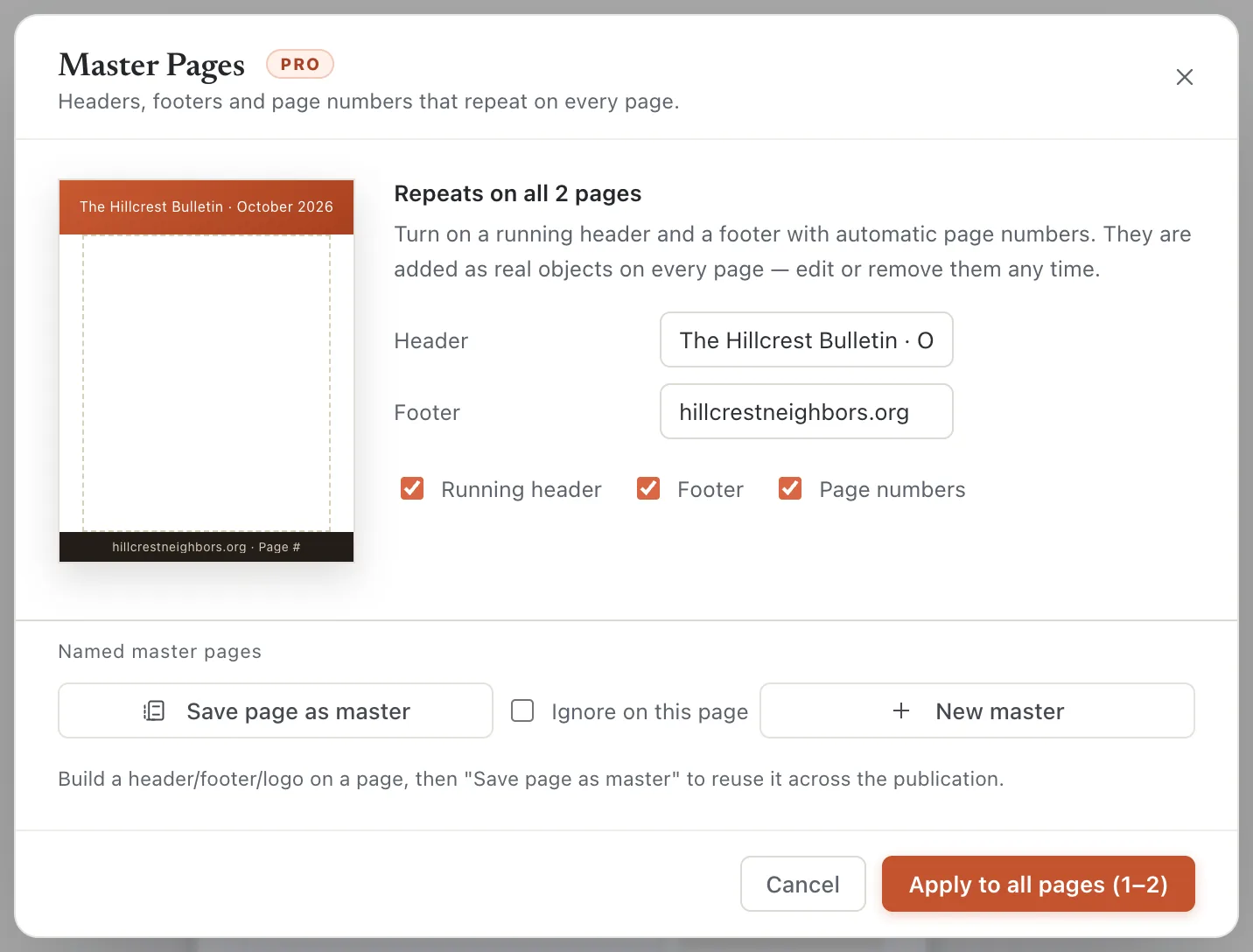
- 1Running header
- 2Footer
- 3Page numbers
- 4Save page as master
- 5Apply to all pages
The header and footer are added to each page as ordinary objects, so you can still move or restyle them on a page. Pages you add later get them too. To change the text on every page, open Master Pages again, edit it and click Apply to all pages. To take them off, click Remove master.
Make your own master page
For anything beyond a simple header and footer, such as a logo in a corner or a colored band, design it on a page:
- Put the repeating objects on a page.
- Open Page Design, then Master Pages and click Save page as master. Those objects move from the page onto a new master named Master 1, and the page uses it.
- Under Named master pages, click Apply to all next to the master to use it on every page. Or choose it in Apply … to pages, type the pages (for example 1-3, 5) and click Apply.
Each master has buttons to Edit, Rename, Apply to all or delete it. New master adds an empty one to design from scratch.
Edit a master page
- Click Page Design, then Edit Master (or press ⌃MCtrl+M; on a Mac this is the ⌃Ctrl key).
- The master opens like a page. A bar at the top says Editing master page and how many pages it appears on, and the Pages panel lists the Master pages.
- Change, add or move objects as on any page.
- Click Close Master (or Close master page in the bar) to go back to your pages.
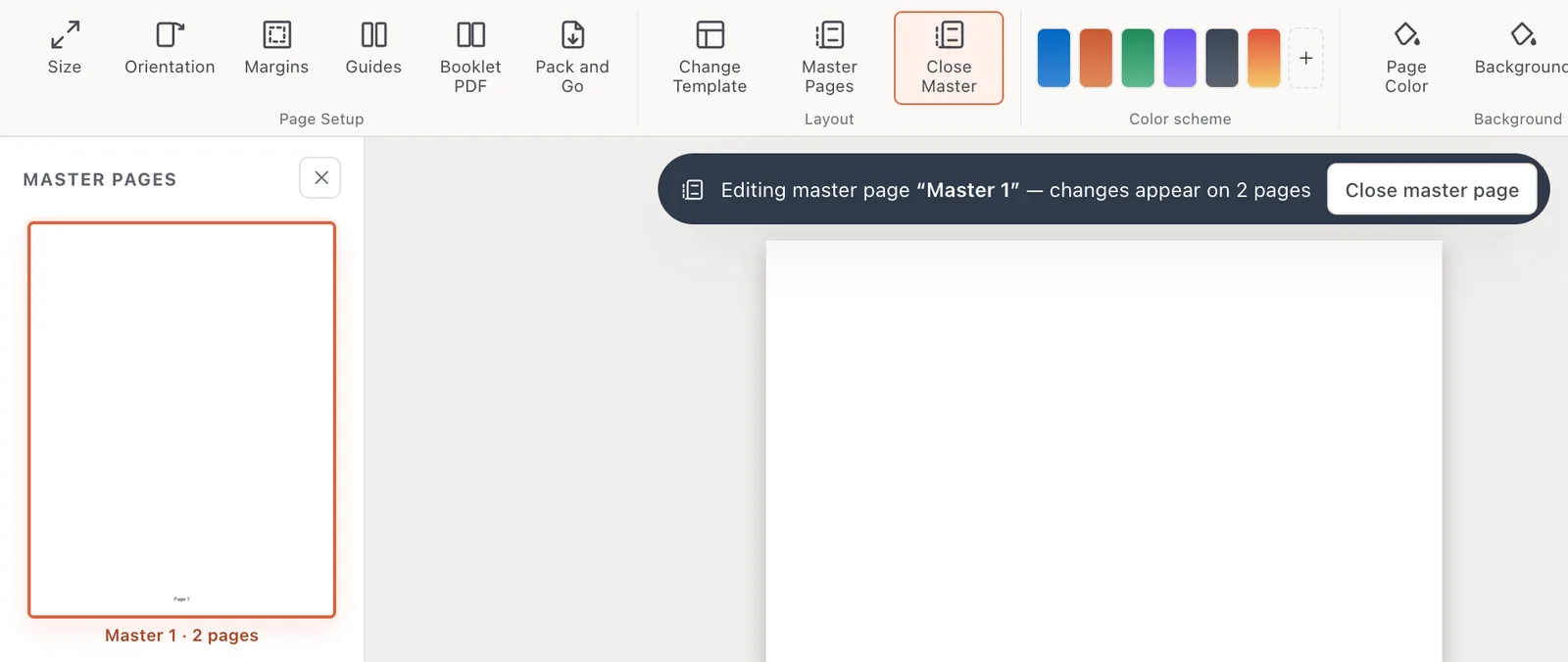
- 1Close Master
- 2Editing master page
- 3Master pages
Leave the master off one page
A cover page usually shouldn’t show the running header or page number. Go to that page, open Page Design, then Master Pages and tick Ignore on this page. Or right-click its thumbnail and choose Master Page: None.
A header or footer added with the Running header and Footer boxes is an ordinary object on each page. On the cover, click it and press ⌦Delete.
If it still doesn’t work
The footer appears twice
The publication already had a footer on a named master page (common in files from Publisher), and Master Pages added a second one on top. Open Master Pages and click Remove master to take off the one you added, then click Edit next to the existing master to change its footer.
My page’s objects disappeared after Save page as master
They moved onto the master. They still show on the page. To change them, use Edit Master.
I can’t click the header or logo to change it
It belongs to a named master page. Click Page Design, then Edit Master and change it there.
Something wrong or missing in this article? Email support or open an issue on GitHub.
