How do I insert a calendar?
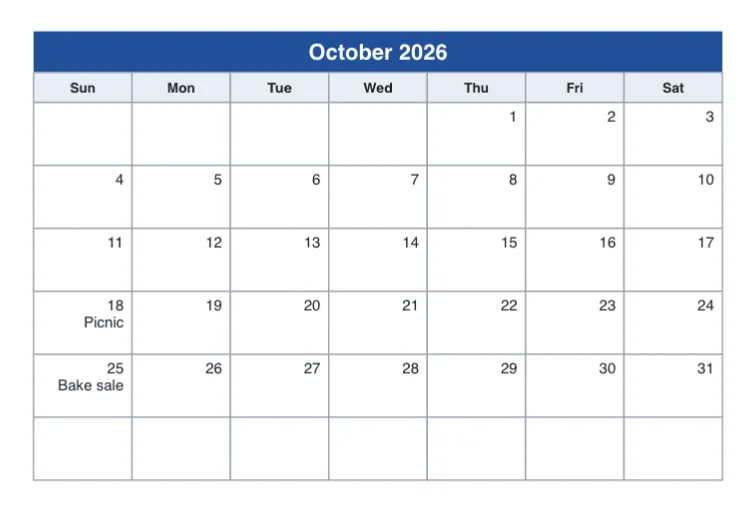
Click Insert, then Calendar. Korva adds this month's calendar to the page, with the month name, the days of the week and the dates filled in. Double-click a day to type an event under its date.
- In Publisher
- Insert, then Calendars
- In Korva
- Insert, then Calendar
A calendar is handy for a newsletter’s “What’s on” page or a church bulletin’s month ahead. Korva builds it from shapes and text boxes grouped together, so every part can be changed.
Insert this month’s calendar
- Go to the page where the calendar should go.
- On the Insert tab, in the Illustrations group, click Calendar.

- 1Calendar
The calendar appears inside the page margins, sized to fit the page, and selected as one object. Drag it to move it, or drag a corner handle to resize it. On a small page, such as a postcard, it is made smaller to fit.
Add events
- Double-click a day. A text cursor appears in it.
- Press End to go past the date, press ↩Enter and type the event, for example Picnic.
- Press escEsc when you’re done.
Which month and which first day
Korva always inserts the current month, taken from your computer’s date. There is no setting to pick another month yet. To make next month’s calendar, insert one and then change the month name in its title bar and retype the dates, or wait until that month begins.
The week starts on the day usual for the publication’s language: Sunday for English, Monday for Polish. The publication’s language is under Review, then Language.
Change the colors
The calendar is a group. To change one part, such as the blue title bar:
- Right-click the calendar and choose Ungroup.
- Click the part you want to change and set its Fill or text color in the Format pane.
- When you’re done, select all the parts again (drag a box around them) and press ⌘⇧GCtrl+Shift+G to group them, so they move together.
If it still doesn’t work
The calendar shows the wrong month
Korva uses your computer’s date. Check the date and time on your computer, or edit the title and dates by hand as described above.
The calendar covers other things on the page
It is placed inside the margins and on top of what is already there. Drag it to a clear spot, make it smaller with a corner handle, or move other objects out of the way. See Arrange, align and group objects.
An event doesn’t fit in its day
Each day box is small. Use a few words, make the text smaller, or make the whole calendar bigger by dragging a corner handle.
Something wrong or missing in this article? Email support or open an issue on GitHub.
