How do I find and replace text?
Click Home, then Replace (⌃HCtrl+H, the Control key on a Mac too) or Home, then Find (⌘FCtrl+F). Type what to look for in Find and the new text in Replace, then click Replace for one match or Replace all for every match in the publication.
- In Publisher
- Home, then Find, Home, then Replace
- In Korva
- Home, then Find, Home, then Replace
Find & Replace searches the whole publication: every page, every text box, table cells, and master pages (headers and footers). It’s the quick way to change a date, a name or a phone number everywhere it appears.
Find a word
- Click Home, then Find, or press ⌘FCtrl+F or F3.
- Type the word or phrase in Find.
- The field shows how many there are, such as 1 of 3. Press ↩Enter or click the › arrow to go to the next match, and ‹ for the previous one.
Korva turns to the page with the match and highlights it in yellow. The panel stays open beside the page, so you can still see and click the page.
Replace text
- Click Home, then Replace, or press ⌃HCtrl+H. On a Mac this is the Control key, because ⌘H hides the app.
- Type the text to look for in Find and the new text in Replace.
- Choose one:
- Replace changes the highlighted match and moves to the next one.
- Replace all changes every match. The button shows how many, such as Replace all 3.
- Click Close when you’re done.
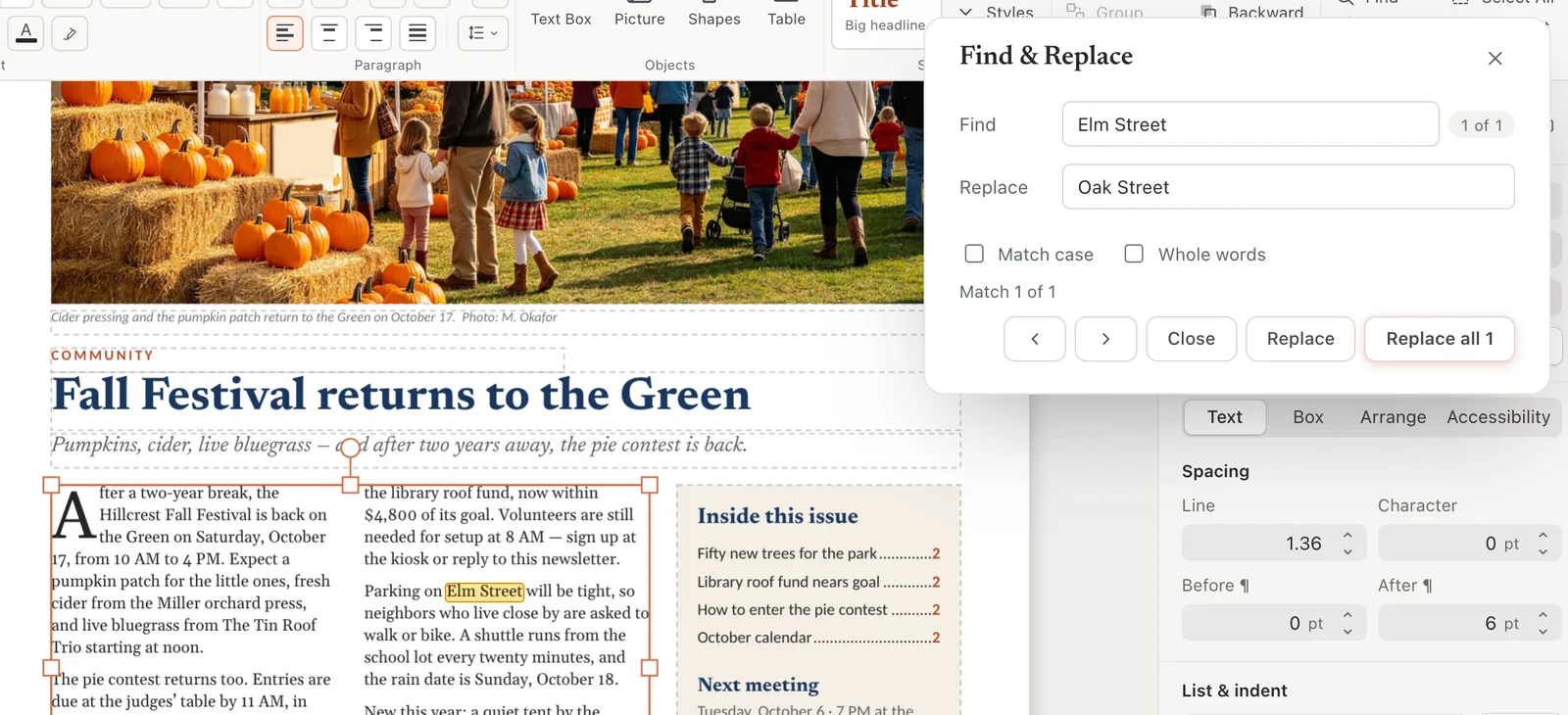
- 1Find
- 2Replace
- 3Next match
- 4Replace all
To undo a Replace all, press ⌘ZCtrl+Z once. It undoes all the replacements together.
Narrow the search
- Match case finds only text with the same capitals: “May” but not “may”.
- Whole words skips matches inside longer words: “art” but not “party”.
If it still doesn’t work
It says 0 matches but I can see the word
Check the spelling, and turn off Match case and Whole words. Text in a locked object isn’t searched or replaced; unlock it first (click the lock in the Format pane header).
Ctrl+H on my Mac does nothing
Make sure you’re pressing the Control key, not ⌘. Or click Home, then Replace.
Some words in a picture weren’t replaced
Text that is part of a picture (a scanned flyer, a logo) is pixels, not text. Korva can only find text in text boxes, shapes and tables.
Something wrong or missing in this article? Email support or open an issue on GitHub.
