How do I change the page size or orientation?
Click Page Design, then Size and click the size you want, such as Letter, A4 or Postcard, or type a width and height under Custom size and click Apply custom size. Page Design, then Orientation turns the pages between portrait and landscape. Everything on the pages moves and resizes with them.
- In Publisher
- Page Design, then Size and Orientation
- In Korva
- Page Design, then Size and Orientation
The page size applies to every page in the publication. When you change it, Korva moves and scales the objects on each page to fit the new shape, as Publisher does, so the layout keeps its proportions.
Choose a standard size
- On the Page Design tab, click Size.
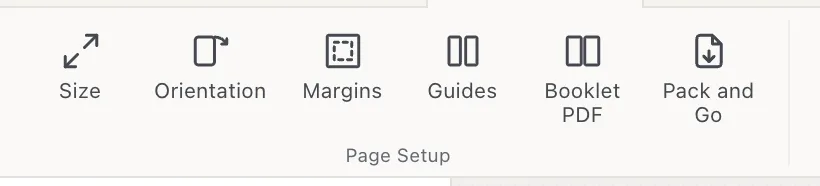
- 1Size
- 2Orientation
- The Page Size dialog opens. The line under its title shows the current size.
- Click a size. It applies straight away and the dialog closes.
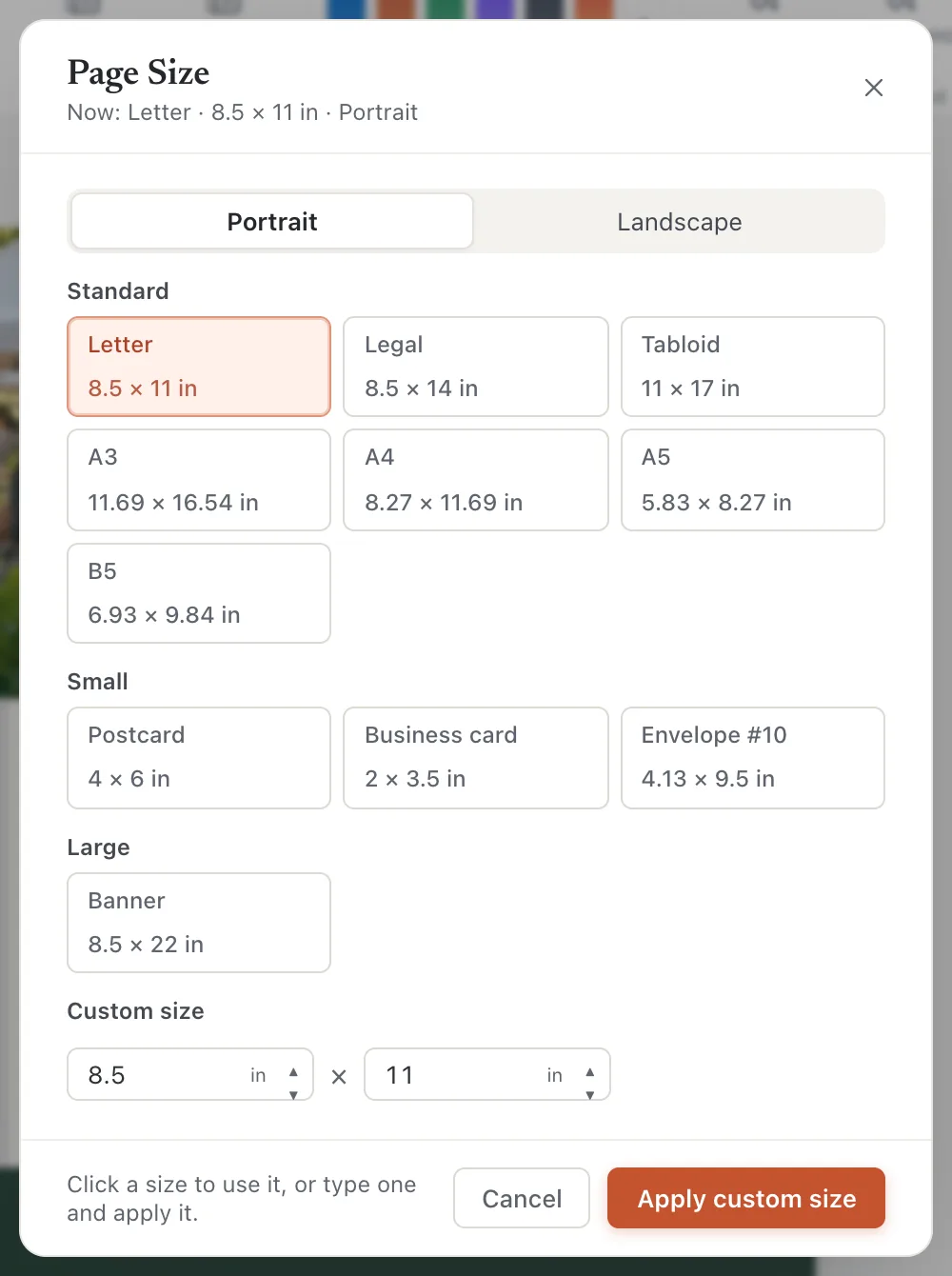
- 1Portrait / Landscape
- 2Click a size to use it
- 3Custom size
- 4Apply custom size
The sizes are:
- Standard: Letter, Legal, Tabloid, A3, A4, A5, B5
- Small: Postcard (4 × 6 in), Business card (3.5 × 2 in), Envelope #10
- Large: Banner (22 × 8.5 in)
Picking a size keeps the current orientation: a landscape page stays landscape.
Set a custom size
- Open Page Design, then Size.
- Under Custom size, type the width in the first box and the height in the second.
- Click Apply custom size (or press ↩Enter).
Sizes are shown in your measurement unit. To work in centimeters or millimeters, change Measurement units on the View tab or in Settings.
Switch between portrait and landscape
- Click Page Design, then Orientation to turn every page the other way.
- Or click Portrait or Landscape at the top of the Page Size dialog.
- Or click an empty part of the page so nothing is selected, then use Orientation in the Format pane.
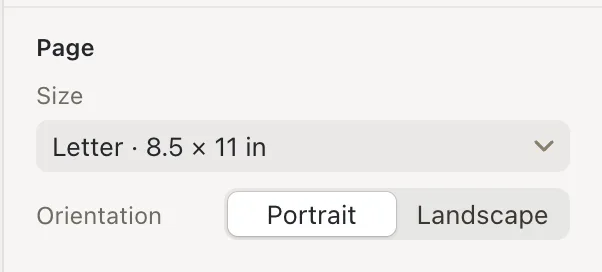
- 1Size
- 2Orientation
The Size list in the Format pane has the same sizes. More sizes… at the bottom opens the Page Size dialog.
If it still doesn’t work
Things are in the wrong place after changing the size
Going from tall to wide (or Letter to a very different shape) moves and scales everything, but a busy layout may still need tidying. Check each page and adjust. If it’s worse than before, press ⌘ZCtrl+Z to go back.
I want one page in a different size
All pages in a Korva publication share one size. Make the odd page as a separate publication and export it as its own PDF.
My printer cuts off the edges
Most printers can’t print right to the edge of the paper. Keep text and important pictures inside the margins. See Margins, guides and snapping.
The PDF comes out on the wrong paper size
The PDF uses the page size you set here. If your printer uses A4 and your publication is Letter (or the other way round), change the size here, or choose “fit to page” in your printer settings.
Something wrong or missing in this article? Email support or open an issue on GitHub.
