How do I make text fit in a text box?
Select the box and, in the Format pane's Text tab, set Text fit, then AutoFit to Shrink on overflow, Best fit or Grow text box to fit. Or make the box bigger, or link it to another box so the story continues there. Text that doesn't fit is not printed or exported.
- In Publisher
- Text Box Tools, then Format, then Text Fit
- In Korva
- Format pane, then Text, then Text fit, then AutoFit
When a text box holds more words than it can show, the end of the text is hidden, and it won’t appear in your PDF or on paper. Korva tells you when that happens and gives you the same fixes Publisher has.
Spot text that doesn’t fit
- A small red A… marker sits at the box’s bottom-right corner.
- While you type in the box, a red Overflow — won’t print label marks the hidden lines.
- With the box selected, the Format pane’s Text tab says Text doesn’t fit in this box. When everything fits it says All text fits in this box.
- Review, then Design Checker and the check before you export list it as Text does not fit — the end of this story will not print.
Let Korva fit the text
- Click the text box.
- In the Format pane, open the Text tab and find Text fit.
- Choose an option under AutoFit:
- Off: the text keeps its size. Anything that doesn’t fit stays hidden.
- Shrink on overflow: the text gets smaller only when it doesn’t fit. It never gets bigger.
- Best fit: the text gets bigger or smaller so it fills the box.
- Grow text box to fit: the box gets taller and the text keeps its size. New text boxes start with this option.
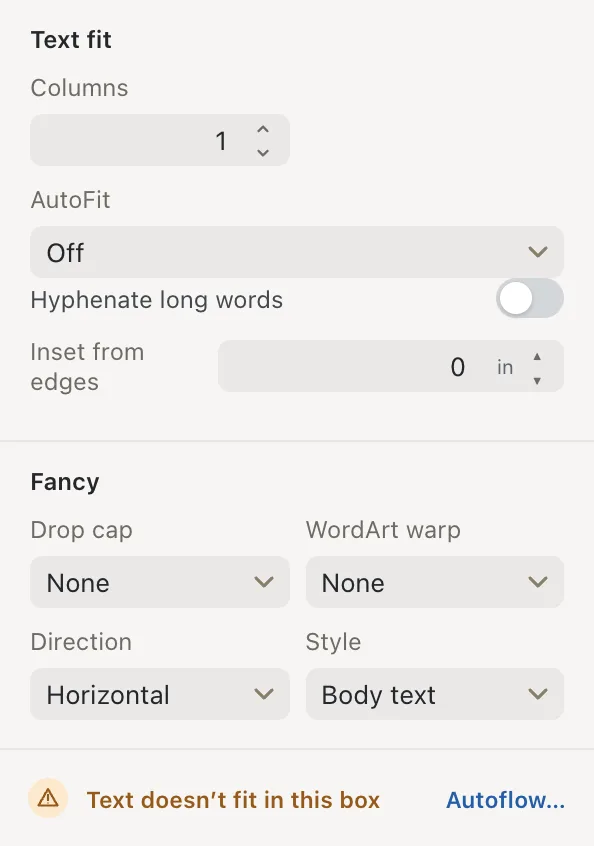
- 1AutoFit
- 2Columns
- 3Text doesn't fit in this box
Here is the same box after choosing Shrink on overflow:

Make room by hand
If you’d rather keep the text size you chose:
- Make the box bigger. Drag a handle on its edge.
- Use smaller spacing. In the Text tab, lower Line spacing or After ¶ under Spacing, or lower Inset from edges under Text fit.
- Turn on Hyphenate long words so long words can break at the end of a line.
- Use two or more columns with Columns if the box is wide. See Columns, drop caps and WordArt.
- Shorten the text.
Continue the story in another box
For a newsletter article that should carry on elsewhere, click Autoflow… next to Text doesn’t fit in this box. Korva adds linked boxes on the following pages until all of it fits. To choose the next box yourself, see Link text boxes.
If it still doesn’t work
The text shrank to a tiny size
Shrink on overflow and Best fit make the text as small as they need to. Set AutoFit back to Off, then make the box bigger or link it to another box.
Text I can see on screen is missing from my PDF
Check that the box doesn’t overflow: select it and look for Text doesn’t fit in this box. Hidden overflow text never prints. Also see Text prints differently from the screen.
The box keeps getting taller as I type
Its AutoFit is set to Grow text box to fit. Choose Off to keep the box the size you drew it.
Something wrong or missing in this article? Email support or open an issue on GitHub.
