How do I do a mail merge?
On the Mailings tab, click Mail Merge Wizard. Choose your .csv or Excel (.xlsx) list, click into a text box and insert fields such as {{ First Name }}, then check a record and click Merge to PDF. Every recipient gets a filled-in copy in one PDF. Mail merge needs Korva Pro.
- In Publisher
- Mailings, then Mail Merge, then Step-by-Step Mail Merge Wizard
- In Korva
- Mailings, then Mail Merge Wizard
Korva Pro feature. Korva Pro is $49 once. The free version shows you this feature and asks for Pro when you use it. Free vs Pro
A mail merge turns one design into many personal copies: a letter to every member, a certificate for every student, a card for every guest. You design it once with fields like {{First Name}}, and Korva fills them in from your list.
Before you start: the list
Your list can be a .csv file or an Excel .xlsx file:
- The first row holds the column names, such as First Name, Last Name, Address, City, State, ZIP.
- Each row after that is one recipient.
Older Excel files (.xls) can’t be read: open them in Excel and save as .xlsx or .csv. From Google Sheets, use File, then Download and choose .xlsx or .csv. From Outlook or another address book, export the contacts as a .csv file.
Step 1: Choose your list
- Open or design the publication, for example a letter. The Letterhead template is a good start. See Start from a template.
- On the Mailings tab, click Mail Merge Wizard.
- Click Select Data…, choose your list and click Open.
The wizard shows the first few rows and how many there are. Edit list… lets you leave people out, sort and filter. See Choose, sort and filter recipients. Change… picks a different list.
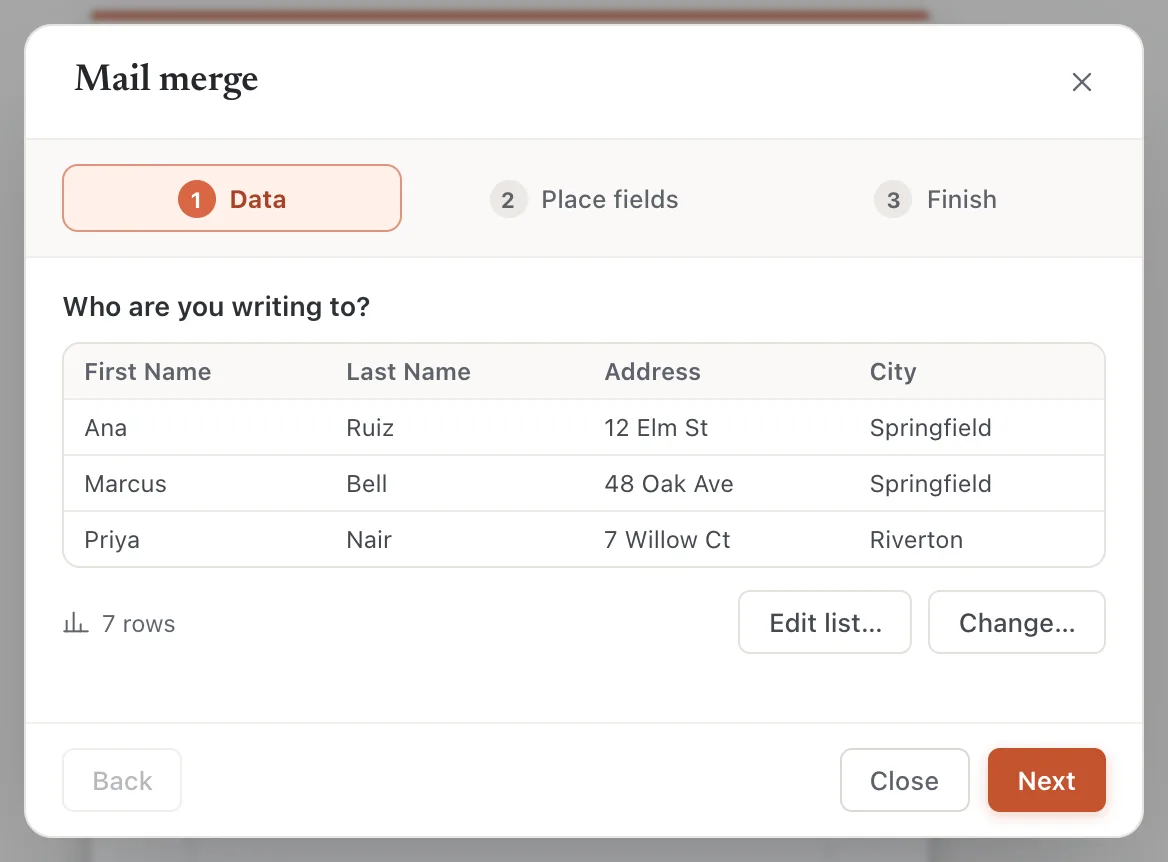
- 1Rows in your list
- 2Edit list…
- 3Next
- Click Next.
Step 2: Place the fields
- On the page, click into the text box where a name or address should go, at the spot you want it.
- In the wizard, click a field, such as {{ First Name }}. It goes in where the cursor is. Type spaces and punctuation between fields as normal text.
- Or click Insert Address Block for the name and address lines, and Insert Greeting Line for Dear {{First Name}},. Korva picks the columns from your list’s column names.
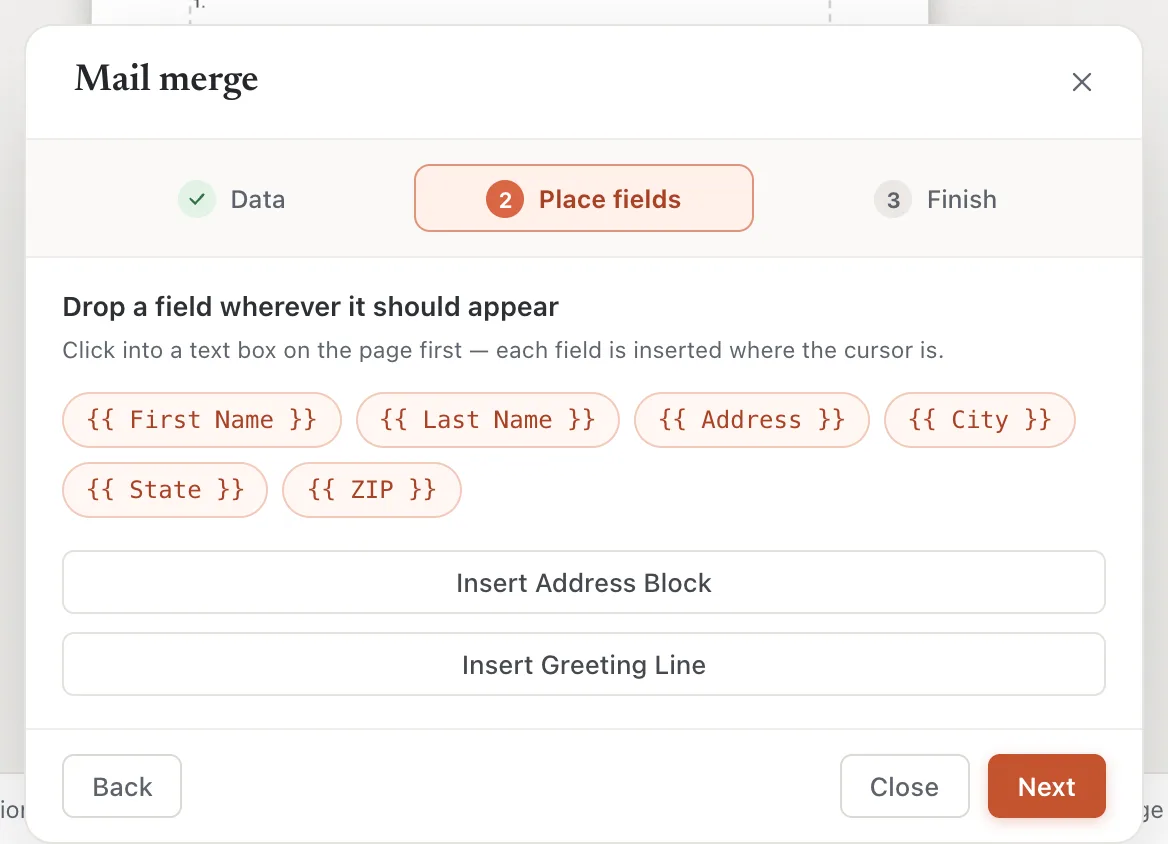
- 1Click a field to insert it
- 2Insert Address Block
- 3Insert Greeting Line
- Click Next.
Step 3: Check, then merge
- Use the arrows next to Record 1 of 7 to look through your recipients. With Show on the page ticked, the page shows each person’s details.
- Click Merge to PDF · N pages, choose where to save, and click Save.
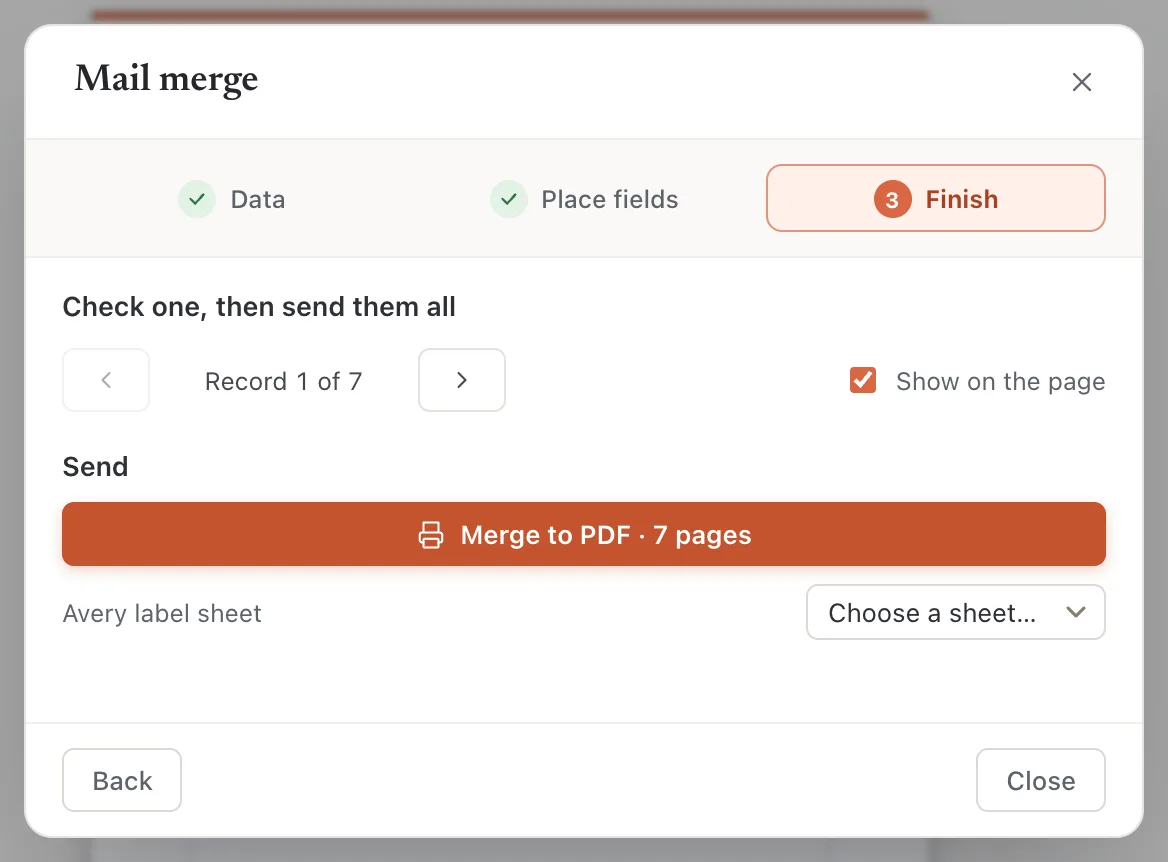
- 1Next record
- 2Show on the page
- 3Merge to PDF
The PDF has one copy of your publication per recipient, in list order. Print it to post the letters. To print address labels from the same list, choose a sheet under Avery label sheet. See Print Avery address labels.
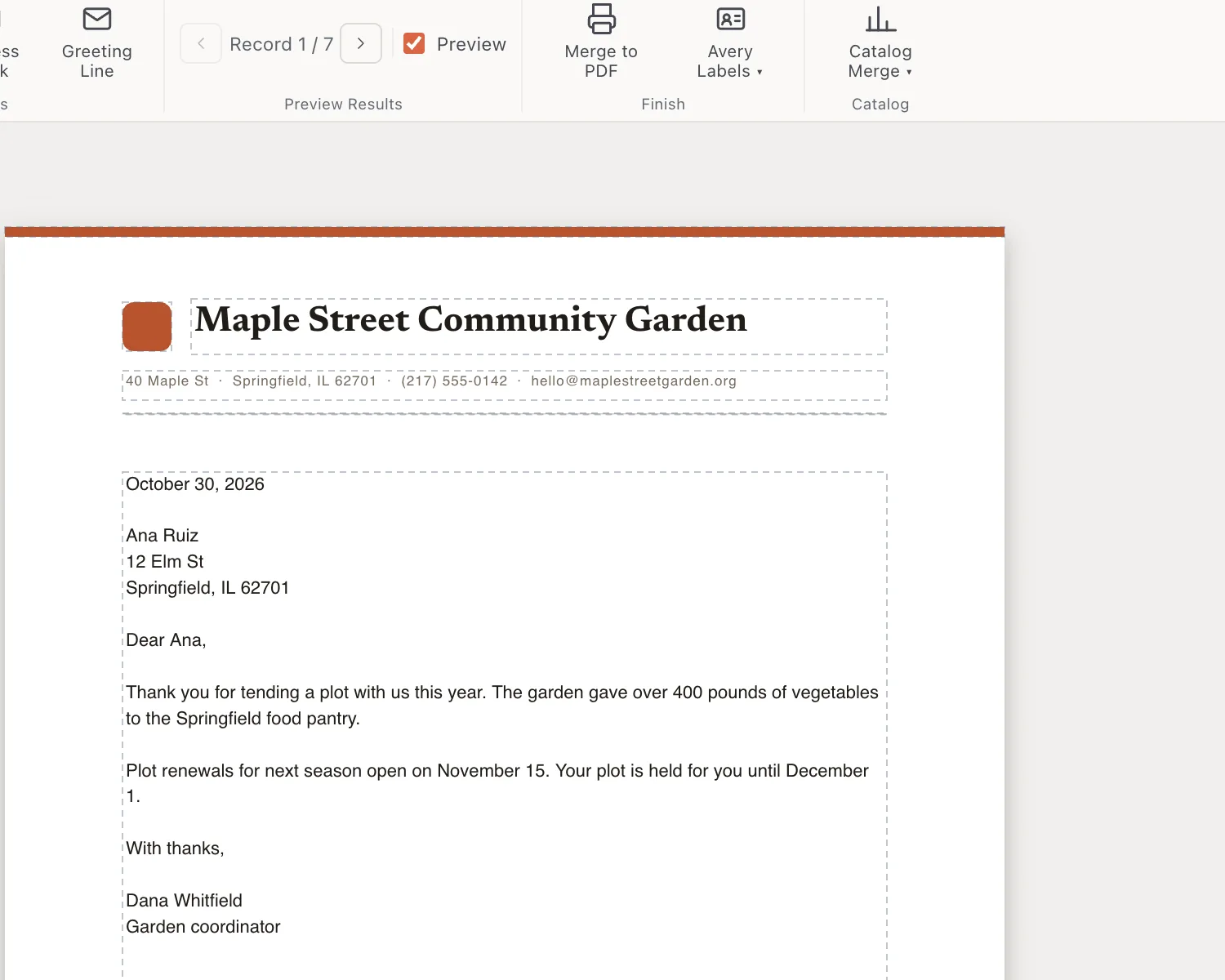
- 1Record 1 / 7
- 2Preview
Other ways to export the merge
- File, then Export, then Mail merge PDF shows how many recipients are included, then Export merged PDF.
- Export PDF or File, then Print on a publication with fields and a list asks Export the merged records?: Every record, one copy each (Merge to PDF), Only the record shown, or The fields as they are, not filled in.
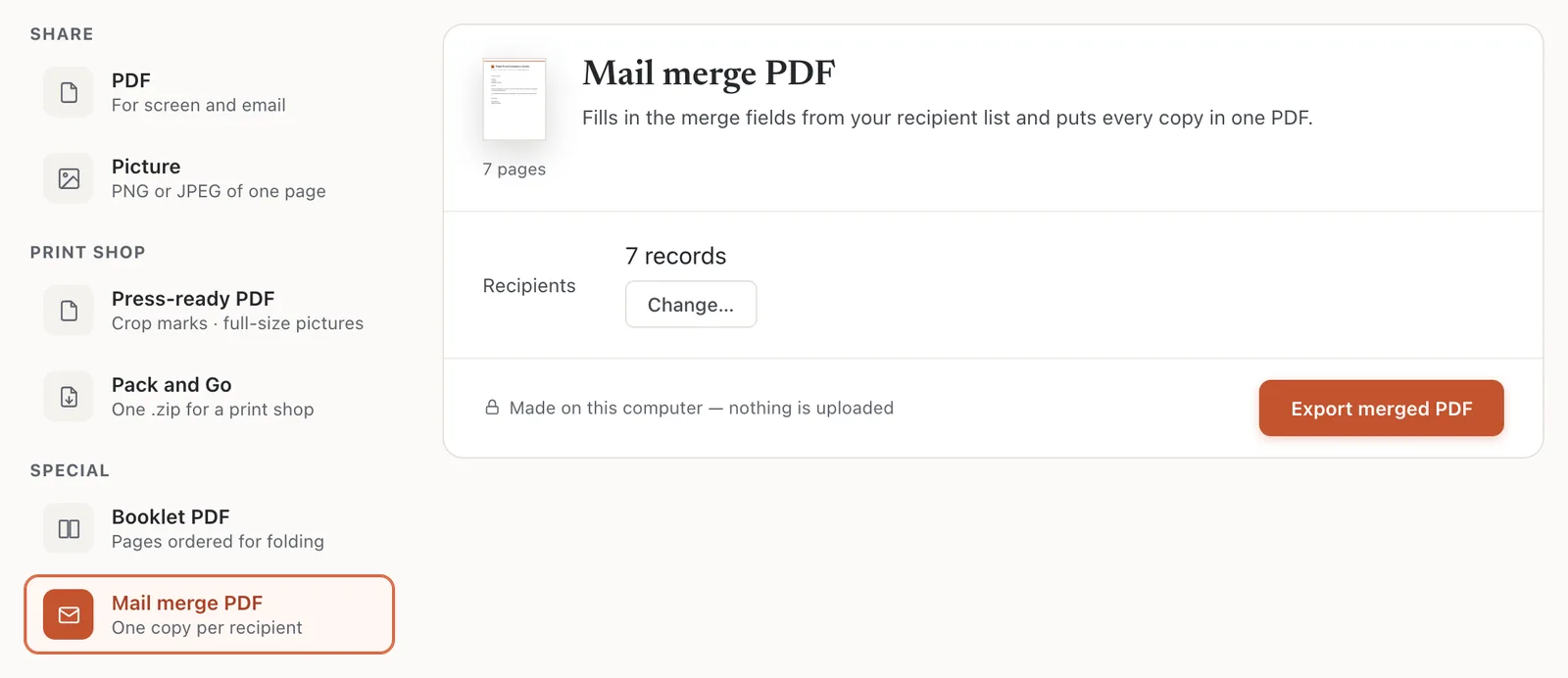
- 1Mail merge PDF
- 2Recipients
- 3Export merged PDF
What’s different from Publisher
- Korva merges to a PDF. To print, print the PDF. There’s no direct merge to a printer and no email merge.
- A line made only of fields that are all empty is left out, so a missing company name doesn’t leave a gap in the address. A greeting with an empty name reads Dear Sir or Madam,.
- Field names ignore capital letters: {{name}} fills from a Name column.
If it still doesn’t work
A field comes out empty on every copy
The field’s name doesn’t match a column in your list. When you load the list, the status bar says not in this list, so left empty: and names the fields. Merge to PDF warns too, under Not in the recipient list. Rename the column in your spreadsheet, or delete the field and insert it again from the list.
Korva says “No records found in the file”
The file has a header row but no rows under it, or it isn’t a real .csv/.xlsx file. Open it in your spreadsheet program, check the data, and save it again as .csv or .xlsx.
Accented or non-English letters look wrong
Korva works out how most .csv files were saved, but not always. Save the file as “CSV UTF-8” in Excel, or as .xlsx, then choose it again with Select Data….
The text doesn’t fit for some people
A long name or address can overflow its box. Merge to PDF lists the output pages with the recipient’s name. Make the box bigger, or turn on Shrink on overflow for it. See Make text fit its box.
Something wrong or missing in this article? Email support or open an issue on GitHub.
