I lost my Korva licence key. How do I get it back?
In Korva, open the licence window and click Lost your key? Sign in with your purchase email. It opens the customer portal (polar.sh/korva/portal). Enter the email address you bought with, type the one-time code Polar emails you, and your licence key is shown there.
- In Korva
- Title bar, then Free, then I have a licence key, then Lost your key?
Korva Pro feature. Korva Pro is $49 once. The free version shows you this feature and asks for Pro when you use it. Free vs Pro
Your licence key was in the receipt email sent when you bought Korva Pro. If you can’t find that email, you don’t need to write to us: the customer portal shows the key any time.
Get your key from the customer portal
-
In Korva, click the Free button in the title bar, then I have a licence key.
-
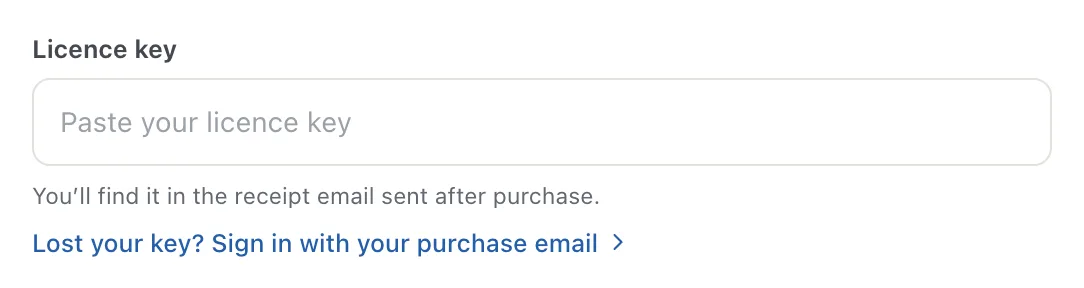
Click Lost your key? Sign in with your purchase email. The customer portal opens in your browser.
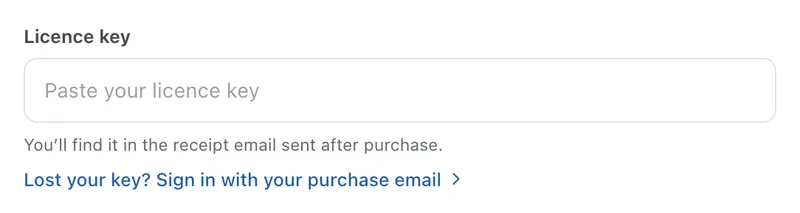
- 1Lost your key? Sign in with your purchase email
-
Enter the email address you used when you bought Korva Pro.
-
Polar emails you a one-time sign-in code. Type it in. There’s no password.
-
Your licence key is shown in the portal. Copy it and paste it into Licence key in Korva, then click Activate Pro.
You can also open the portal directly at polar.sh/korva/portal, or from our licence page. In the portal you can also download your invoices and free up a computer your licence is on.
If it still doesn’t work
The portal doesn’t know my email address
Use the exact address you entered at checkout. If you might have used another address (a work address, or an old one), try that one.
The sign-in code never arrives
Wait a few minutes and check your spam folder. Then try sending it again.
I still can’t find it
Write to us from Help, then Contact Support in Korva, or email support@korsund.com. Tell us the email you bought with and roughly when. See Contact support.
Something wrong or missing in this article? Email support or open an issue on GitHub.
